How is the Settings page organised?
- Answer
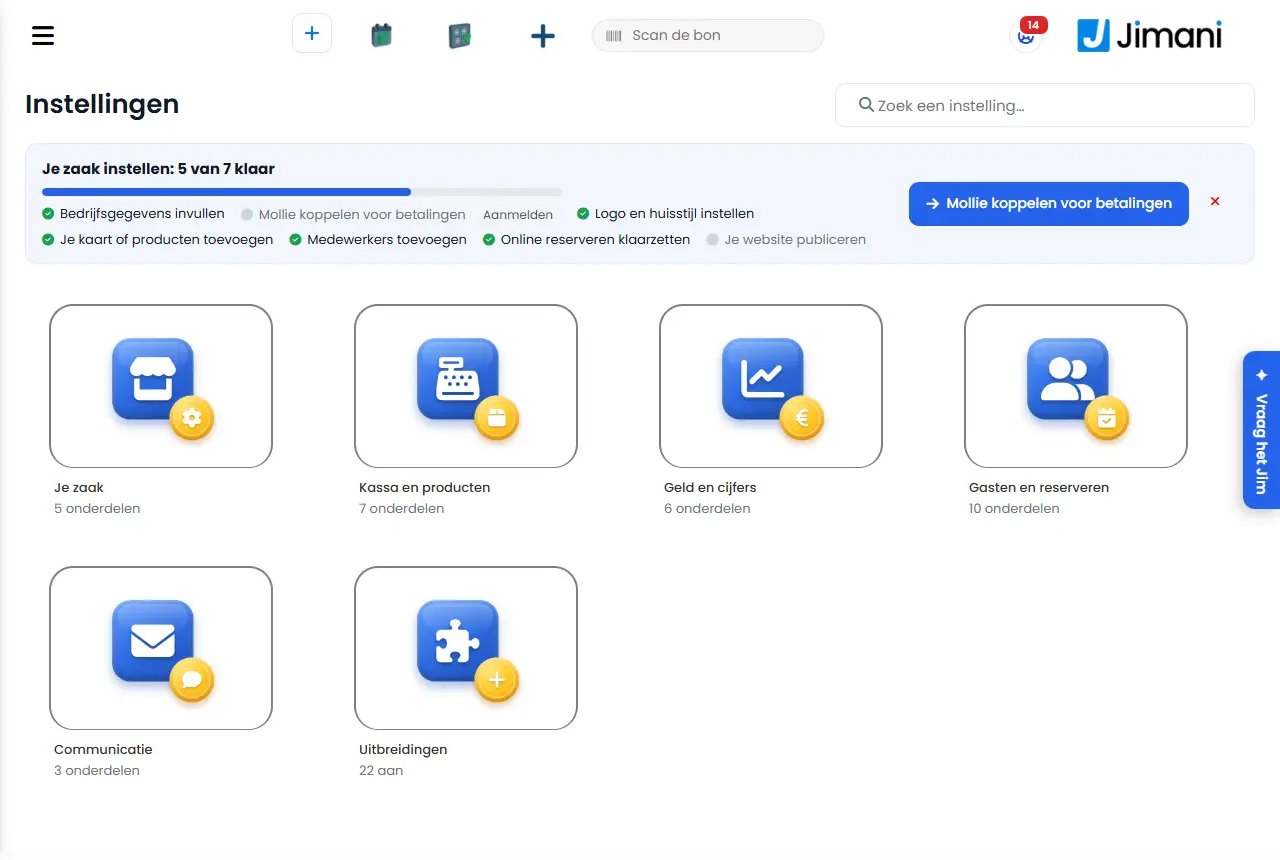
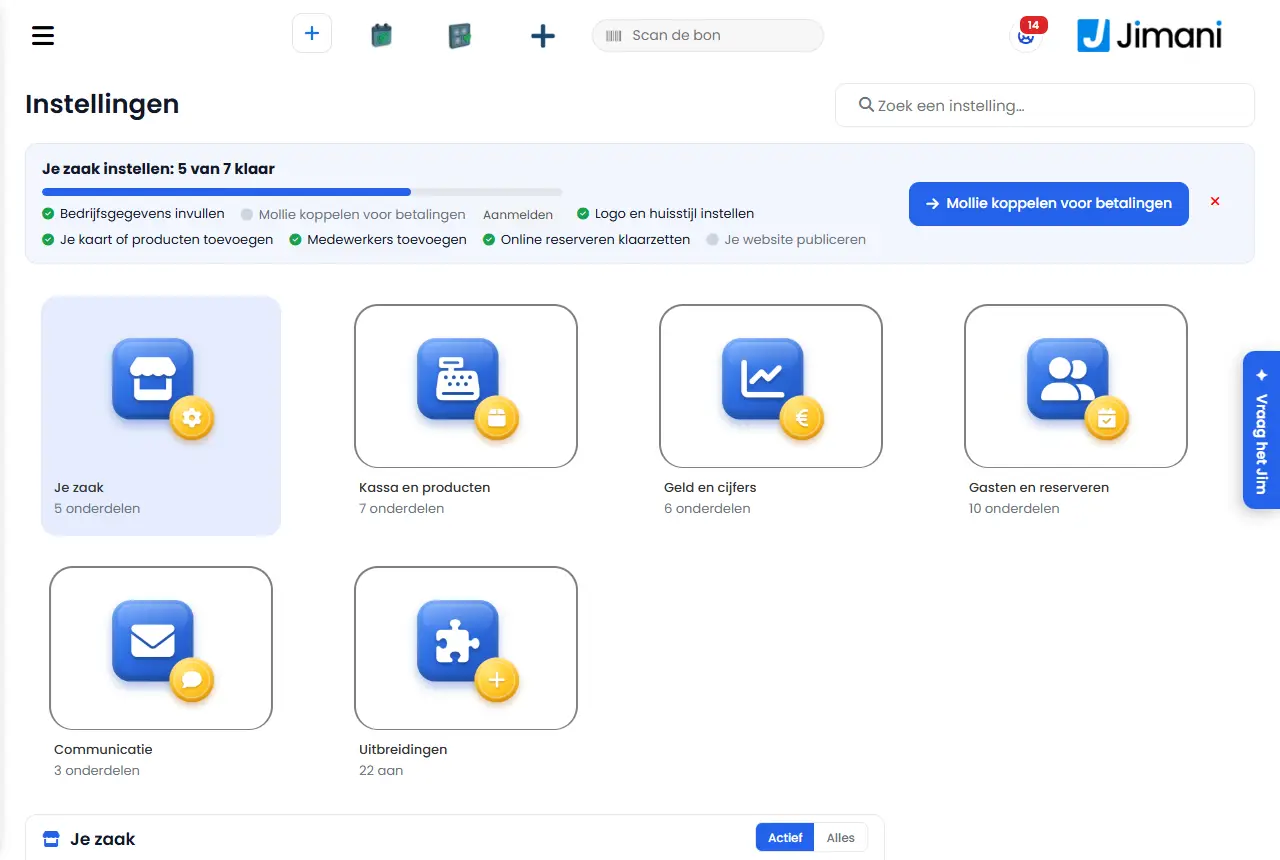
Settings has five groups as large tiles: Your business, Till and products, Money and figures, Guests and bookings and Communication, with the Add-ons tile last. Click a group and you see Frequently used at the top and below it the parts per heading. With Search for a setting… you find everything, including what is not in view.
- Where to find it
Menu > Settings (
/Settings); you can open a group directly with, for example,/Settings?groep=Zaak- Explanation
You only see the parts that your role may open and that belong to your modules and add-ons. Each group tile shows how many parts it contains. A part with its own screen opens with a click; a free feature without its own screen has a Yes/No button that saves immediately. Behind some parts there is a short status, such as Mollie connected, Not complete yet, Published or Balance €4.20. With the i button you read what the part is, what it does and why you need it. A new business sees at the top Set up your business: 2 of 7 done, with a button to the next step (such as Fill in business details, Connect Mollie for payments, Set up logo and branding, Add your menu or products, Add staff, Set up online booking, Publish your website and Advice for your business).
- Buttons and settings
Name What it does When to use it Please note Search for a setting… Searches the names, the explanation, the tabs and the keywords of all parts, also in Dutch if you work in another language. If you do not know in which group something is. Also finds parts that are not in view; they are then under Also found. Show: Active, All Per group: Active shows what your business uses or has on, All also the add-ons that are off and what is only shown if you use it. If you are missing a part. Jimani remembers your choice per group. An add-on that is off shows Off and takes you to Add-ons. Frequently used Quick buttons to the parts that you open most often. Every day. For a new user first a fixed set. Add-ons Turn all add-ons and connections on or off, with the number that are on. To choose a feature. Only for whoever may turn on integrations. Yes, No Turns a free feature without its own screen on or off straight away. With Log in on the till, Customer details on the POS, Keep track of tips and Guest details: who sees what. Only for whoever may turn on integrations. New This part is new. - - Runs until The add-on has been cancelled and works until that date. - - - What is where
Group Heading Parts Your business Your business Business details and opening hours, Branding (logo, colours, Font and Corner radius), Languages (with Extra languages and Multilingual (website)) Your business Your team Users and permissions, Log in on the till (Yes/No), Time tracking Your business Website Website Your business Hotel module Housekeeping Till and products Menu and products Menu and settings (your menu and products), VAT groups, Import and export, Label printing, Price per unit, Subcategories, Product notes Till and products Prices and rules Prices and promotions (Discounts, Dynamic Prices, Product set), Allergens (NVWA) Till and products Hardware Tills and equipment (POS & Hardware), Repairs Till and products Stock and purchasing Stock and purchasing (Purchasing, Stocks, Suppliers) Till and products Ordering and kitchen Courses, Kitchen screen, Parking tables, QR codes, Buzzers Till and products Payment and returns Refund, Customer details on the POS (Yes/No), Keep track of tips (Yes/No), Own use and waste Money and figures Figures Reports (Financial reporting, Progress report, Discounts, Refunds overview, Waste overview, Revenue per employee), Day closing Money and figures Payments Payments (Mollie) (Everything about payments, Mollie), Guest payments (for a business without reservations), Gift cards and gift vouchers, Pay with tokens, Transaction costs Money and figures Administration and costs Invoicing and costs, Jimani AI credit, Accounting link Money and figures Hotel module Guest register & tourist tax, Online payment Guests and bookings Guests Search guests and reservations, Guest information, Customer CRM, Guest details: who sees what (Yes/No) Guests and bookings Book Online bookings (widget), Reservation blocks, Packages, Guest payments (Unpaid and No Show, Outstanding prepayments), Time blocks Guests and bookings Online ordering Online webshop, Delivery and pickup (Delivery methods and shipping costs, Delivery times and postcodes, Webshop settings), Order Restrictions Guests and bookings Hotel module Advanced, Online check-in, Codes & keys Communication Messages to guests Email (Customer contact, Newsletters, Send from your own address), Documents, SMS, Survey Communication For your team Announcements Only to be found with search: Add-ons (formerly Connections), Jimani webshop (ordering tills, printers and card terminals; also via Buy equipment in the Jimani webshop under Add-ons) and iCal calendars. A tile that does not belong anywhere goes under Other.
- Related
Which add-ons does Jimani have and what do they cost?, What is in the Jimani menu?, What do you enter under Company details?
- Where do I find a setting in Jimani?
- How is the settings screen built up?
- How do I quickly search for a setting?
- Why don't I see some settings?
Keywords: settings, where is, find setting, your business, till and products, money and figures, guests and bookings, communication
Last checked: 2026-10-16
Translated from the Dutch knowledge base; the Dutch version is leading.