What can you set for courses?
- Answer
Under Courses you create the courses of your menu, such as Starter and Main course, in the order in which the kitchen makes them. Then on each product you set which course it belongs to. The Courses feature costs €10 per month (excluding VAT) and only works together with Restaurant. If you already use Courses, it is free until 1 January 2027.
- Where to find it
Settings > Point of sale and products > Courses (
/Settings/WebshopCourses)- Explanation
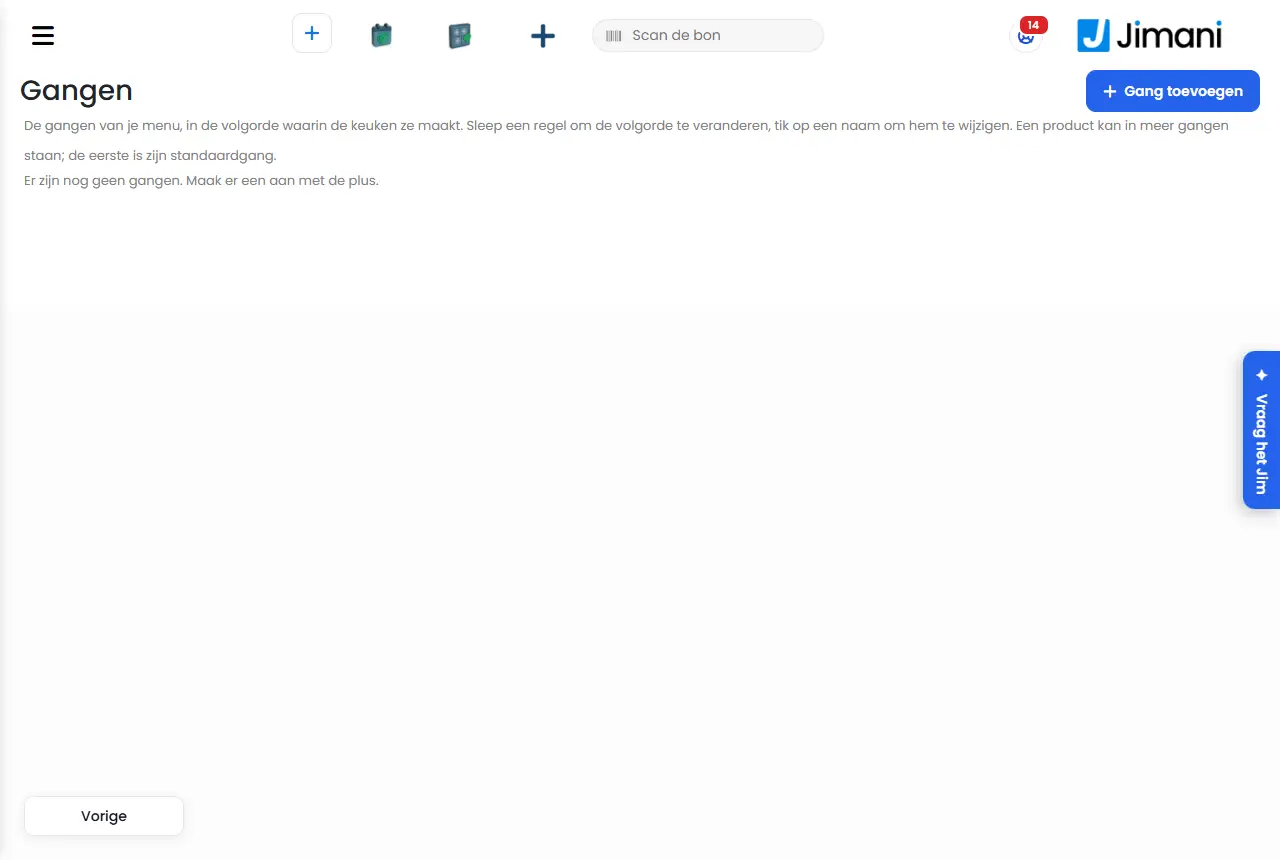
If your store has no courses yet, it gets the default courses Drinks (send immediately), Starter, Main course and Dessert. You drag a line to change the order and tap a name to change it. A product can be in more than one course; the first is the default course and the item gets it when it is rung up at the POS. Without courses, the starter leaves the kitchen at the same time as the main course.
- Buttons and settings
Name What it does When to use it Note Courses Title of the page. The screen says: "The courses of your menu, in the order in which the kitchen makes them. Drag a line to change the order, tap a name to change it. A product can be in more than one course; the first is its default course." Add course The button at the top right that opens the window. The window is called Update Course when you open an existing course. For every course of your menu. Course Block of the window: "You see the name and the colour at the POS and in the kitchen." Above the window it says: "A course of your menu, such as starter or main course. The kitchen works in the order of the courses." Name "For example Starter. Every course has its own name." At most 100 characters. Always. Colour "This is how you recognise the course at the POS and in the kitchen." You choose a colour or a Custom colour. To tell the courses apart. Send immediately "Goes straight to the kitchen, without being called up (e.g. drinks)." You choose Yes or No. Yes for drinks. Active "A course that is off can no longer be chosen; products that already have it keep it." You choose Yes or No. To take a course away temporarily. Courses (on a product) On the first page of the product window: "Which courses this product belongs to. The first (with the star) is the default course: the item gets it when it is rung up at the POS." For every product that goes to the kitchen. Default Label on the first course of a product. Make this the default course Puts another course of the product first. Delete Removes a course from this product. No other courses left What you see when all courses are already on the product. Save Saves the course. - Related
How do I assign products to courses?, What can you set for a product?
- How do I create starter and main course as courses?
- In which order do I set the courses?
- Where do I manage the courses of my menu?
Keywords: courses, starter main course, default course, send immediately, kitchen courses, organise menu
Last checked: 2026-10-16
Translated from the Dutch knowledge base; the Dutch version is leading.