How does the kitchen screen's screen work?
- Answer
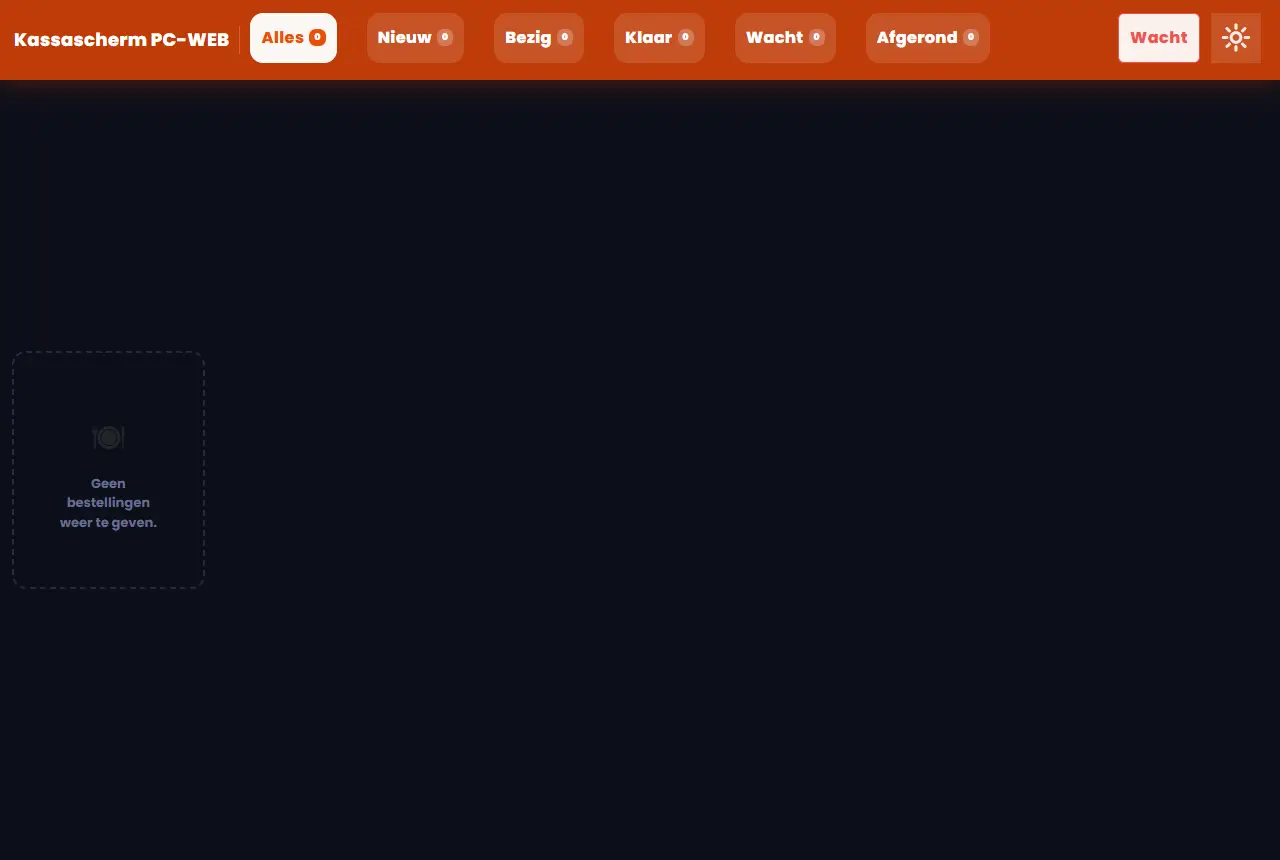
The kitchen screen is a screen of its own on a paired device. At the top are the tabs and the buttons Hold and Light or dark, below that is a card per order. If the device is not paired, you see This screen isn't linked yet.
- Where to find it
On the kitchen screen itself (
/Kitchen/Kitchen). You pair it under Settings > Till and products > Tills and equipment.- Explanation
The screen refreshes itself every 10 seconds. A step-by-step explanation is in How does the kitchen screen work?. If someone opens the address without a paired device, or the device belongs to another business, it says This screen isn't linked yet with the text The kitchen screen only works on a paired device. Pair this screen under Settings > Connected devices as a kitchen screen and then open it again. The button Go to Connected devices takes you to the list.
- Buttons and settings
Name What it does When to use it Note Name of the device Appears at the top left of the bar. - From Display Name on the device. All, New, In progress, Done, Hold, Finished Tabs with the number of orders next to them. To filter by state. An order with items in two states appears in both tabs. Hold (Hold: on) Turns on hold mode; after that a tap on an item puts it on hold. To let an item wait a little longer. If you tap it again, the hold disappears. Light or dark Switches the colours of the screen. To taste. The screen remembers the choice on this device; default dark. Card per order Name of the order, table or location, guests, waiter, the type (Eat here, Pickup, Delivery), the time and the items with options. To see what has to be made. With Courses the whole ticket appears per course on the card. Tapping an item line New becomes In progress, In progress becomes Done, Done becomes In progress. While preparing. In hold mode you put items on hold. Buttons in progress, done and back Set all items of the card at once. For a card with more than one item. - Bottom bar New, In progress, Done, Hold Shows the state of the order; Hold turns on hold mode for that card. To see the state. - Completed Completes the order. As long as not everything is done it says Partially Ready. On the Done tab. If a course is still waiting, you cannot complete. Go to Connected devices Takes you to the list of devices. If the screen is not paired. Only on the page This screen isn't linked yet. - Messages
Message What it means What to do Set to ... The item is now in the stated state. - All items: ... All items of the card have been set at once. - Item ON HOLD The item has been put on hold. - Hold removed The item's hold is gone. - Turn on Hold mode to change the held items. You tapped an item on hold while hold mode is off. Turn on Hold. Order completed and served The order has been completed. - Failed to complete order Completing did not work. Try again. The status cannot be changed while a payment is open. The order is still waiting for a payment. Settle first. No orders here There is nothing for this tab. - No ready orders Nothing is done yet. - - Related
How does the kitchen screen work?, What can you set on a kitchen screen?
- Why does my kitchen screen say This screen isn't linked yet?
- What does the Hold button do on the kitchen screen?
- How do I switch the kitchen screen between light and dark?
Keywords: kitchen screen, kds screen, kitchen orders, hold mode, completed, not linked yet
Last checked: 2026-10-16
Translated from the Dutch knowledge base; the Dutch version is leading.