What can you set for stocks?
- Answer
On the Stocks tab you see per product how much is in stock and what it is worth. You turn stock on or off per product, adjust quantities and prices and import or export the stock. The Stock feature is free.
- Where to find it
Point of sale and products > Stocks (
/Settings/Stocks)- Explanation
At the top are a search field and the filters. Below that four blocks with totals: the stock value, the average margin, the sales value and the number of items. Below that the list. The pencil (Edit) makes the quantities, minimum stock, supplier and prices editable; afterwards you save with Save. The switches Stocks and Sold out save immediately. A sale lowers the quantity, and when a delivery arrives you book it in. You manage stock here and not in the product window.
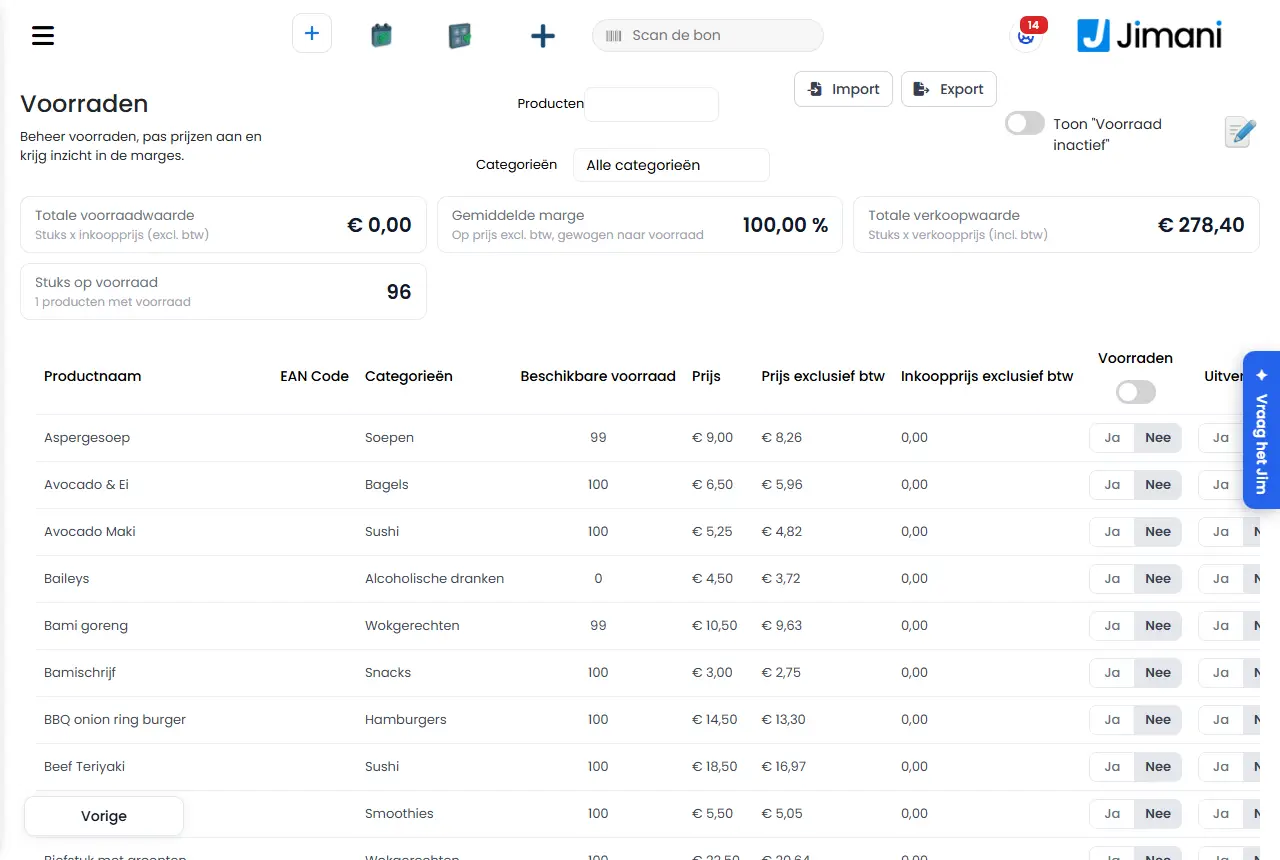
- Buttons and settings
Name What it does When to use it Note Stocks Title of the tab. The screen says: "Manage stocks, adjust prices and gain insight into margins." Products Search field: searches on product name and EAN Code while you type. To find a product. Filter Drop-down with Show all and Below minimum stock. To see what you need to reorder. Below minimum stock shows the products whose stock is equal to or lower than the minimum. Location Filter on warehouse location, with All locations. When you track stock per place. Only with the Warehouse locations feature. Categories Filter on category, with All categories. For a long list. Show "Inventory Inactive" Tick box that only shows the products that do not have a stock line yet. To see which products you are not tracking yet. Total stock value Units x purchase price (excl. VAT), over the products currently in the list. For your bookkeeping. The filters count. Average margin On price excl. VAT, weighted by stock. Total sales value Units x selling price (incl. VAT). Units in stock The number of items, with below it the number of products with stock. Product name Column with the name of the product. Available stock Column with the quantity. In edit mode you type the new quantity; Jimani books the difference. For a stock count or a delivery. Stock location Column with the quantity per location, which you click to set quantities per location (Quantities per location). Only with Warehouse locations. Minimum stock Column with the lower limit. Only with the Purchasing feature. Supplier Column with the supplier of the product. Only with the Suppliers feature. Price Selling price, incl. VAT. Price excluding VAT The selling price without VAT. Purchase price What you buy the product for. For your margin. Stocks (switch) Whether the stock of this product is tracked. At the top of the column, a switch turns it on or off for all products in the list (Track stock on or off for all products in the list). To choose which products you track. Jimani first asks whether you want to turn on Track stock for all products in the list. On: the product is automatically set to sold out when the stock runs out. Sold out Switch that sets the product to sold out immediately. A sold out product is no longer shown to the customer. When something is temporarily out. Margin The difference between price and purchase price. Export stock Downloads the stock. You first choose: Stock (quantities and purchase price) or Stock settings (minimum and supplier). As the basis for an import. Only with Import and export. Which file do you want to import? The question when importing, with the same two choices. Save Saves the changes from edit mode. Nothing is sent to the server until you click Save. - Related
How do I track the stock of my products?, What can you set for purchasing?, What can you set for warehouse locations?
- How do I see the value of my stock?
- Can I import and export the stock?
- How do I adjust stock quantities per product?
Keywords: stock, stocks, track stock, minimum stock, sold out, stock value, margin
Last checked: 2026-10-16
Translated from the Dutch knowledge base; the Dutch version is leading.