What can you set under Delivery settings, Pickup and Eat here?
- Answer
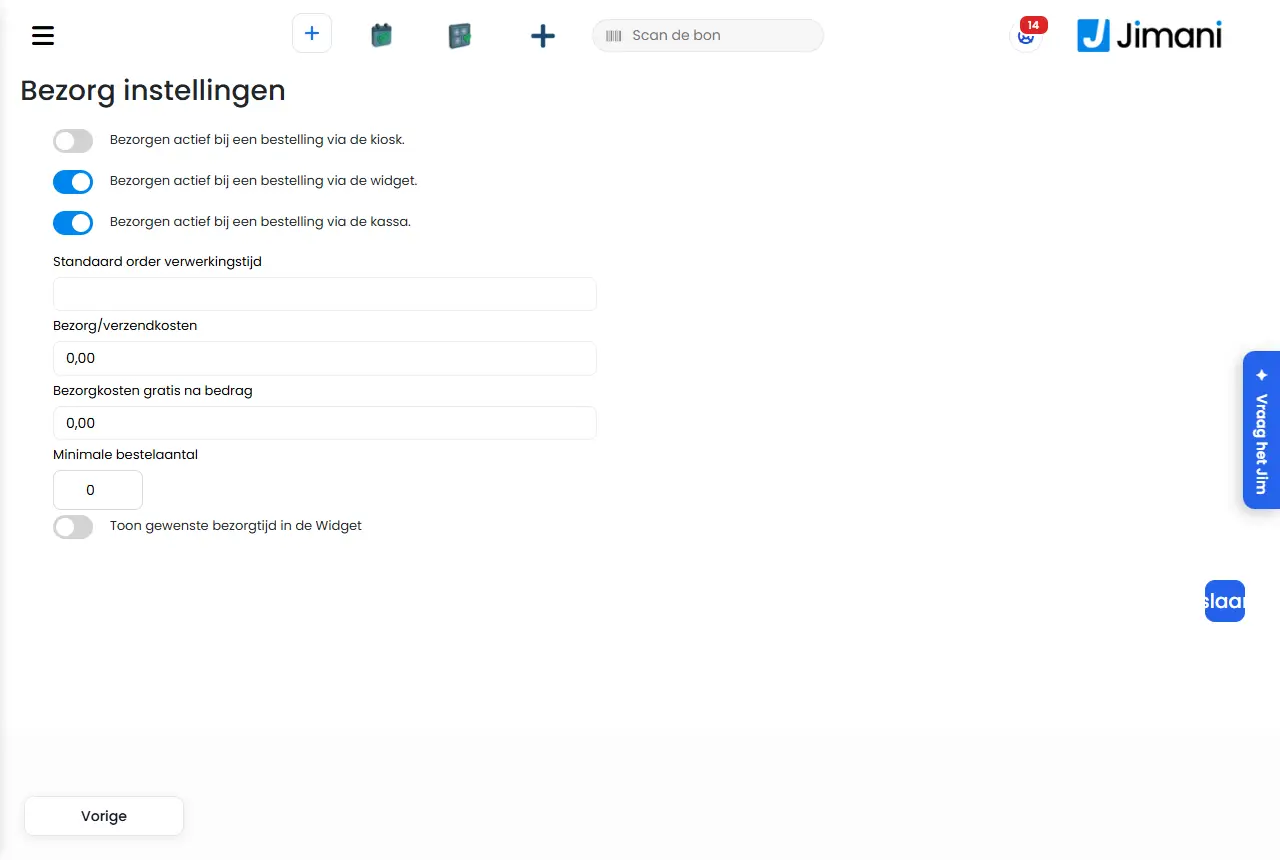
Three short settings screens determine per ordering channel (kiosk, widget and POS) whether delivery, pickup and eat here are on, and how long and how fast delivery is. The same settings are in the Webshop settings window; preferably use that window. Whether the webshop widget offers pickup and delivery is chosen in the widget itself; see How do the delivery and pickup options of the webshop widget work?.
- Where to find it
Settings > Guests and bookings > Delivery and pickup > Webshop settings (or type "Webshop settings" in Search for a setting…), with the steps Delivery settings, Eat here settings and Pickup settings. The separate screens are also at
/Settings/DeliverySettings,/Settings/DineInSettingsand/Settings/PickupSettings. No menu entry leads to them; they can be reached by anyone who has the permission (Delivery settings, Settings for "Eat here" and Pickup settings under Users and permissions) and knows the address.- Explanation
Each screen has switches per channel and one Save button. After saving you get Your details have been saved! and you go back to Settings. A channel is the place where the guest orders: the kiosk in your business, the widget (your online webshop) or the POS (manual ordering). If you want to manage the delivery methods of your webshop (Pickup, Delivery and Eat here with the delivery questions), you do that in the widget window; see How do I turn on delivery, pickup or eat here in my webshop?
- Buttons and settings
Name What it does When to use it Note Delivery settings The title of the first screen. - Shown in the Webshop settings window as the step Delivery settings. Delivery active for an order via the kiosk. On: delivery is a choice on the kiosk. When guests want to order a delivery at the kiosk. - Delivery active for an order via the widget. On: delivery is a choice in the widget of your webshop. For online ordering with delivery. - Delivery active for an order via the POS. On: delivery is a choice for manual ordering at the POS. For delivery orders by phone. - Standard order processing time The standard time in minutes an order needs to reach the guest: 1, 5, 10, 15, 30, 45, 60 or 90 minutes. To determine the expected delivery time. In the widget window this field is called Delivery travel time. It is required. Delivery/shipping costs The standard costs for delivery or shipping. When every delivery costs the same. An amount per postcode range takes precedence over this. Required; enter 0 for free. Delivery costs free after amount From this amount of products, the delivery costs are zero. To deliver larger orders for free. A limit of 0 means: never free. Required. Minimum order quantity The minimum number of products the guest must have in the cart to check out. If you only deliver from a certain number of products. The widget reports (currently in English) that the guest must choose at least that many products to continue. Required; 0 means no minimum. Show desired delivery time in the Widget On: the guest sees and chooses their desired delivery time in the widget. When guests may choose a time themselves. - Eat Here settings The title of the second screen. - Shown in the Webshop settings window as the step Eat here settings. Eat here active for an order via the widget. On: eat here is a choice in the widget. For ordering at the table or at the counter via the webshop. This label appears twice on this screen: the first checkbox belongs to the kiosk. Eat here active for an order via the POS. On: eat here is a choice for manual ordering. For ordering at the POS. - Pickup settings The title of the third screen. - Shown in the Webshop settings window as the step Pickup settings. Pickup active for an order via the kiosk. On: pickup is a choice on the kiosk. For pickup orders at the kiosk. - Pickup active for an order via the widget. On: pickup is a choice in the widget. For online pickup. - Pickup active for an order via the POS. On: pickup is a choice for manual ordering. For pickup orders by phone. - Show pickup as an option in the widget On: pickup is an option in the widget. Next to the switch for the widget. - Save Stores the switches and fields of this screen. After every change. There is no separate cancel button; the Previous button at the bottom left takes you back to Settings without saving. - Messages
Message What it means What to do Your details have been saved! The settings have been stored. Choose OK; you go back to Settings. - Related
How does the Webshop settings window work?, How do I set delivery costs, free delivery and a minimum order amount?, How do I turn on delivery, pickup or eat here in my webshop?
- How do I turn on delivery or pickup for the kiosk or the POS?
- Where do I set what is possible per ordering channel?
- What is an ordering channel?
- How do I set how fast delivery is?
Keywords: delivery settings, pickup settings, eat here settings, delivery costs free after amount, minimum order quantity, order processing time
Last checked: 2026-10-16
Translated from the Dutch knowledge base; the Dutch version is leading.