How does Set up QR codes work in Jimani?
- Answer
Under QR codes you set up, per table, a QR code with which a guest can call the waiter. You choose the tables, create the address of the QR code, choose a point of sale (printer) and save. The guest then sees a simple Service page.
- Where to find it
Settings > Till and products > QR codes, click Set up (
/QRCode/QRCodeSetup). The QR codes add-on must be on (€10 per month, only with the online webshop).- Explanation
The Set up QR codes window says: With a QR code on the table a guest can call the waiter or order themselves. Ordering yourself via the QR code is not finished yet; the QR code currently only calls the waiter. The window has two choices: QR codes (Order QR codes for your tables in our webshop. You can link each QR code to a table later. Button Buy table QR codes, which does not open anything yet: print the cards yourself with Create QR code) and Set up QR codes (Set up the QR codes for your tables, turn on the services you want and link each table to the right point of sale. Button Set up). Step by step it is in Can a guest order and pay at the table with a QR code?.
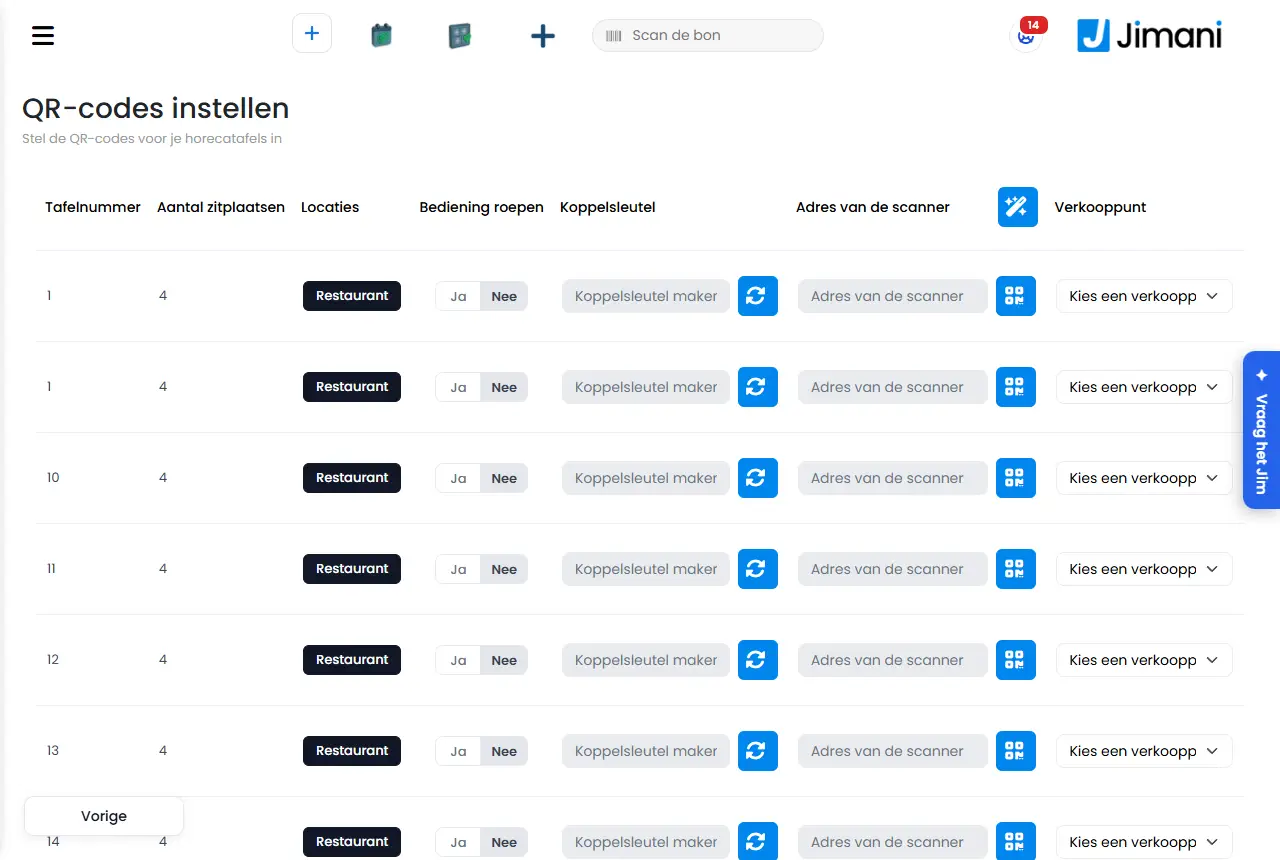
- Buttons and settings
Name What it does When to use it Note Table number The number of the table. - Comes from your hospitality tables. Number of seats The seats at the table. - Read-only. Locations The zone or room of the table. - Read-only; you can sort the columns. Call the waiter Tick: guests may call the waiter at this table. Per table. - Connection key An extra code per table in the address of the QR code. With Create a new connection key (rotating arrows) you create one. If you want to give a table its own key. The field is read-only. Scanner address The address in the QR code. With Create QR code you see the QR code. With Create connection keys for all tables you create the addresses of all tables at once. For printing the QR codes. The field is read-only. Create QR code Shows the card of the table with Scan to call the waiter and Scan this QR code to call the waiter or order something. Below it: Table, Open your phone's camera and scan the QR code and Powered by. To see or download the code. You download the card as an image (QR-Table with the table number). Point of sale Choose a point of sale (printer) where the signal Call waiter to table comes out. With the copy button you set the first chosen point of sale on all tables. To have a receipt printed on a call. Without a printer at the table there is only a notification. Save Stores the settings for all tables. After changing. You see The data has been saved. - Messages
Message What it means What to do There are no active hospitality tables. First create tables in the hospitality settings. There are no tables to set up. Create tables in Restaurant. The data has not been saved! Saving failed. Try again. Invalid QR code. The guest opened an address that is not valid. Create a new QR code. - What the guest sees (Service page)
Message What it means What to do WAITER SERVICE The status at the top of the page. - Sending your request One moment, we are letting the waiter know. Wait. Someone is on the way We will be at table {0} as soon as possible. Wait. Your request has already reached us There was already a request. Wait. Just a moment Your request has just been handled. In a minute you can ask for service again. Wait a minute. Too many requests are coming in Try again in a few minutes. Wait. That didn't work Your request could not be passed on. Try again or raise your hand. Try again or call an employee. - Related
Can a guest order and pay at the table with a QR code?, Which features cost money?
- How do I set up QR codes on the tables?
- What does the guest see when they scan the QR code?
- Which printer do I choose for a QR code?
- Why can I not set up QR codes?
Keywords: qr codes tables, call the waiter, call waiter, print qr code, connection key, scan to call the waiter
Last checked: 2026-10-16
Translated from the Dutch knowledge base; the Dutch version is leading.