What can you set under Documents?
- Answer
Under Documents you decide what appears on the PDFs your guests receive: which company details are at the bottom, whether the PDF is attached to the email, and the text per document and per language. On the right you immediately see a preview.
- Where to find it
Settings > Communication > Documents (
/Documenten)- Explanation
The page has three blocks: What's on your PDFs, Attach and Text per document. On the right is the Preview; on a narrow screen you open it with View preview. Click Save to keep your choices. Save applies to the PDFs of all your modules.
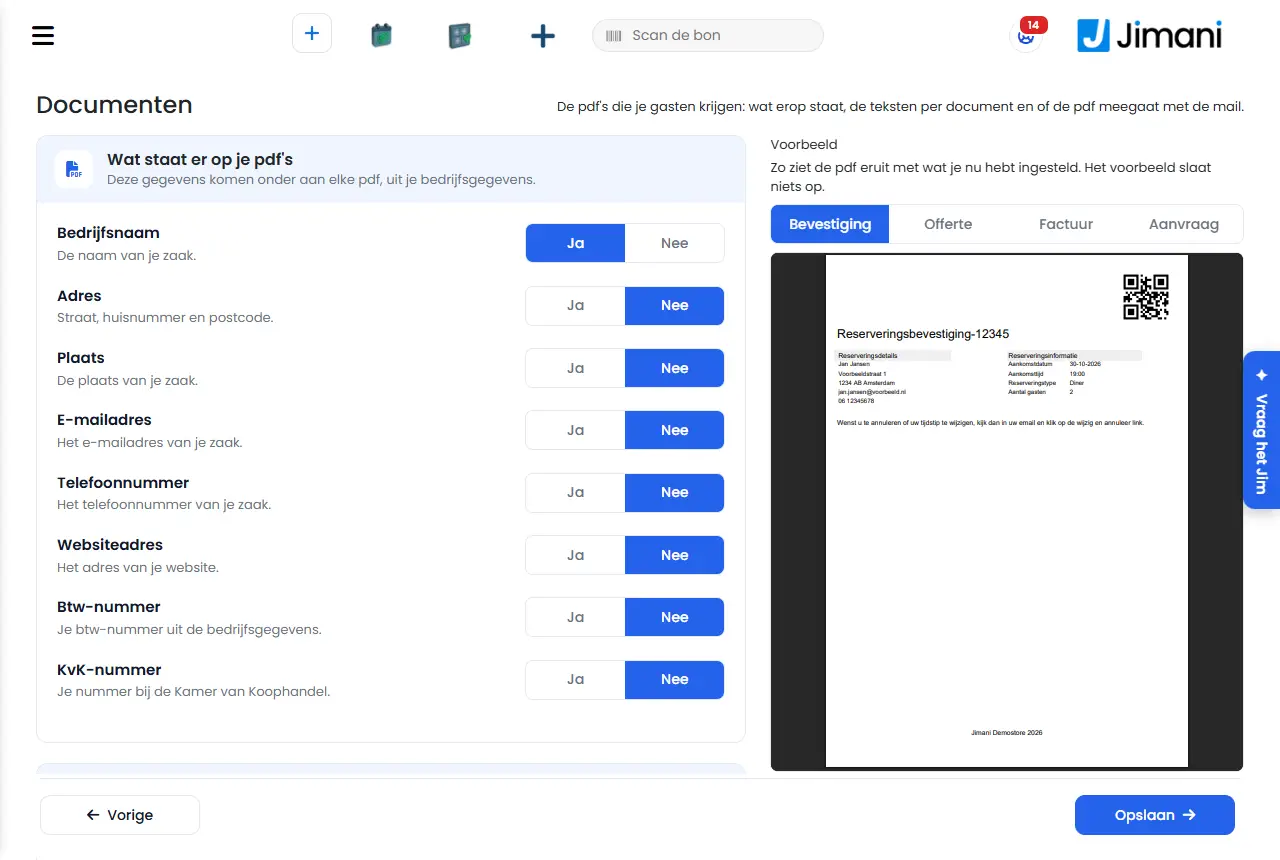
- Buttons and settings
Name What it does When you use it Note What's on your PDFs Per line Yes or No: Company name, Address, City, Email address, Phone number, Website address, VAT number and Chamber of Commerce number at the bottom of each PDF. To put your details on the confirmation, quote and invoice. The details come from your company details. If a line has never been saved, it is not on the PDF. PDF as email attachment Yes: the confirmation email to your guest includes the PDF. Always, unless you don't want an attachment. Default Yes. Text per document A tab per language of your business, with a text at the bottom of the PDF per document. The guest gets the language of their reservation. For example for your cancellation terms. Without languages you see: Your business has no languages yet. First choose your languages under Languages. Document The documents: Reservation confirmation, Quotation, Invoice and Request. - - Text on the PDF The text at the bottom of this document in this language. - At most 2000 characters. File name The name of the PDF for an appointment. Empty = the default name. Only for appointments (salon). At most 100 characters. Preview Shows the PDF of this document with what you have set now. Before you save. The preview does not save anything. View preview Opens the preview on a narrow screen. On a phone or tablet. - Preview language The language of the PDF in the preview. With more languages. - Open the PDF in a new tab Opens the preview separately. If your device does not show the PDF in the page. - Save Saves all choices. When you are done. - - Messages
Message What it means What you do Saved Your choices have been saved. - Saving did not work. Please try again. Saving did not work. Try again. Create preview The preview is being made. Wait a moment. The preview did not work. Please try again. The PDF could not be made. Try again. Your device does not show the PDF in the page. Open the preview in a new tab. Your browser does not show a PDF in the page. Choose Open the PDF in a new tab. - Related
- How do I adjust the PDFs my guests receive?
- Can I attach the PDF to the email?
- How do I change the text on my confirmation or invoice?
- Which company details are at the bottom of my PDFs?
Keywords: set up PDF, confirmation PDF, invoice text, chamber of commerce number on invoice, VAT number on PDF, PDF email attachment, documents
Last checked: 2026-10-16
Translated from the Dutch knowledge base; the Dutch version is leading.