How does the management of Ticket sales (Ticketing management) work?
- Answer
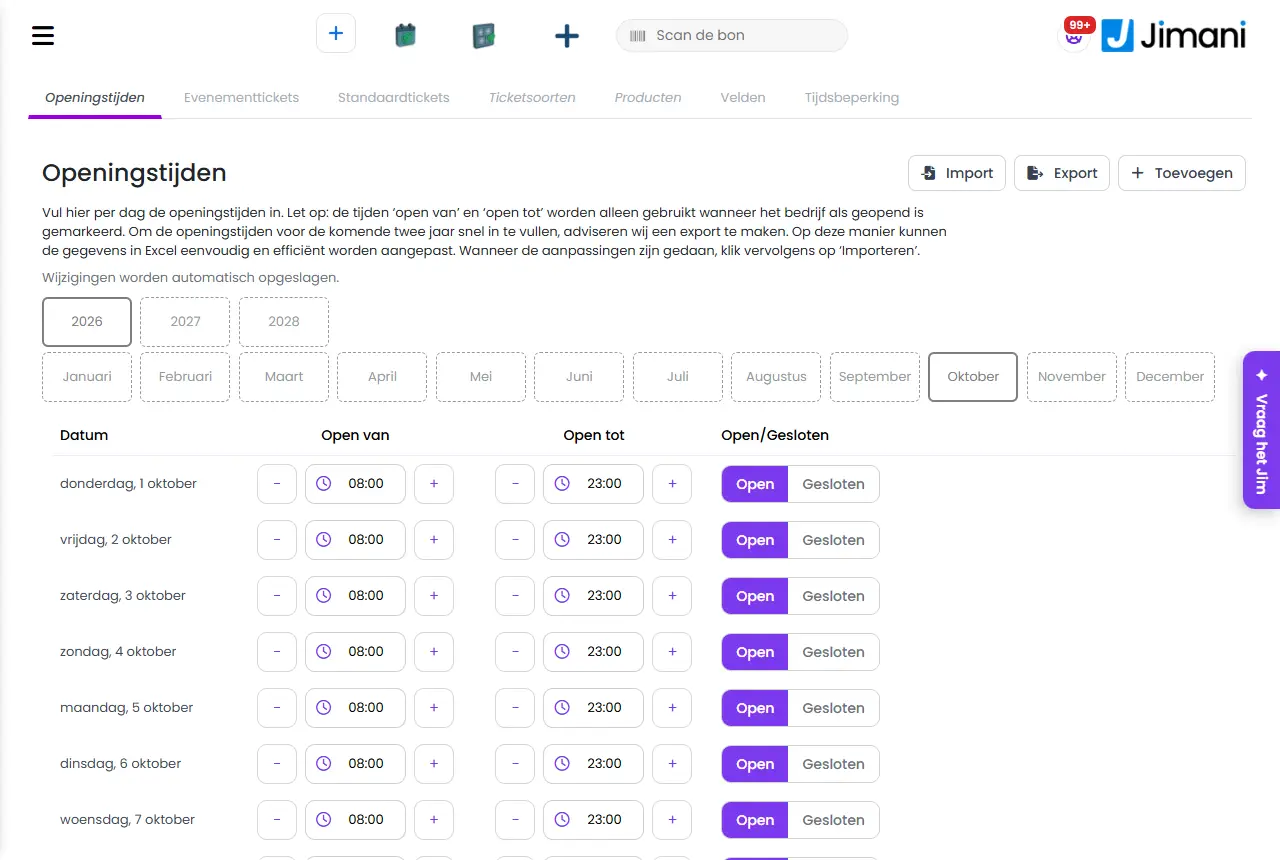
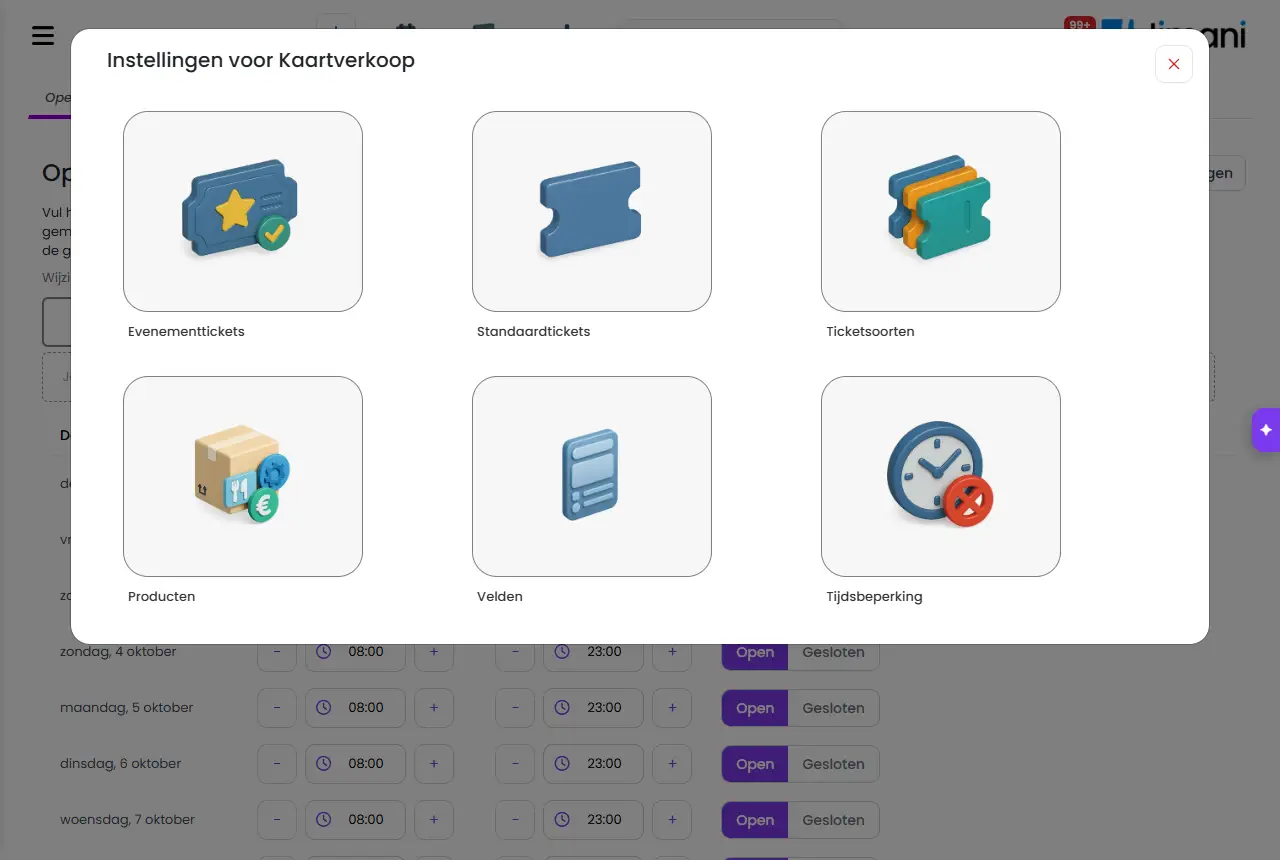
The management of your tickets has seven tabs: Opening hours, Event tickets, Standard tickets, Ticket types, Products, Fields and Time limitation. With the plus button at the top right you add a new item; the tiles are the existing items.
- Where to find it
Ticketing management (in the POS module) or Ticket sales (in a separate ticket module) in the menu (
/Ticketing)- Explanation
The Event tickets and Standard tickets tabs are there when the Events and Standard ticket sales add-ons are turned on; they are turned on together with Ticket sales (Settings > Add-ons). The tab you chose last stays selected when you come back. Click the plus button at the top right: the "Ticketing settings" window shows six cards (Event tickets, Standard tickets, Ticket types, Products, Fields and Time limitation) and you choose what you want to create.
- Buttons and settings
Name What it does When you use it Note Plus button at the top right Opens the Ticketing settings window To create an event, standard ticket, ticket type, product, field or time limitation On the Opening hours tab, you fill in the days yourself Show only deleted items Shows only items that are in the trash To restore something The browser remembers the choice for a day; the plus button is then hidden Actions (three dots on a tile) Deactivate or Activate, Create a Copy, Send to Trash To temporarily turn an item off, copy it or delete it Under Products, Deactivate and Create a Copy only appear for extra products and transaction costs Inactive Label on a ticket type that is turned off To see which ticket types are not offered The tile is then grey Info icon on a tile Shows the description of the item To quickly read what is in it - "Create an event and link the right ticket types, products and fields." Explanation above the Event tickets tiles As a first step - "View all standard tickets here. Add new standard tickets with the Add button, or edit existing standard tickets. Fill in important details and link all ticket types." Explanation above the Standard tickets tiles As a first step - "View all ticket types here. Add new ticket types with the Add button, or edit existing ticket types. Enter a name and description, choose the duration and link all associated products." Explanation above the Ticket types tiles As a first step - "You can add fields to the ticket order, so that you can ask targeted questions during the booking process. Enter the name of the field." Explanation above the Fields list To ask the buyer extra questions See How do I ask the buyer of a ticket extra questions, such as a date of birth or allergy? "Easily block a time slot or a whole day. You can even choose to temporarily block certain ticket sales, for example during a staff shortage." Explanation above the Time limitation list To close days or time slots See How do I block a day or time slot for ticket sales? "View all activities here. Add new activities with the Add button, or edit existing activities. Link all types of products, locations, and fill in important details." Explanation above the Products list (the text says activities, products are meant) As a first step The search field and the "Product types" drop-down filter the list - Related
What can I do with Ticket sales in Jimani?, How do I create an event with tickets, also with multiple dates?, How do I create a ticket type, such as Adult, Child or VIP?
- Which tabs does ticket management have?
- Where do I set up my tickets?
- How do I add a new item in ticket management?
- Where do I find ticket types, products and fields?
Keywords: ticketing management, manage ticket sales, tabs ticket sales, event tickets standard tickets, manage tiles, set up tickets
Last checked: 2026-10-16
Translated from the Dutch knowledge base; the Dutch version is leading.