How does the salon calendar work?
- Answer
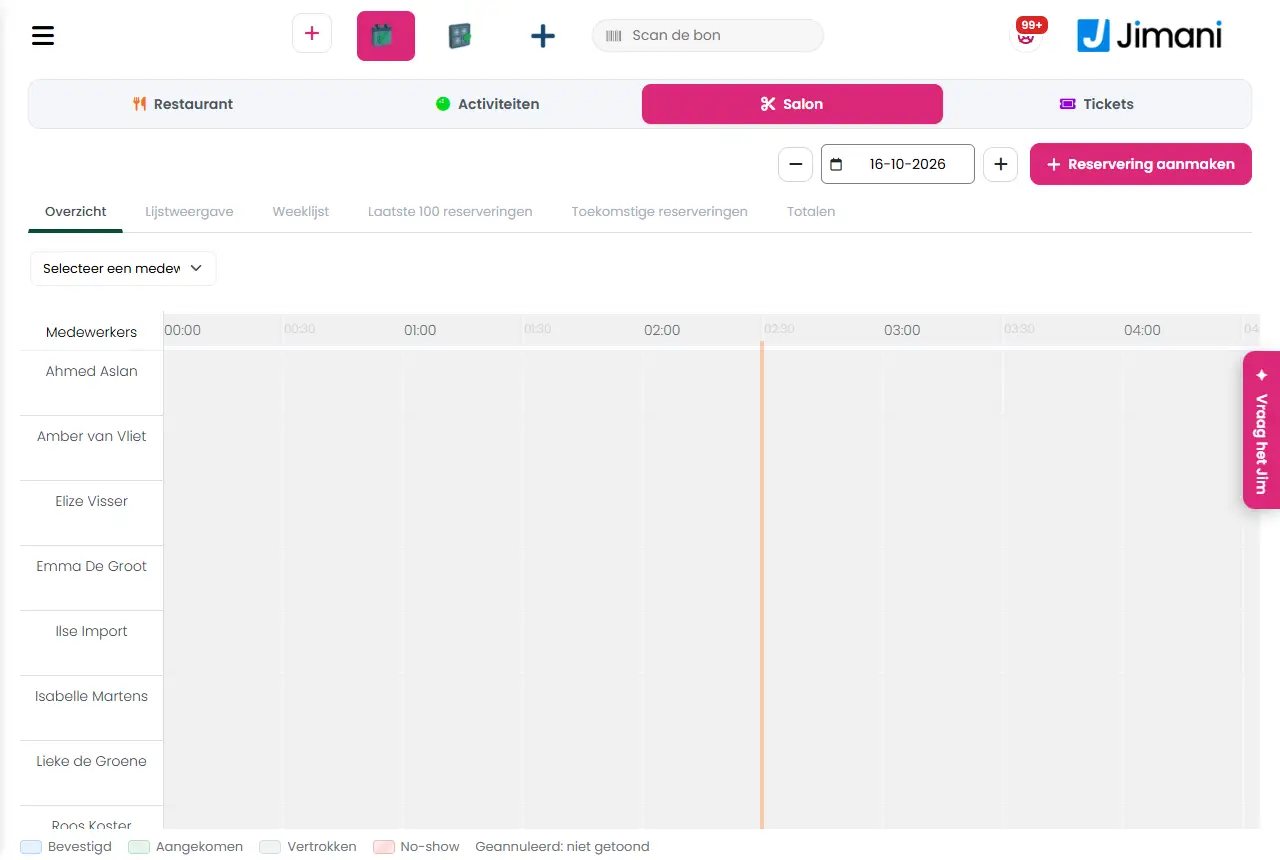
In the salon calendar you see all appointments, per day in a timeline per employee or in lists per day, week, the last 100 and the future. At the top you choose the date and with Create reservation you make a new appointment.
- Where to find it
Menu > Reservations (in a salon business) or Menu > Salon (in the POS with the Salon integration on) (
/SalonReservation)- Explanation
At the top you choose the day with the date picker and on the right is the button Create reservation. Below are six tabs: Overview, List view, Weekly list, Last 100 reservations, Upcoming reservations and Totals. Click an appointment to open the reservation information or to change it. In the POS with the Salon integration on, you can switch between the reservation sections at the top.
- Buttons and settings
Name What it does When you use it Note Create reservation Opens the page to make an appointment. When someone calls or walks in. See the article about making an appointment. Overview The day's timeline with the appointments as blocks per employee, with a legend of the status colours. For the day overview. Employees' breaks and holidays are grey. Select an employee Drop-down in the timeline to show one employee. To see only one employee's calendar. - List view The appointments of the chosen day in a list, under the title Overview of reservations on:. For a list instead of the timeline. The columns are Reservation status, Reservation number, Treatment, Employees, Name, People, Workstations, Arrival date, Arrival time, Payment and Memo. Overview of reservations on: Title above the day's list. - - Weekly list The appointments of the whole week, under the title Weekly list with the start and end date (the word Until is between them). To plan the week ahead. The weekly list, Last 100 reservations and Upcoming reservations also have the column Departure time. Last 100 reservations The 100 most recently made appointments. The title is List of the last 100 reservations. To see what has come in recently. - List of the last 100 reservations Title above the list of the most recently made appointments. - - Upcoming reservations The appointments of a month in the future. Choose the month under Reservation for the month:. The list has Back and Next buttons for more pages. To look ahead. Past months cannot be chosen. Reservation for the month: The label next to the month choice on the Upcoming reservations tab. - - Totals Figures with two tabs: Day totals and Week totals. You see per treatment how many appointments there are (Reservations per treatment, with columns Treatments and Total). For an overview of how busy it is. - Select First choice in the status filter of every list, before you choose a status. To filter on a status, for example No-show. The filters only appear with the Filters permission. Search by: Search field above every list. To find an appointment by name. Belongs to the Filters permission. Print Prints the list as you see it. For a paper day schedule. Only with the Print permission (the owner always has it). Excel The Excel icon downloads the list. For an export. Only with the Export permission. Make a new appointment Window with which you schedule a follow-up appointment from an appointment. You choose a Time slot and an employee (Select an employee) and go to the calendar to choose a time. When a guest wants a follow-up appointment. See the article about a follow-up appointment. - Related
How do I make an appointment for a customer myself?, How do I see which appointments there are?, How do I set a customer to Arrived or Left?
- How does the salon calendar work?
- Which views does the calendar have?
- How do I choose another day in the calendar?
- Where do I see the last 100 appointments?
Keywords: salon calendar, appointments per day, weekly list salon, print appointments, export appointments, upcoming appointments
Last checked: 2026-10-16
Translated from the Dutch knowledge base; the Dutch version is leading.