How does the scan screen work in Jimani?
- Answer
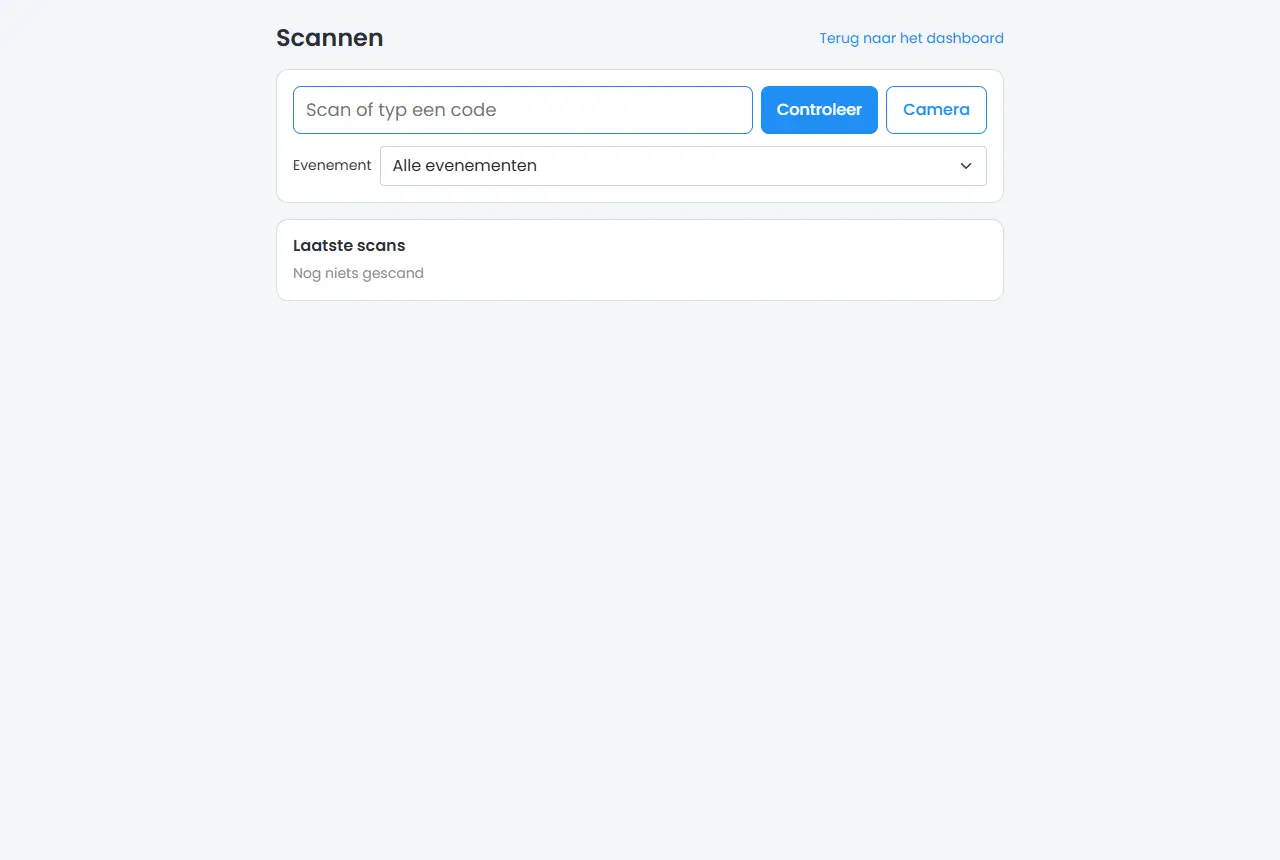
Use the scan screen to check a ticket or reservation at the door. You scan the code with a handheld scanner or the camera, or type it in, and you immediately see green (Valid) or red (Refused) with the reason. The screen fills the whole device, without a menu.
- Where to find it
Menu > Scan (
/Scan). The button only appears if the Scanner add-on is on and your module allows scanning.- Explanation
The screen is called Scan, with the link Back to dashboard. A handheld scanner works like a keyboard: it types the code into the field and presses Enter. The camera passes on a code as soon as it has read it. The same code within 3 seconds is not counted again, because a camera often reads several times in a row. In the Jimani app, the Camera button uses the app's scanner, which also reads barcodes.
- Buttons and settings
Name What it does When to use it Note Scan or type a code The field for the code. With a handheld scanner or keyboard. The field is ready for typing straight away. Check Checks the code you typed. After typing. Enter does the same. Camera Turns the camera on or off. If you do not have a handheld scanner. If it does not work, you see The camera couldn't start. Event Choose an event to filter on. All events is the default. When you check tickets for a single event. Only shown if your business has events. Result (large screen) Green with a tick for Valid, red with a cross for Refused. Below that the reason, the name, the ticket type, the event, the seat and X of Y. At every scan. Also a remark such as Still to pay at the POS. Recent scans The last 10 scans with time and result. To look back. - - Messages
Message What it means What to do Welcome, Welcome back The code is valid; on a second scan of a card with multiple scans you see Welcome back. Let the guest in. Still to pay at the POS The guest has not paid yet. Have them pay first. Unknown code The code is not in Jimani. Check the code. This ticket is for another business The ticket does not belong to your business. Refuse the ticket. This ticket is for another event You are filtering on a different event. Choose the right event or All events. Cancelled The ticket or reservation has been cancelled. Refuse. Not paid The ticket has not been paid. Have them pay. Too early: valid from ... The ticket is not valid yet. Ask the guest to come back later. Expired: was valid until ... The ticket has expired. Refuse. Already scanned at ... The code has already been used. Refuse or check. Maximum number of scans reached (...) The card has used up its scans. Refuse. Something went wrong, please scan again The check failed. Scan again.
- How do I check tickets at the door?
- Can I scan tickets with my phone's camera?
- Why is there no Scan in my menu?
- What does Refused mean when scanning?
Keywords: scan tickets, scanner, scan qr code, check entrance, handheld scanner, camera scanning
Last checked: 2026-10-16
Translated from the Dutch knowledge base; the Dutch version is leading.