How does the Survey screen work in Jimani?
- Answer
On the Survey screen you manage the questionnaires your guests receive after their visit. The Survey tab shows your surveys, the Survey fields tab the individual questions. The screen is under Communication; sending only works if the add-on Survey is turned on (€5 per month).
- Where to find it
Settings > Communication > Survey (
/Survey)- Explanation
At the top of the screen it says: "View all surveys here. Add new surveys with the Add button, or edit an existing one. Send them automatically to customers, and receive useful feedback." On the Survey tab it says: "Easily create surveys per reservation type and link an unlimited number of questions to each survey." On the Survey fields tab it says: "View all survey fields here, and add new ones with the Add button. Easily choose the language in which the content of the field is written." A new business already gets a survey per module (the starter set); how sending works is in How do I automatically send guests a survey after their visit?.
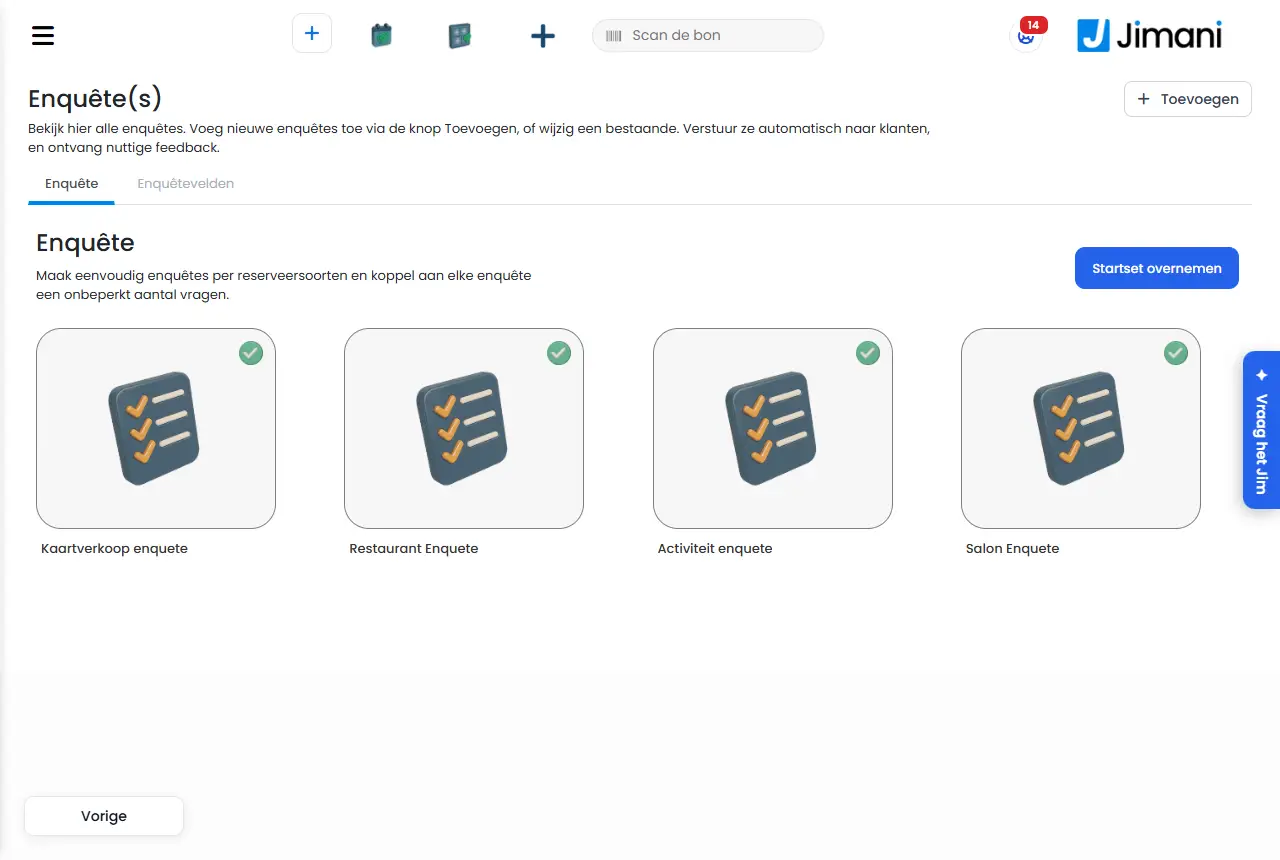
- Buttons and settings
Name What it does When you use it Note Add (plus at the top right) Opens the window where you choose between Survey and Survey fields To create a new survey or a new question The page for Survey is called "Survey(s)" Survey Tab and tile: your questionnaires, each with a status dot for active or not active To open a survey The name is below the tile Survey fields Tab and tile: the individual questions To create or change questions To be filled in per language Use starter set Sets up the starter set for every module without a survey For an existing business without a survey Only visible if a module has no survey yet; a second time does nothing Second plus button on Survey fields Chooses questions from your module's set and copies them To quickly adopt questions Only visible if the set contains questions you do not have yet Name (survey) The name of the survey (maximum 50 characters) When creating or editing Only for yourself Module (list) Which module the survey is for When creating or editing Determines which reservation types you see Reservation types The types of reservation the survey applies to To send a separate survey per type If you choose nothing, it applies to everything in that module (the starter set works this way); a survey that mentions the type takes precedence Survey fields (checkmarks per language) The questions that go into the survey, per language To choose questions On the right you drag the chosen questions into the right order Active (Yes/No) Status of the survey To temporarily turn a survey off Only when editing Next, Previous Through the steps In the window - Delete Deletes the survey or the question In the window Jimani first asks whether you are sure Name (question) The question as the guest reads it (maximum 150 characters) For a new question To be filled in per language Description An extra explanation with the question (maximum 500 characters) For a new question To be filled in per language Example Shows the question with the stars and the texts Poor and Excellent For a new question A custom question is a star-rating question - Messages
Message What it means What you do Create a new survey. Select the survey fields that apply, and link the reservation types. Explanation at the top of the window where you create a survey Choose the questions and the reservation types Create a new survey field. Add important questions and feedback as content for the customer to fill in. Explanation at the top of the window where you create a survey field Enter Name and Description No data found. You have no surveys yet Click Use starter set or Add Something went wrong. Please try again. Use starter set failed Try again - Related
How do I automatically send guests a survey after their visit, and what does it cost?, Which questions are in the survey, and can I add my own?
- Where do I manage my surveys?
- What is the difference between the Survey tab and Survey fields?
- How do I link a survey to a reservation type?
- How do I receive feedback from my guests?
Keywords: survey screen, survey fields, create survey, use starter set, survey reservation types, survey active
Last checked: 2026-10-16
Translated from the Dutch knowledge base; the Dutch version is leading.