What do you set under Languages?
- Answer
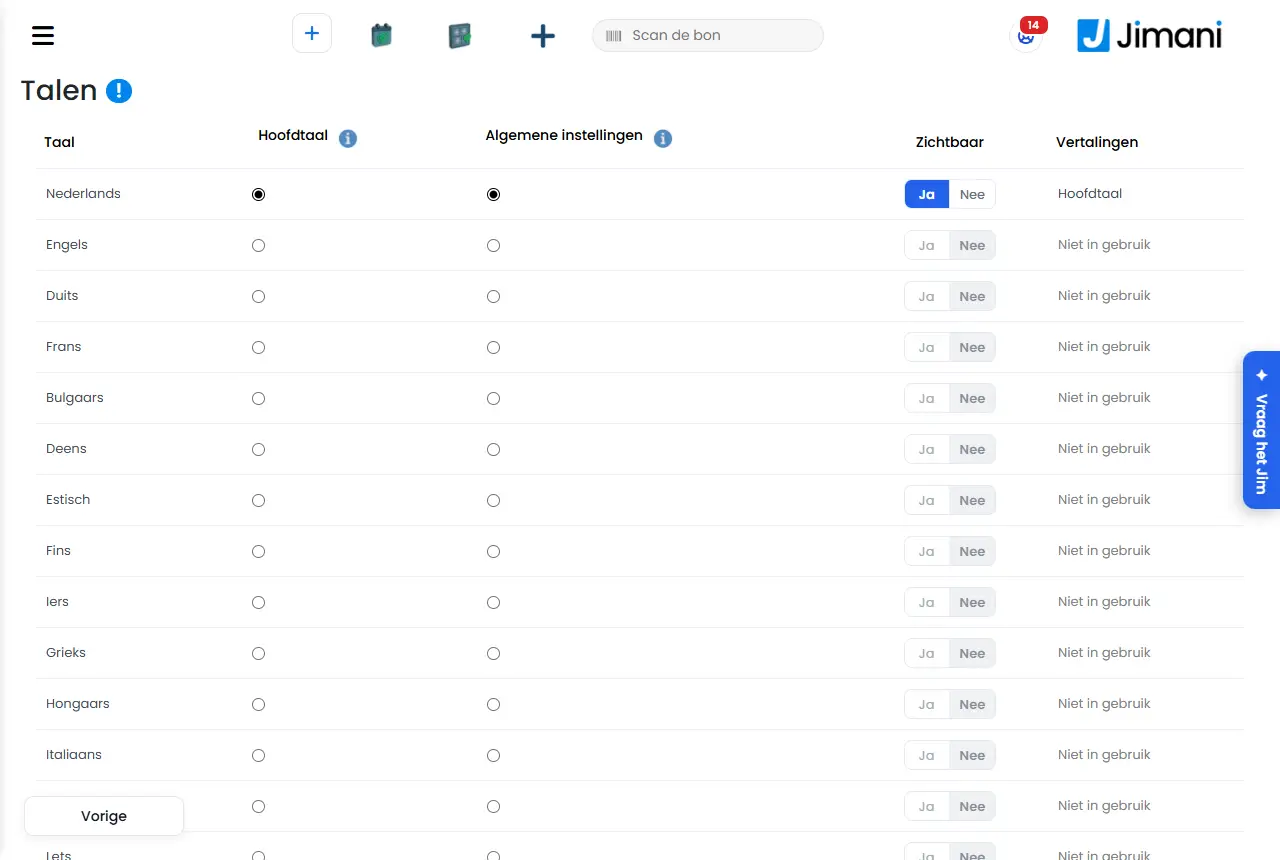
Under Languages you choose in which languages your guests see your widgets and confirmations: which language is the Main language, which is the fallback (General settings) and which languages are Visible, at most five. You can find it under Settings > Your business > Languages.
- Where to find it
Settings > Your business > Languages (
/Settings/Languages)- Explanation
The page shows a table with all languages. For each language you use a round button to choose the Main language and the language under General settings, and you turn Visible on or off with the switch. Then click Save; you see Your details have been saved!. In the Translations column you see for each language how far your products and texts have been translated. A language can only become visible once everything in it has been translated: Jimani never falls back to another language. The language in which you and your employees see the dashboard is chosen per user under Users (field Language).
- Buttons and settings
Name What it does When you use it Note Language The name of the language. - - Main language The main language is the language in which the widget is shown by default. At the start. There is exactly one main language. General settings The default language is the language in which the widget is shown when the language is not available or has not been translated. If you get guests from many countries. Usually English or your main language. Visible Turns the language on for your guests. When you want to offer a language. At most 5 languages at a time. Grey (cannot be turned on) as long as the language has not been fully translated. Translations The status of the translation: Not in use, Main language, Completed or for example 40 of 52. To see whether a language is ready. - We are translating your products. As soon as that is done, they will be online in the chosen language. Shown as long as the translation of a language is still in progress, with for each language how many are already done. - Only with the Extra languages add-on turned on. Translations, Choose a file Import a file with translations with the button next to Choose a file, or download the translations with the button Translations. To improve translations yourself in Excel. Only with the Extra languages add-on turned on. Save Saves the choices. After a change. - - Messages
Message What it means What you do A maximum of 5 languages can be visible! You set a sixth language to Visible. Turn off another language first. This language cannot be invisible if it is the main language or a default! You turned off the main language or the language under General settings. Choose another main language or fallback language first. Your details have been saved! The languages have been saved. - No data found There are no languages in the list. Refresh the page; if it stays like this, contact Jimani. - Related
Which languages does Jimani work in?, Which add-ons does Jimani have and what do they cost?
- How do I set the main language of my business?
- How many languages can I show to guests at the same time?
- How do I see how far my translations are?
- Why can't I make a language visible?
Keywords: set languages, widget language, main language, English widget, multilingual booking, translations, guest language
Last checked: 2026-10-16
Translated from the Dutch knowledge base; the Dutch version is leading.