What can you set on a receipt printer or kitchen printer?
- Answer
Open the printer under Connected devices. You choose whether it is for Till receipts or Kitchen tickets, how it is connected (USB or IP address), which cash drawer belongs to it and what is on the receipt. A kitchen printer additionally has products, a language, a content and an order. You also adjust the text of the receipt in the Receipt Settings window.
- Where to find it
Settings > Till and products > Tills and equipment, click the printer (
/Settings/externaldevices). Receipt Settings also opens from the orange warning on the dashboard if there is no logo, header or footer.- Explanation
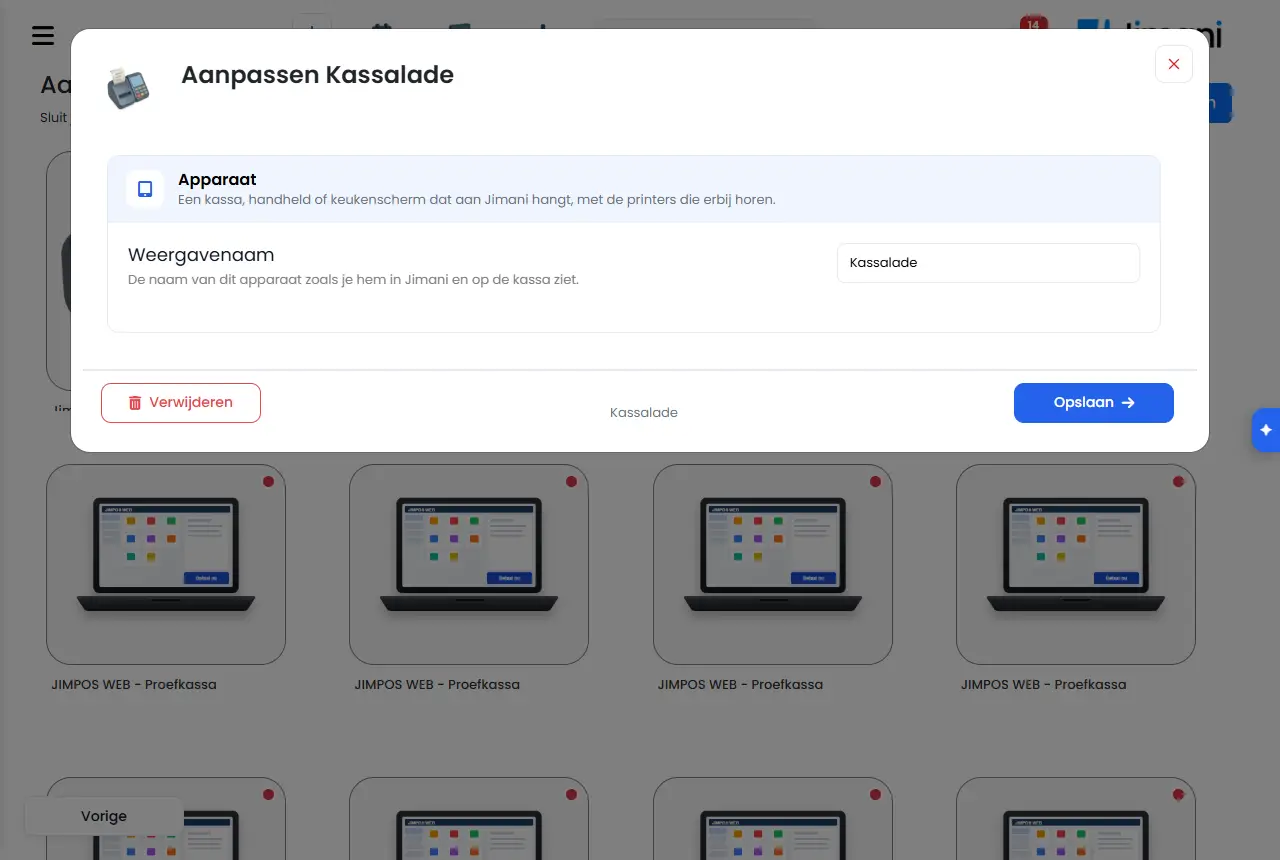
The window is called Edit with the name of the printer. A printer is a POS printer or a kitchen printer, never both. For a POS printer there are pages for image, text and what is allowed on the receipt; for a kitchen printer you choose the products.
- Buttons and settings
Name What it does When to use it Note What is this printer for? A kitchen ticket is a different kind of receipt from a till receipt. That determines what else you fill in. Always for a printer. You choose Till receipts or Kitchen tickets. Till receipts The printer for the customer receipt. At the POS. Choose it on the POS screen as Connected receipt printer. Kitchen tickets The printer for kitchen or bar. For orders that are prepared. Choose it on the POS screen as Connected kitchen printer(s). Display name The name of this device as you see it in Jimani and on the POS. Always. - Is this printer connected to the POS with a USB cable? Choose yes if the printer is attached to the POS with a cable, and no if it works via the network. For a POS receipt printer. A kitchen printer with a USB cable to the POS is not possible; that question is not there. IP address The address of this printer in your network, so the POS can find it. For a network printer. Four boxes with numbers from 0 up to and including 255. Not for USB, cash drawer or buzzer. Which cash drawer? The cash drawer that is attached to this printer and opens when you pay cash. If the drawer is connected to the receipt printer. A drawer is connected to one device at a time. Products for this kitchen Choose which products come out here. Of an order, only those products appear on this kitchen ticket or this kitchen screen. For every kitchen printer. Is in a separate block with categories to filter on. Kitchen ticket language The language in which the kitchen reads the ticket. Product names and options are translated, guest comments never. If the kitchen reads another language. Default Language of the business. Content of the kitchen ticket Choose from This course, own; This course, all; Full ticket, own and Full ticket, all. If you use Courses. Only with the Courses add-on. Default This course, own. See How do I set up the kitchen ticket?. Order on the kitchen ticket Entry order or Register order. To print the items in a fixed order. Default Entry order. Image Add an image. It keeps the 4:3 ratio. Without an image of your own, the business logo appears on the receipt. For a logo of your own at the top of the receipt. A landscape logo in black and white looks best. Header text on the receipt Indicate which information should be visible at the top of the receipt. Often this is the business details such as business name, address and for example phone number. Example: For example your business name and address. For your business details. At most 3 lines of 48 characters; below the field is a counter. Footer text on the receipt Which details are visible at the bottom of the receipt. This can be, for example, a phone number or email address, or IBAN, VAT or Chamber of Commerce number. Example: For example your phone number or a thank-you. For a thank-you or your IBAN. At most 3 lines of 48 characters. What goes on the receipt? Turn off what you do not want on the receipt. To make the receipt shorter. Below are the four switches. Payment method on the receipt Cash, card or otherwise. On by default. - Receipt number at the top of the receipt Large, top right. For a clearly legible receipt number. Off by default. Order method on the receipt Till, online or handheld. On by default. - User on the receipt Who rang up the order. On by default. - Receipt number and date/time are always on the receipt (cash register law). You cannot turn off the receipt number, date and time. - See What is on the receipt?. This is how the receipt will look A sample receipt next to the form that changes along as you type. To see the result. The printer icon next to it prints a sample receipt on the printer. Delete Removes the printer from your list. If you no longer use it. You are asked for confirmation first. - Receipt Settings window
Name What it does When to use it Note Receipt Settings Manage what is on the receipt To set the logo and texts of the receipt. Also opens from the warning on the dashboard if the logo, header or footer is missing. Logo on the receipt The logo at the top of the receipt. A landscape logo in black and white looks best on the receipt. To upload your logo (at most 5 MB). With the cross you remove it. Header text on the receipt What is at the top of the receipt. For your business details. - Footer text on the receipt What is at the bottom of the receipt. For a phone number, IBAN, VAT or Chamber of Commerce number. - Print a sample receipt Print a sample receipt Choose a printer under Make a selection and click the printer icon. To see what the receipt will look like. Only if there is a printer. - Messages
Message What it means What to do Printer is not connected The sample receipt could not reach the printer. Check that the printer is on and in the network. The selected device is not connected to the server. The POS the printer is connected to is not connected. Start the POS app and try again. The request was sent to the kiosk to print the receipt The sample receipt is on its way. Wait a moment. The POS cannot reach the printer. Check that it is on and that the cable is plugged in, and try again. The receipt did not reach the printer. Check power, cable and network. - Related
How do I connect a receipt printer and use multiple printers?, How do I set up the kitchen ticket?, How does the Connected devices screen work in Jimani?
- How do I connect a printer with USB or an IP address?
- How do I change the text at the bottom of the receipt?
- Why do I get an orange warning about logo, header or footer?
- How do I connect a cash drawer to a printer?
Keywords: set up receipt printer, set up kitchen printer, header and footer receipt, logo on receipt, sample receipt, receipt settings, ip address printer
Last checked: 2026-10-16
Translated from the Dutch knowledge base; the Dutch version is leading.