How does the Connected devices screen work in Jimani?
- Answer
Under Connected devices are all your POS screens, handhelds, tablets, phones, kitchen screens, kiosks, receipt printers, cash drawers, buzzers and card terminals, as tiles. Here you pair new devices and open a device to set it up.
- Where to find it
Settings > Till and products > Tills and equipment (
/Settings/externaldevices).- Explanation
The page heading is Connected devices with the text Connect your POS screens, receipt printers, cash drawers and card terminals and manage them here. Each device is a tile with a picture and the name. Click a tile to set up that device (see What can you set on a POS screen, handheld, tablet or phone?, What can you set on a receipt printer or kitchen printer? and What can you set on a kitchen screen?). Without devices it says No data found.
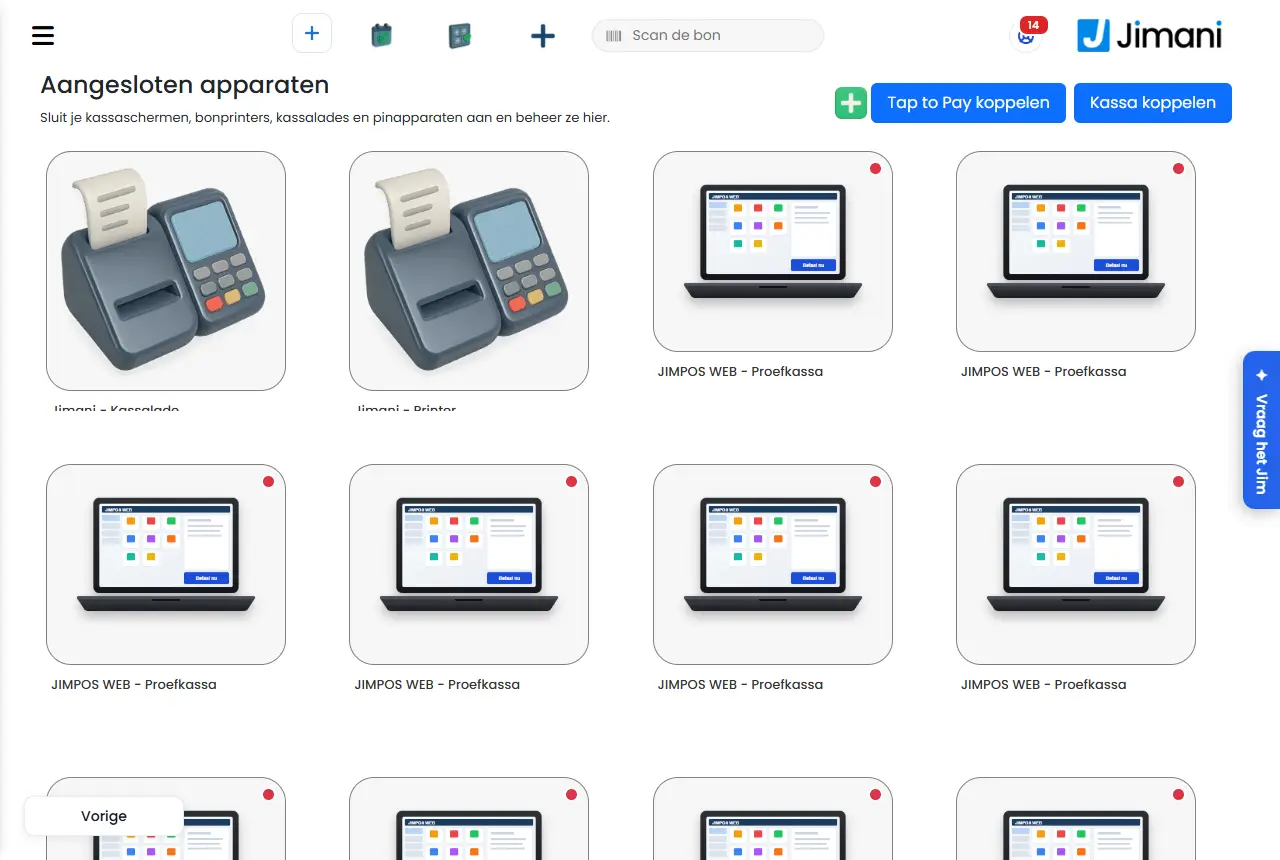
- Buttons and settings
Name What it does When to use it Note Connect a POS Creates a 6-character pairing code. The Pairing code window says Type this code on the point of sale. The code is valid for 15 minutes and works once. As soon as the device is paired, it reports The point of sale is paired. For a new POS screen, handheld, tablet, phone or kitchen screen. The window waits (Waiting for the point of sale...) and reloads the page itself. Send by text to my phone Sends the pairing code to your own mobile number. If you need the code on the phone. Only if the SMS service is on and your number is confirmed. If the SMS fails, the code goes by email. Connect Tap to Pay Requests a pairing code for the Mollie Tap app. The window says Scan this code with the Mollie Tap app on the customer's phone, or type the code below on the device. After that the Tap appears under Connected devices. You see until when the code is Valid until. To use a phone or tablet as a card terminal. Without a Mollie connection you get This shop is not yet connected to Mollie. Connect Mollie first; after that the Tap can be added. Green plus (Add External Device) Opens the Add External Device window. See below. For a printer, cash drawer, buzzer or the web POS. A POS screen, handheld, tablet or phone you add with Connect a POS, a card terminal with Connect Tap to Pay. View our hardware Opens the Jimani webshop ( /Winkel).To order equipment. See How do I order a POS, printer or card terminal from Jimani?. Advice for your business Opens the advice conversation ( /Advies).If you do not know what you need. Only appears if you have the permission for the advice. Green or red dot Green: the device reported in during the last 3 minutes. Red: not. To see whether a POS, handheld, phone or kiosk is connected. See Why is my device green or red under Connected devices?. Tap icon at the top left Tap to Pay is on on this device. To see which devices can take card payments by tapping. - Belongs to old account The card terminal belongs to your previous Mollie account. After switching Mollie account. - Ordered or Waiting for payment A grey tile for an order from the Jimani webshop that has not been delivered yet. Once it is delivered, it says Connect a POS or Connect Tap to Pay. To follow your order. If you click a delivered tile, it does the same as the pairing button next to it. - Add External Device window
Name What it does When to use it Note Printers Receipt printers and kitchen printers. For a printer in your network or at the POS. Then choose the model. Cash register Cash drawer and wallet. To add a cash drawer. A cash drawer does not need an address; the Save button is then already on the second step. Buzzers A signal when the order is ready. For a buzzer. Also needs no address. Jimani puts the buzzer number on the receipt; you make the buzzer itself go off with your own buzzer system. See How do I use buzzers at the till?. Web POS This computer as a till. Pairs the browser you are working in. To use the POS on a computer or laptop. There is one web POS per business. If you have a second one, it counts as an extra POS. What is this printer for? Till receipts or Kitchen tickets. A kitchen ticket is a different kind of receipt from a till receipt. That determines what else you fill in. Always for a printer. A printer is one or the other. Till receipts The printer for the customer receipt. At the POS. Asks Is this printer connected to the POS with a USB cable?, the IP address and optionally the cash drawer. Kitchen tickets The printer for the kitchen or the bar. For kitchen and bar. Only asks for the IP address and then the products. IP address The address of the printer in your network, in four boxes (for example 192.168.1.50). For a network printer. Not needed for a USB printer, cash drawer or buzzer. Header text on the receipt What is at the top of the receipt: Indicate which information should be visible at the top of the receipt. Often this is the business details such as business name, address and for example phone number. For a POS receipt printer. At most 3 lines of 48 characters. Footer text on the receipt What is at the bottom of the receipt: Which details are visible at the bottom of the receipt. This can be, for example, a phone number or email address, or IBAN, VAT or Chamber of Commerce number. For a POS receipt printer. At most 3 lines of 48 characters. - Messages
Message What it means What to do POS app not connected – restart the app The POS screen is open but the POS app has not reported in for 2 minutes. No receipts come out. Restart the app on the device. Printer not found — {0} receipts waiting The POS cannot find its USB receipt printer. The receipts wait and come out automatically. Check the cable and whether the printer is on. The pairing code could not be created. Please try again. Creating the code failed. Click Connect a POS again. Requesting the pairing code failed. Please try again in a moment. Mollie did not provide the Tap code. Try again later. - Related
Can I install this myself and pair my devices myself?, Which devices does Jimani work on?, How do I connect a receipt printer and use multiple printers?
- Where do I see all my POS devices, printers and card terminals?
- How do I add a new device?
- Where do I set up a connected device?
Keywords: connected devices, connect POS, add external device, connect tap to pay, add printer, add cash drawer, pairing code
Last checked: 2026-10-16
Translated from the Dutch knowledge base; the Dutch version is leading.