What can you set on a POS screen, handheld, tablet or phone?
- Answer
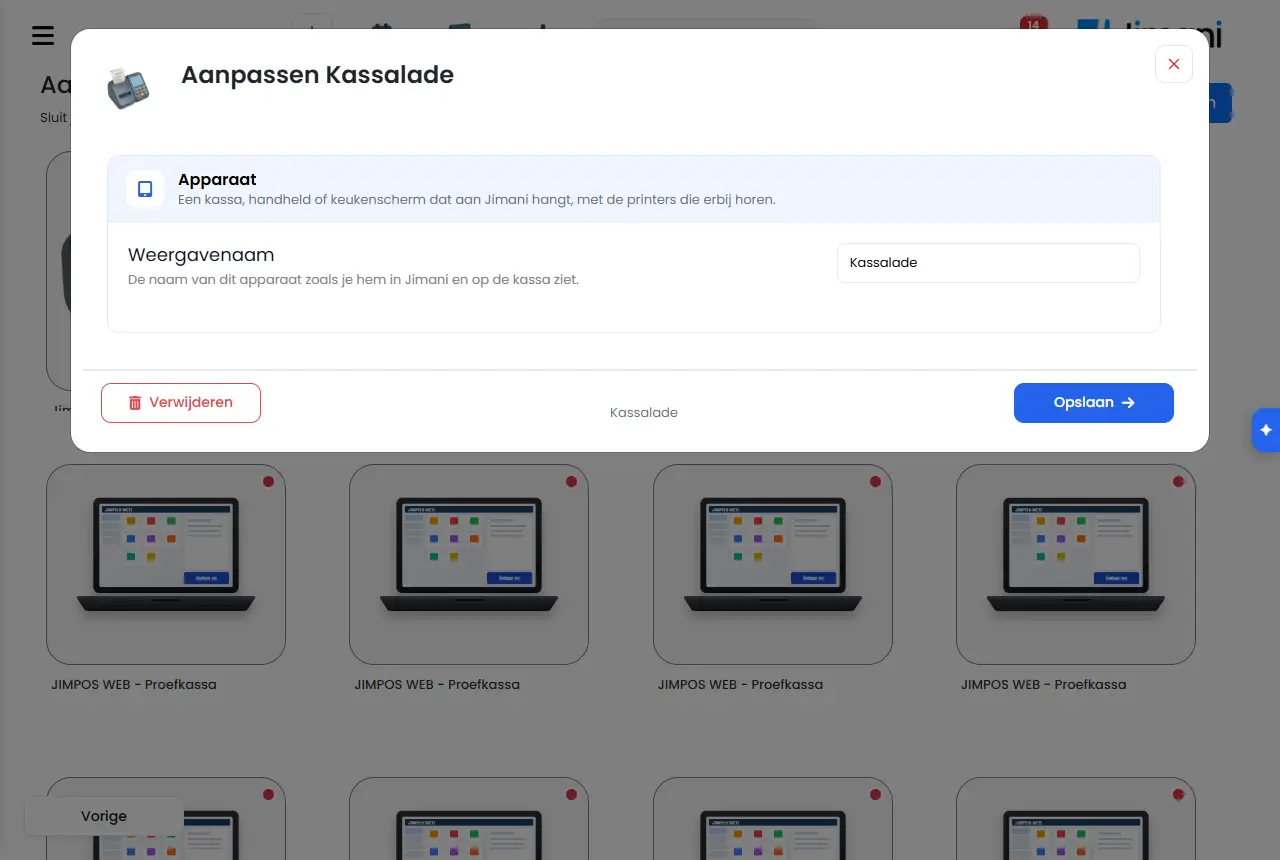
Open the device under Connected devices. You set the name, which printer, drawer, kitchen screen and card terminal belong to it, how settling works and what the POS shows and plays. For a POS screen the window has two pages: the first for the devices connected to it, the second for the Till settings.
- Where to find it
Settings > Till and products > Tills and equipment, click the device (
/Settings/externaldevices).- Explanation
The fields depend on the type. A POS screen or tablet has almost all of them; a handheld or phone has fewer (no cash drawer choice under Other and no question about all products); a field that does not apply is missing. At the top is Edit with the name of the device. At the bottom are Delete, Previous and Next or Save.
- Buttons and settings
Name What it does When to use it Note Display name The name of this device as you see it in Jimani and on the POS. Always; give each device a recognisable name. - No printer If this is on yes, this device does not try to print a receipt and you get no message that the printer was not found. For a tablet or phone without a receipt printer. For a tablet or phone without a receipt printer. Saves immediately. See How do I print a receipt if my tablet or phone has no printer?. Connected receipt printer The till receipt comes out here. No receipt printer: then no receipt ever goes out. To choose where the customer receipt comes out. You choose from the printers with Till receipts or None. Connected kitchen printer(s) Which products appear on it you set on the kitchen printer itself. With + you add another. For kitchen and bar. Only if there are kitchen printers. You can choose more than one. Connected kitchen screen The kitchen screen on which the orders of this till appear. If you use a kitchen screen. Only if there is a kitchen screen. You choose one. Connected cash drawer No cash drawer: then you cannot pay cash on this POS, only by card. To choose the drawer that opens for cash. Only if a cash drawer has been created. In the list, a drawer that is connected to another device is followed by (currently at ...). Connected payment terminal The card terminal (for example a PAX A35 or A920-PRO) you use to settle with Card on this device, or None. If you use a card terminal. A Tap is not among them; you choose that under Tap to Pay. Tap to Pay Settling by tapping a card or phone against this tablet, with the Mollie Tap app. Choose the Tap of this tablet, or Off. On a tablet or phone with the Mollie Tap. Only with the Tap to Pay add-on (€5 per month). Tap to Pay active If this is on yes, you settle by tapping a card or phone against this device. On a handheld or phone. Only with the Tap to Pay add-on. If there are more Taps, you also choose which one belongs to this device. Always show all products on the POS? If this is on yes, this screen automatically sells every product of the business, including a product you add or remove later. If it is on no, you choose per category which products are sold here. To choose a separate assortment per POS. See Can I show different products on each POS?. Point of sale Which module this screen sells. If your business sells more than one module. The choice only appears if there is more than one module. Log in for every order If this is on yes, you log in for every order and are logged out again right afterwards. If it is on no, you log in once at the start of the shift and there is a log-out button on the screen. If several employees share a POS. Only appears if logging in on the POS is on. Immediately show two buttons: Cash and Card If this is on yes, Cash and Card are on the screen right away and you no longer have to choose the payment method in a window. For quick settling. Default No. Show cash screen with quick amounts Yes: with Cash you first choose the amount received and you see the change. No: with Cash it settles immediately, the cash drawer opens and the receipt comes out, without an intermediate screen. To choose whether the POS asks for the amount received with Cash. Default Yes. Print receipt for direct payment Choose at the till: in the Other menu you set Print receipt with a tap on Yes or No. The POS remembers the last choice. To decide whether a receipt goes out for direct payment. You choose from Always, Never or Choose at the till. Images with the items If this is on no, you only see the name and the price. That is calmer and faster. For a calmer, faster POS. Default Yes. Sound when ringing up and paying If this is on yes, you hear a short tick when ringing up and a tone for a successful or failed payment. Handy behind the bar, awkward in a quiet room. For a POS behind the bar. Default No. Vibrate when ringing up If this is on yes, the device vibrates briefly for every item you ring up. Works on phones and handhelds; a POS without a vibration motor notices nothing. For handhelds and phones. Default Yes. Buzzer at this till If this is on yes, you enter a buzzer number for every order on this screen and that number appears at the top of the receipt. Handy at a counter where the guest waits; on a terrace where you bring it yourself you do not need it. At a counter where the guest collects their order. Only with the Buzzers add-on. See How do I use buzzers at the till?. Always print a receipt After settling, a receipt goes out without asking. If this is on no, you choose at settling: Print receipt or No receipt. To always print receipts automatically. Default No. Hide stock on the till Only relevant if you use the stock module. To not show the stock quantities on the POS. Only appears with the stock module on. Show items that are out of stock Only relevant if you use the stock module. To show sold-out items anyway. Only appears with the stock module on. Open cash drawer under Other? If this is on yes, there is an Open till button under Other on the POS. Tapping the logo at the top left twice also opens the drawer, even if this is on no. To be able to open the drawer with a button. Only for a POS screen. Default No. Open table reminder after If something on an open table has not been saved or settled, after this time without doing anything the message "Your table is still open" appears at the top right. To remember that a table is still open. You choose from 1 minute, 5 minutes (default), 10 minutes, 15 minutes, 1 hour or Off. Link products to printers kitchen screens A table in which you choose per product which printer or kitchen screen it goes to (Choose a printer per product). For a handheld or phone with a point of sale. For a POS screen this table is not there: there you set on the kitchen printer or the kitchen screen itself which products appear on it. Delete Removes the device from your list. If you no longer use the device. If you pair the same device again later, you get the same device back with its settings. Previous, Next, Save To the previous or next page of the window; Save stores everything. After changing. No printer, Use as and Tap to Pay save immediately. Receipt printing status A list at the bottom with per receipt Sent at, Printed, Status, Attempts and What went wrong. If a receipt does not come out. Only if there are receipts. Status is Sent, Printed or Failed. Use as Only for a Tap as a handheld: Cash register (a handheld POS with its own assortment) or Card terminal only (the Tap is the card terminal of another POS; then there are no products and POS fields). To use a Tap as the card terminal of another POS. Saves immediately. - Related
How does the Connected devices screen work in Jimani?, What can you set on a receipt printer or kitchen printer?, Why is my device green or red under Connected devices?
- What can I set on my POS or handheld?
- How do I connect a printer and drawer to a POS screen?
- Where do I see the POS settings?
Keywords: set up POS screen, edit device, set up handheld, set up tablet POS, POS settings, sound POS, print receipt direct payment
Last checked: 2026-10-16
Translated from the Dutch knowledge base; the Dutch version is leading.