How does Branding work in Jimani?
- Answer
In Branding you set the logo, the eight colors, the corner radius and the font of your business in one place. Your widgets use this branding, unless you choose own colors for a widget. On the right you see a Preview of your Website, Widget, Mail and Receipt.
- Where to find it
Settings > Your business > Branding (
/Huisstijl)- Explanation
First change something and then look at the preview on the right; you only make it final with Save (bottom right). You can start with a ready-made brand style, or have the colors and fonts of your own website fetched. Jimani then checks whether the colors are easy to read according to WCAG 2.1 AA. A separate step-by-step guide is in How do I set my logo, colors and font?.
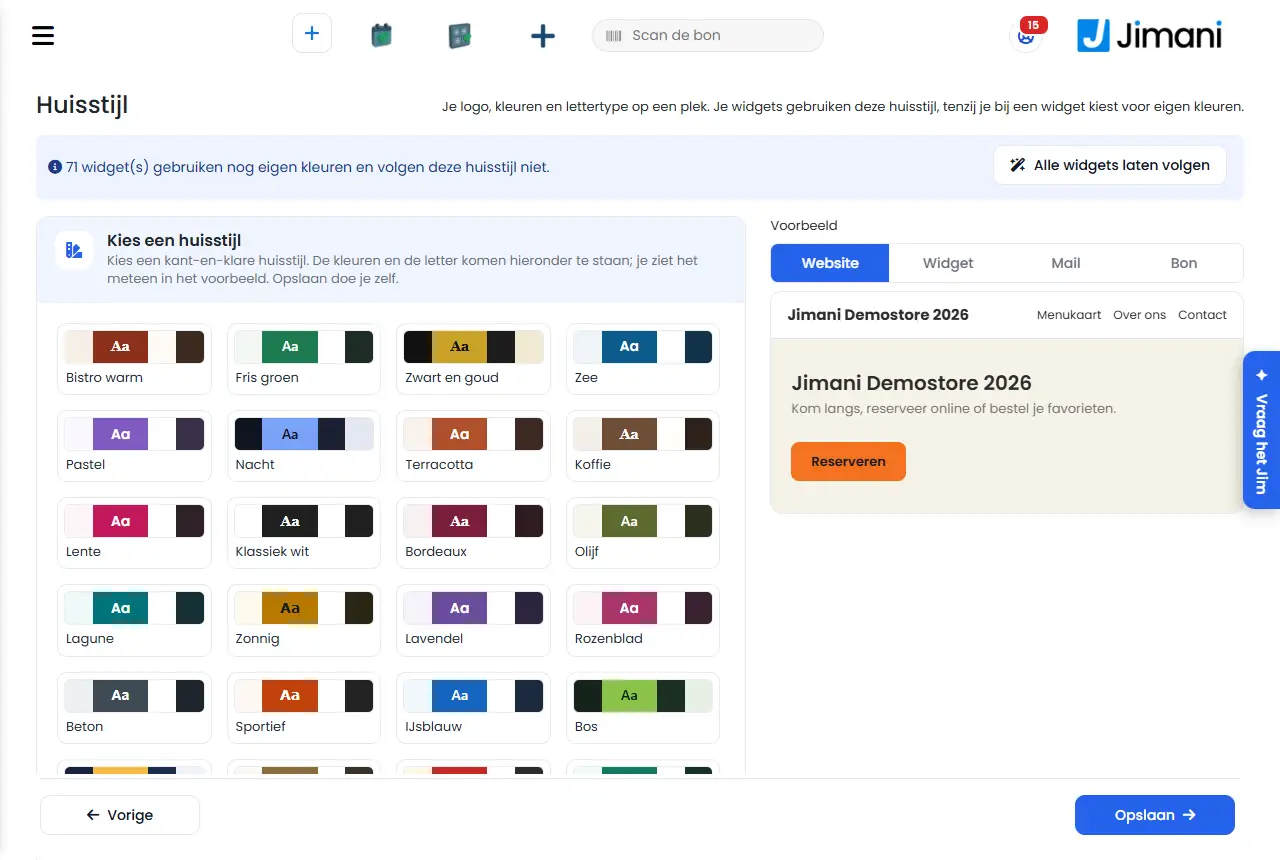
- Buttons and settings
Name What it does When to use it Note Choose a brand style Thirty ready-made brand styles, for example Warm bistro, Fresh green, Black and gold, Sea, Pastel and Night. One tap fills the eight colors, the corner radius and the font. When you want a neat style quickly. You save yourself; the preview on the right changes immediately. Logo / Choose logo Uploads your logo (png, jpg, webp or gif, at most 5 MB). It is the same logo as in your business details: you see it on your widgets, emails and receipts. Once, or when your logo changes. The logo is stored immediately. It says "No logo yet." as long as there is none. From your website: Website The address of your website, for example www.yourbusiness.com. For Get from my website. The field is prefilled with the website address from your business details. Get from my website Reads the colors and fonts of your website and makes a readable brand style from them. When you already have a website with a style of its own. Costs AI credit. You first see the result in the preview. If Jimani finds no usable colors, they come from your logo or you get a neat default for your type of business. Main color The color of buttons, the chosen date and time, and accents. Always, it is your most important brand color. A color swatch with the code (for example #8C2F1B) next to it. Text on main color The text and icons on a button in the main color. Usually white or black. - Background The background of the screens. - - Card Boxes, cards and input fields on that background. - - Text Headings and regular text. - - Border Borders and dividing lines. - - Disabled What cannot (yet) be chosen. - WCAG sets no contrast requirement here. Error Error messages and a field that is not filled in correctly. - - Corner radius How round the corners of buttons and boxes are, in pixels (0 is square, at most 24). For a sleek or a soft style. With the minus and plus buttons or by typing. Font Chooses a font from a list. - Only fonts that work on every device and fetch nothing from Google. Make readable Appears when a color pair has too little contrast (with "contrast x:1, needed y:1"). Jimani then suggests a color ("Suggestion: ..."). As soon as a message is shown. If everything is fine, you see "All colors are easy to read (WCAG AA)." Preview On the right a choice between Website, Widget, Mail and Receipt. To see where the branding appears. The preview changes with every change, even before you Save. Website Preview of the header of your site with the menu (Menu, About us, Contact) and the opening with a button. - - Widget Preview of a booking widget with times, a field with an error message and the Book button. - - Mail Preview of a confirmation email: a card with a stripe in the main color, the logo (or the name) above it. - - Receipt Preview of a POS receipt: logo in shades of grey and the name of your business. - A receipt printer prints in black and white, so the brand colors do not appear on the receipt. Apply to all widgets Puts widgets with own colors back on the branding. When you want to give all widgets the same style. You first get the question "Make all widgets follow the branding?" with Yes and No. The widgets' own colors are kept but no longer used; per widget you can later choose own colors again. Only visible if one or more widgets have own colors. Previous / Save Previous goes back to Settings; Save stores the branding. Save after every series of changes. You see "Saved" when it worked. - Messages
Message What it means What to do {0} widget(s) still use their own colors and do not follow this branding. One or more widgets have Custom colours set to Yes under Change colors. Choose Apply to all widgets, or leave them as they are. The colors of your website are ready. Check the preview and choose Save. Get from my website worked. Check the preview and choose Save. We found no usable colors on your website. The colors now come from your logo. Check the preview and choose Save. The website gave no usable colors. Check the preview and choose Save, or choose colors yourself. Only an image (png, jpg, gif or webp) of at most 5 MB. The logo is not an image or is too large. Choose another file. Saving did not work. Please try again. Saving failed. Try again. - Related
How do I set my logo, colors and font?, How does My website work in Jimani?, Is the widget accessible to people with a disability?
- Where do I set my colors and font?
- Can a widget have different colors than my branding?
- How do I see what my branding looks like on the website, email and receipt?
- Does Jimani check whether my colors are easy to read?
Keywords: branding, brand style, logo, colors, font, brand colors, corner radius, get from my website, widget colors
Last checked: 2026-10-16
Translated from the Dutch knowledge base; the Dutch version is leading.