How does My website work in Jimani?
- Answer
In My website you edit the ready-made website of your business: on the left you see the site, on the right is the panel with the tabs Edit, Blocks, Style, Pages, Languages, Address and More. Your changes are only visible to visitors once you click Publish.
- Where to find it
Settings > Your business > Website (
/Mijnwebsite)- Explanation
A new business gets the website already completely ready as a draft. You click a text, photo, button, the menu or the footer in the site to edit that part on the right. Prices, products and opening hours come from Jimani: you change them under Products and Opening hours, not here. If the website is not on yet, the top says "Your website is ready as a draft. View it and edit texts and photos; visitors only see it once you turn it on." and the main button is called Turn on website. After that it is called Publish. While the site is being made, it says "We are making your website. This usually takes less than a minute; you will see it appear here automatically." More about the costs is in What does the Jimani website cost?.
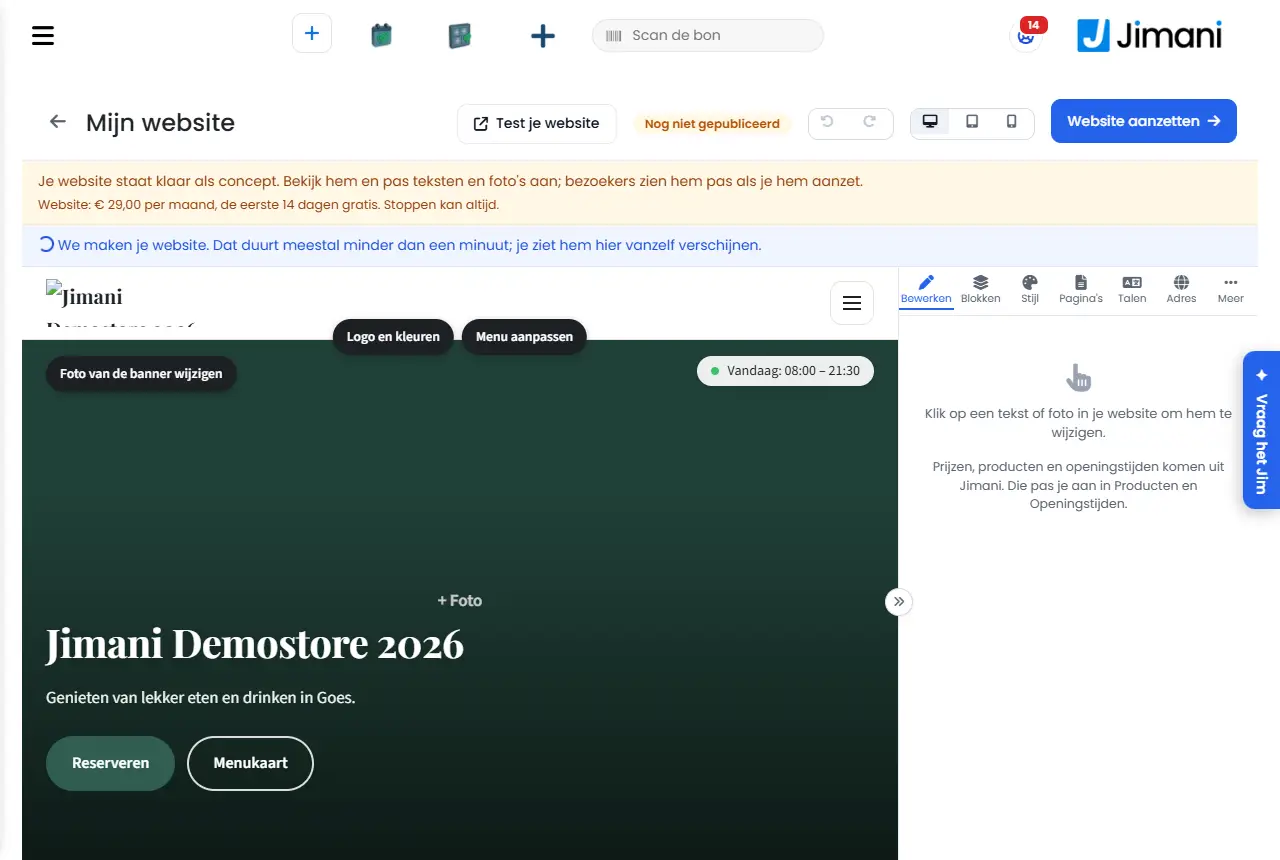
- Buttons and settings
Name What it does When to use it Note Test your website Opens your site in a new tab; if it is not published yet, you see the draft. To see what a visitor will see. - Undo / Redo Undoes a change from this session or restores it (also Ctrl+Z and Ctrl+Y). When you change your mind. Applies to the site and the webshop together, only in the session in which you are working. Computer, Tablet, Phone Shows the site at 100%, 768 or 390 pixels wide. To check the site on a phone. Only changes your preview. Collapse menu / Expand menu Collapses or expands the panel on the right. For more room for the site. - Turn on website Turns the website on and publishes the draft. Once, when your site has to go live. After this the 14-day trial starts and then the price of the website. If the site has already been chosen or published once, you turn it on via Settings > Add-ons. Publish Puts the draft live for visitors and stores a version. After every series of changes. Next to the button is the status: Published, Unpublished changes or Not published yet. Edit First tab: choose a text, photo, button or part in the site. For everyday editing. First click in the site, then the panel appears. Title The title of a part, for example an info card (maximum 60 characters, per language). To change a heading. Empty or own text: see Content. Content: From Jimani / Own text Chooses whether a part takes its details from Jimani or shows an own text. For the info cards Opening hours, Address and Contact and the footer. Back to the details from Jimani restores it. Extra lines A text box (maximum 1000 characters) with extra lines below the details from Jimani. For an extra remark, for example "Terrace closed when it rains". Only for parts with details from Jimani. Rewrite with AI Lets the AI rewrite the text in the tone Friendly, Professional, Short and punchy or Enthusiastic, with the button Rewrite. Under More options at a text. Costs AI credit (see What does using AI in Jimani cost?). Back to the default text restores the original text. Button text The text on a button of the site (maximum 60 characters, per language). To give a button its own wording. Each language has its own text. Link Where the button goes: Default (as set by Jimani), Page of the site, Webshop / Order, Book a table (widget), Phone, Email or Own address (https). When a button has to go somewhere else. For Phone and Email, leave the field empty for your business's number or email address. An invalid link is rejected: "This link isn't valid. Check the number, the email address or the address (https://...)." Open in new tab Opens the link of a button in a new tab. For a link to another website. Under More options. Formatting Button color, Text color, Background color, Style (Filled, Outlined, Text link), Font size (Small, Normal, Large, Extra large), Bold and Alignment (Left, Middle, Right). To make one button or text different from the rest. If a text is hard to read, Jimani says so and suggests a readable color with Use a readable colour. For each color you can go back to the color from your branding or the theme. Choose photo Chooses a photo from your computer (jpg, png or webp, maximum 10 MB). For the large photo at the top, the photo at the welcome or the gallery. For the gallery you choose several photos at once and put them in order with the arrows; the Gallery block on Home shows the first 12. Let AI create a photo Creates a photo based on what you type at "What should be in the photo? (may be left empty)". When you have no photo of your own. There are 3 attempts per photo, after that you upload a photo yourself. Costs AI credit. Delete Removes the photo. - - Map Height (Low, Normal, Tall); under More options Width (Within the content, Full width), Map type (Default, Grey), Zoom level (Close up, Neighbourhood, City) and Show map straight away. For the route map. Show map straight away loads Google Maps immediately, with cookies from Google. By default the map only loads after a click by the visitor. Social media A link per channel (Facebook, Instagram, TikTok, LinkedIn, YouTube, Tripadvisor, X) or your WhatsApp number. For the buttons to your pages. Remove link removes it. Show the block "Follow us on Instagram" turns the block on or off. Blocks Tab with the blocks of your homepage as a drag list: drag them into the order you want and set them On or Off. To put Home together. Add block chooses from, among others, Menu, Book, Order, Appointment, Tickets, Activities, Photos, Opening hours, Map, Reviews, Text, Button, Instagram and Newsletter. Remove block removes it again. On your website Sets a block On or Off. When you don't want to show a block for the time being. - Blocks on your Contact page Choose Yes or No per block and drag them in the order you want: Contact form, Opening hours, Phone, Map and WhatsApp button. For the Contact page. Saved immediately and shown in the preview. Open today Turns the "Open today" item at the top right of your site's menu on or off. When visitors should immediately see your opening hours for today. The times come from Jimani. Menu block Window with View (List or Tiles), Show prices, Show photos and What's shown (All on, All off or per product). To choose which products are on the site. New products from Jimani are added automatically. You change prices and products under Products. Main color The color of buttons and accents; the other colors adjust automatically. On the Style tab. If your business uses Branding, you see "The color comes from your branding. Change it there; your site, widgets, emails and POS then follow." and a Branding button. Logo The logo at the top of the site; empty is the logo of your shop. On the Style tab. Use shop logo restores it. Font The font of the site. Under More options on the Style tab. - Pages Turns pages on or off and sets the order of the menu. Expand a page for Name in the menu, Title in Google and Description in Google. To steer the menu and the search results in Google. Add page offers Gallery, Opening hours and Blog. A page for a module without an active widget is not yet visible to visitors. Languages Shows your Main language and lets you add a maximum of two extra languages with Add language and the button Translate with AI (Dutch, English, German, French, Spanish or Italian). For international guests. Only works with the Multilingual (website) integration. Translating again overwrites the texts of that language. See How do I put my website in more languages?. Address Your Jimani address (the part before .jimani.site) and your own domain with the button Check. For an address of your own. Steps: see How do I connect my own domain to my Jimani website?. Google Analytics or Tag Manager Your measurement ID (only the ID, for example G-AB12CD34EF). On the More tab, to measure visitors. The site has no cookie banner: consent is set to declined in advance, so Analytics places no cookies and you only see estimated visitor numbers. Newsletter sign-ups Shows how many people signed up and offers the button Export (CSV with email, language and date). To use the list in another program. Anyone who signs up first receives a confirmation email and then your newsletters from Newsletters. Versions Every time you Publish, a version of your website and your webshop is stored. With Restore you put an earlier version back into your draft. When you want to go back to an earlier state. Visitors only see the restored version after Publish. - Messages
Message What it means What to do That didn't work Saving or the action failed. Try again. This address is already in use. Someone else has that address under .jimani.site. Choose another address. Use only lowercase letters, numbers and hyphens (2 to 63 characters). The address contains other characters. Adjust the address. This photo is too large (maximum 10 MB). The photo is larger than 10 MB. Choose a smaller photo. This is not a usable photo (jpg, png or webp). The file is not a jpg, png or webp. Choose another photo. The AI did not work just now. Try again. The AI gave no answer. Try again later. Turn on the Multilingual integration first. You want an extra language without the integration. Turn on Multilingual (website) under Settings > Add-ons. - Related
How do I get a ready-made website from Jimani?, What does the Jimani website cost?, How do I connect my own domain to my Jimani website?, How does Branding work in Jimani?
- How do I edit my website?
- How do I publish my changes on the website?
- Where do I change the prices and opening hours of the website?
- What do the tabs Blocks, Style and Pages do?
Keywords: my website, edit website, publish website, blocks, pages, measurement code, google analytics, rewrite with ai
Last checked: 2026-10-16
Translated from the Dutch knowledge base; the Dutch version is leading.