How does the floor plan (Floorplan) work in Jimani?
- Answer
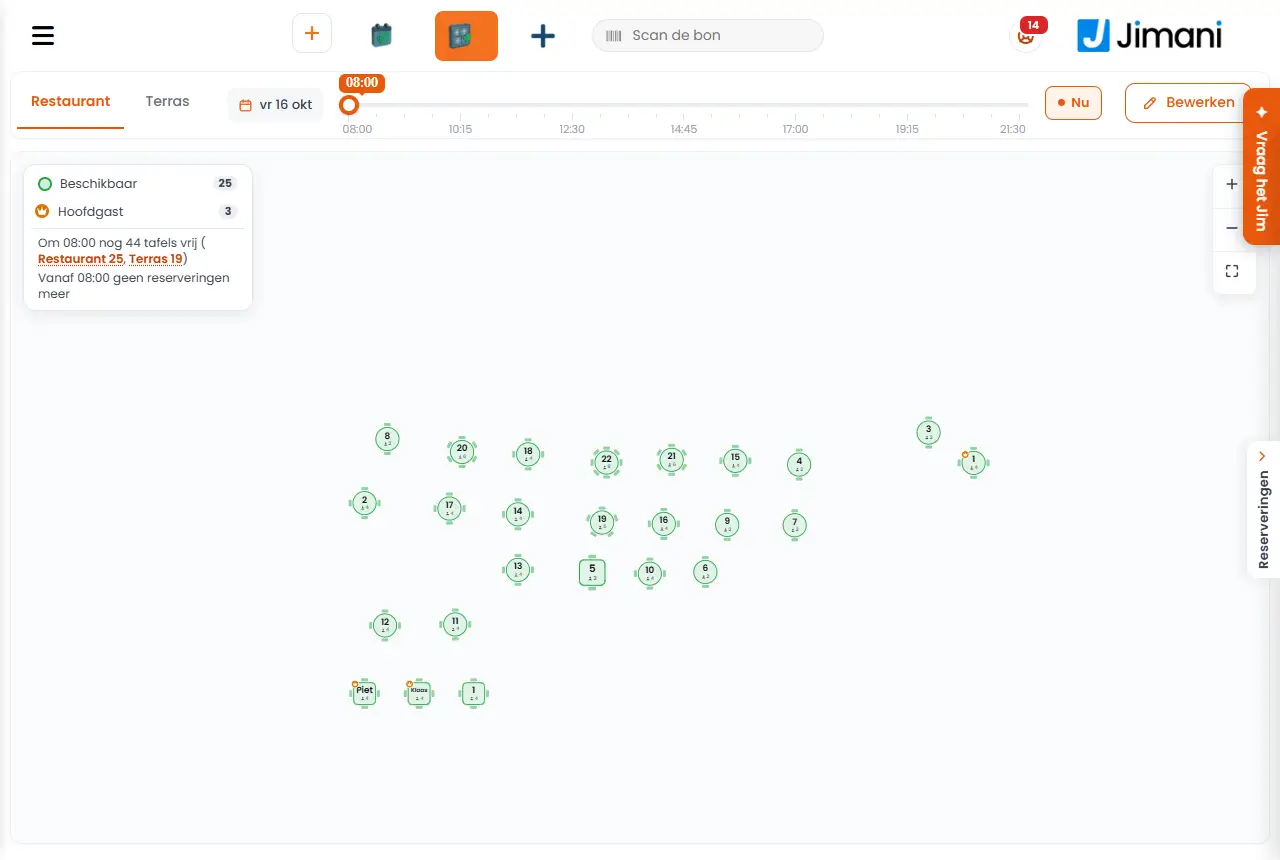
On Floorplan you see your tables per location, in the colour of their status at the chosen time. Tap a free table to make a reservation on it; tap another table for the reservation or the receipt of that table, with Guest arrived, Order and Settle. With Edit you arrange the room: moving tables, a floor, objects, zones, text and, per device, the start screen.
- Where to find it
Menu Floorplan (
/Floorplan); in the POS, Floorplan in the bar at the top (/Pos/Floorplan); on the handheld, Floorplan in the menu (/Handheld/Floorplan)- Explanation
- At the top. The Locations as tabs (the device remembers the last one chosen), the date (Today), the time slider with Now to go back to the current quarter hour, Edit and Save. You zoom with Zoom in, Zoom out and Fit to screen. The Legend shows what each colour means.
- The sidebar. With Toggle sidebar you collapse or expand it. Upcoming lists the reservations that are still to come, Arrived lists who is already there.
- Making a reservation. Tap a free table. Choose Reservation types and Availability, set From and To, and enter the guest (or tick Passer-by (no guest details)). Under Choose table you see the free tables for that time; Tables selected: shows what you chose. Fill in Reservation name and Language, and optionally Fields and Products. Under Totals you find Total amount, Total paid and Outstanding amount. Tap Save, or Pay to settle straight away. Afterwards you see "Reservation added successfully."
- From jumps along. If you choose a time at which the table is already taken, From jumps to the first free moment and a line under the tables says why, for example "Table 1 is reserved from 18:00 to 20:00."
- A table that is not free. Tap it: for a reservation you see name, time and number of people with Guest arrived (check in), Edit and, if late, also No-show; for an occupied table the receipt per round or course, the open amount, the time at the table and since the last order, with Order and Settle. If the guest asks for service via the QR code, it says "The guests are asking for service." with Handled.
- Checking in with an open bill. If the previous guest at the table still has a bill open, the POS first asks "Table 5: Jansen still has €42.50 open." (with the actual table, name and amount). Choose Settle up first (the POS with that bill), Check in anyway (the previous guest is set to left, their bill stays open on their own POS table) or Cancel.
- Table settings. "Choose per table status the colour and whether the table flashes." Per Status you see the Meaning and you choose the Color and Flash.
- Buttons and settings
Name What it does When to use it Note Edit Puts the floor plan in Edit mode: moving tables and arranging the location. When setting up your business. You create the tables themselves under Restaurant management; "No tables in this room yet" if there are none yet. Background "Choose a floor or colour. It appears as a surface under the tables; move and enlarge it with the corners." Choose from Floors, Solid colour or Custom image. To make the room recognisable. - Add Object "Choose one or more objects. Then you move, rotate and enlarge them on the floor plan." With Search for an object. A bar, plants, an entrance. - Limits "Draw a zone or line with a name, such as Terrace or Conservatory." Choose Zone, Line or Room boundary. To mark parts of the business. Save with Save boundaries. Name (under Limits) "Appears in the zone or above the line, for example Terrace." - A maximum number of characters. Colour (under Limits) "The colour of the edge and the name." - - Width "In metres, from left to right." For Room boundary. The boundary does not get smaller than what is inside it. Length "In metres, from top to bottom." For Room boundary. You can also drag the handles. Add text "A text on the floor plan, for example Bar or Entrance. Double-click the text later to edit it." To name places. - Explanation "What appears on the floor plan." The text itself. For Add text. - Size Small, Medium, Large or Extra large. "Later also with plus and minus in the bar." For a text. In the bar: Decrease size and Increase size. Colour (for text) "The colour of the letters." Choose for example Black, White, Orange, Blue, Green, Red, Purple or Grey. For a text. In the POS and on the handheld only Black and White are available. Table shape The shape of the chosen table. After choosing a table. "Select a table first" if none is chosen. Start screen "Choose the device. Move the green area and make it larger or smaller: this is how the floor plan opens on that device. Save stores it." Choose Computer (from 1200 points wide), Tablet (768 to 1200) or Phone (narrower than 768). So that each device opens on the right part. - Auto-arrange Places the tables neatly in a grid. After creating many tables. - Mirror, Bring to front, Send to back, Delete Flip or move the chosen object in the layer, or remove it. When setting up. - Guest search Searches for a guest for the reservation. For a known guest. - - Messages
Message What it means What to do Reservation added successfully. The reservation is on the table. - No tables available There is no free table at that time. Choose a different time or a different location. {0}: {1} still has {2} open. The previous guest at the table has an open bill. Settle up first, Check in anyway or Cancel. Guest is too early ({0}). Check in anyway? You are checking in a guest well before their time. Choose Guest arrived or Cancel. Couldn't check in. The server did not accept the check-in. Try again. Couldn't load the table. The table's data did not come through. Try again. - Related
How do I work with tables on the till?, How do I work with reservations in the POS?
- Where do I see my floor plan with tables?
- What do the colours of the tables mean?
- Can I drag tables around on the floor plan?
- How do I check in a guest on the floor plan?
Keywords: floorplan, restaurant floor plan, table layout, drag tables, table status colour, reservation on table, check in floorplan
Last checked: 2026-10-16
Translated from the Dutch knowledge base; the Dutch version is leading.