What can you set under Reservation types?
- Answer
A reservation type is what a guest reserves for, such as dinner, drinks or high tea. Under Restaurant > Reservation types you determine per type the number of guests, the duration, the tables, the questions to the guest and whether a payment goes with it.
- Where to find it
Menu Restaurant > tab Reservation types (
/Horeca). New type: button Add > Reservation type. Existing type: click the line.- Explanation
The window has blocks for the type itself (name, description, Availability, image), Colour, numbers and duration, Settings, Payment, Tables and Fields. A new type by default has a minimum of 1 guest, a maximum of 20 guests and a reservation duration of 1 hour, and all tables are already selected. For an existing type Active and the button Delete are also there. In the overview you can search and filter on Availability and Product. A type that is not active gets the label Inactive; a type that comes from your website gets the label From your website. What you turn on under Payment and Products only works if the corresponding add-on is on (Settings > Add-ons > Reservations).
- Buttons and settings
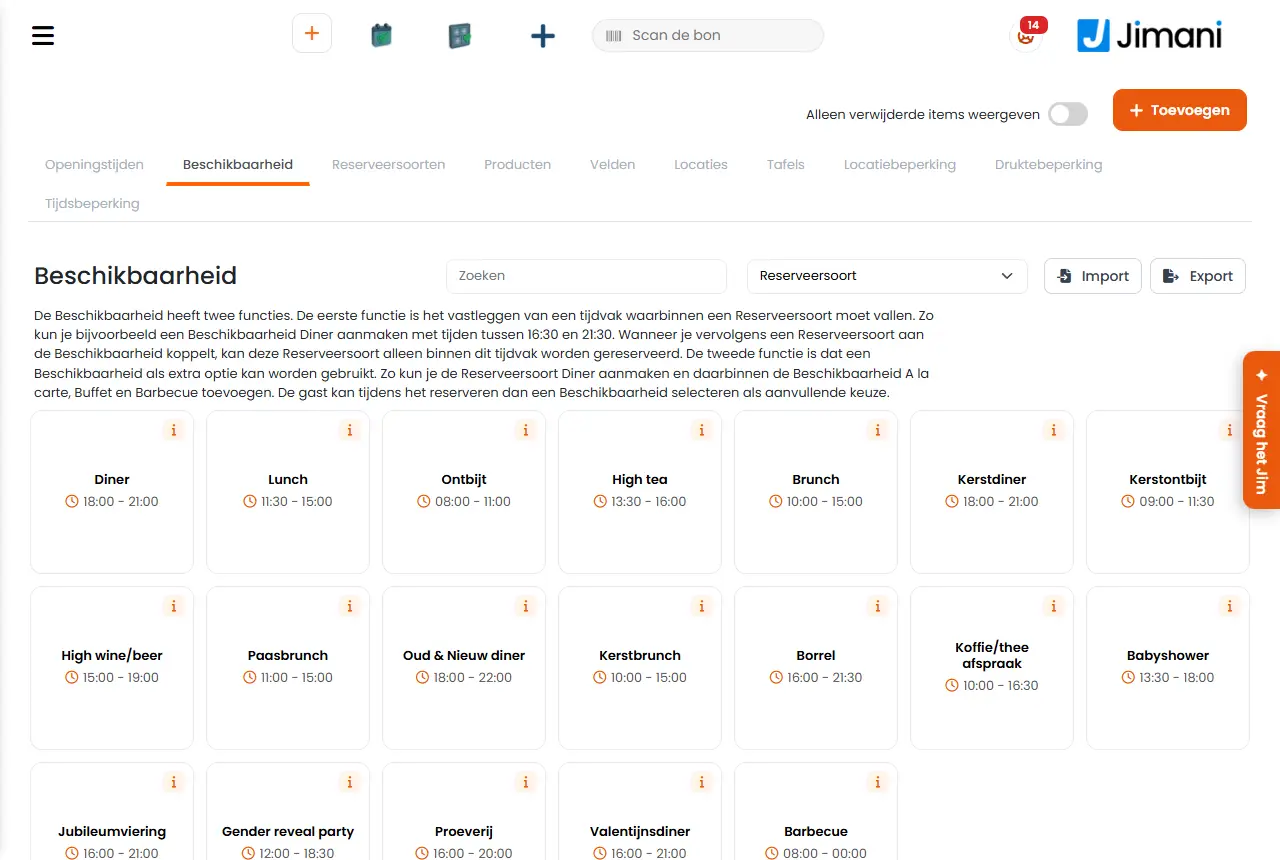
Name What it does When you use it Note Name The name the guest sees when reserving. At most 50 characters; the counter below the field shows how many are left. With more languages on you fill in the name per language. Always. - Maximum number of characters The counter at a name field: the number of characters that still fit. To check while typing. The description has its own limit of 530 characters. Description A short text about the type. At most 530 characters. If the guest needs to know what they are booking, for example what comes with high tea. - Availability Links the type to an Availability: the time slot in which guests can book this type. The drop-down also shows the times of the Availability. Choose None (not bookable online) if the type does not need to be in the widget. For every type that guests must be able to book online. A type belongs to one Availability. If a type was already linked to more Availabilities, those remain until you choose a different one. Image An image for the type, at most 5 MB. For an existing type you can remove it with the button Delete next to the image. If you want to show types in the widget with a picture. One image for all languages. Colour The colour in which the type appears in the reservation overview and the timeline. To tell types apart at a glance. Only visible internally; the guest does not see the colour. Minimum number of guests The smallest number of guests per reservation. Default 1. For a package that is only possible from, say, 4 people. - Maximum number of guests The largest number of guests per reservation. Default 20. Above this number the window Add reservation gives a warning, except for a quotation. For groups above that you work with a quotation. - Reservation duration The fixed duration of a reservation, selectable in steps of 15 minutes. Jimani calculates the end time itself; after that the table is free again for a new reservation. Default 1 hour. Lunch one hour, dinner three hours. - Manual times may differ With Yes an employee in the dashboard may plan a reservation shorter than the reservation duration, down to the Minimum booking time. Default No. If you sometimes want to place a shorter reservation in the timeline or on the floor plan. Guests in the widget always book the full reservation duration. Minimum booking time The shortest duration you may book manually: 15, 30 or 45 minutes. Default 30 minutes. You only see this field if Manual times may differ is on Yes. Together with Manual times may differ. - Show end time With Yes the guest also sees until what time the reservation lasts, for example on the confirmation. Default No. If you use a fixed time per reservation and want to let people know. - Minimum time until the reservation How long in advance a guest must reserve online, in steps of 15 minutes, 1 to 6 days or 1 to 4 weeks. Under a day counts from now; from a day in whole days. Default no minimum. For a high tea, barbecue or group reservation for which the kitchen has to buy ingredients. Staff can always reserve in the dashboard and at the POS. Request With Yes a reservation of this type is not final yet: it comes in as a request and the guest gets separate emails. If you set the request to confirmed, the guest only then gets the confirmation email. For group reservations or if you want to look at them first. You only see this choice with the add-on Requests. If Requests is set to No in the menu settings, the choice is greyed out and stays No. See the article about requests. Show in widget With Yes the type is in the reservation widget. Default Yes for a new type. Set to No for types you only book manually yourself. You only see this choice with the add-on Online reservations. Active An active type can be used right away when booking manually. Only for an existing type. Turn off to hide a type temporarily without deleting it. - Add products and deposits With Yes you can link a payment, transaction costs and extra products to the type. Default No. If the guest must pay when reserving or can order something extra. Only with the add-on Products and deposits. Do you want to receive a payment for this reservation? With Yes the guest pays when reserving, for example a deposit or a fixed amount per person. Then you choose the product. To limit no-shows or to have a group pay in advance. Online payment by the guest goes via Mollie. Choose the product for this reservation The product determines what the guest pays. The price is next to the name. With the plus button you create a new product right away. Choose No product to ask for nothing. After Yes at the payment question. If the product is not listed, create it first under Products (tab Products). Is this a deposit? With Yes the product counts as a deposit: the amount is fully settled when the guest arrives. With No it is a fixed amount that stays. Choose Yes if the guest pays the rest at the table later. See the article about deposits. Do you want to charge transaction costs? With Yes the guest also pays transaction costs with the payment. You then choose the product with the costs. If you want to pass on the payment costs. Only with the add-on Transaction costs, and only visible if you ask for a payment. Transaction costs The transaction costs product that belongs to this type, with the price next to it. The costs go on the guest's bill. Choose No transaction cost to not charge them. After Yes at the question about transaction costs. Create the product via Add > Transaction costs. Extra products Products the guest can order in addition with this type, such as a drinks package. You can choose more than one; with the plus button you create one. For add-on sales with a reservation. Only after Add products and deposits on Yes. See the article about extra products. Tables Choose the tables this type is placed at. A tick at a location selects all tables of that location; combination tables of the chosen tables come along automatically. For a new type all tables are already on. To allow, for example, high tea only in the conservatory. A table that is not chosen is not offered for this type. Main guests A group of tables for main guests. Those tables can only be reserved manually, never online. For tables you keep free for regular guests or management. You only see this if at least one table is marked as Main guest. Create a new table Opens the window Table so you can add a table without closing this window. If the table does not exist yet. - Fields The questions the guest gets when reserving. You drag the fields into the desired order and with the plus button you create a new field. For dietary wishes, occasion or other questions. A field for quotations gets the addition (Quotation) in the list. See the reference article about fields. Reservation types The explanation above the overview: here you create all reservation options and link products and extra fields. If you want an overview of what guests can book. Types that are turned off remain, with the label Inactive. - Related
What can you set under Availability?, What can you set under Fields?, How do I ask for a deposit with a reservation?
- What is a reservation type?
- How do I set the duration of a reservation?
- How do I determine at which tables a type of reservation may be booked?
- How do I hide a reservation type in the widget?
Keywords: reservation type, type of reservation, dinner lunch high tea, reservation duration, minimum number of guests, reservation deposit, request, show in widget
Last checked: 2026-10-16
Translated from the Dutch knowledge base; the Dutch version is leading.