How do Cancellations and the Refunds overview work?
- Answer
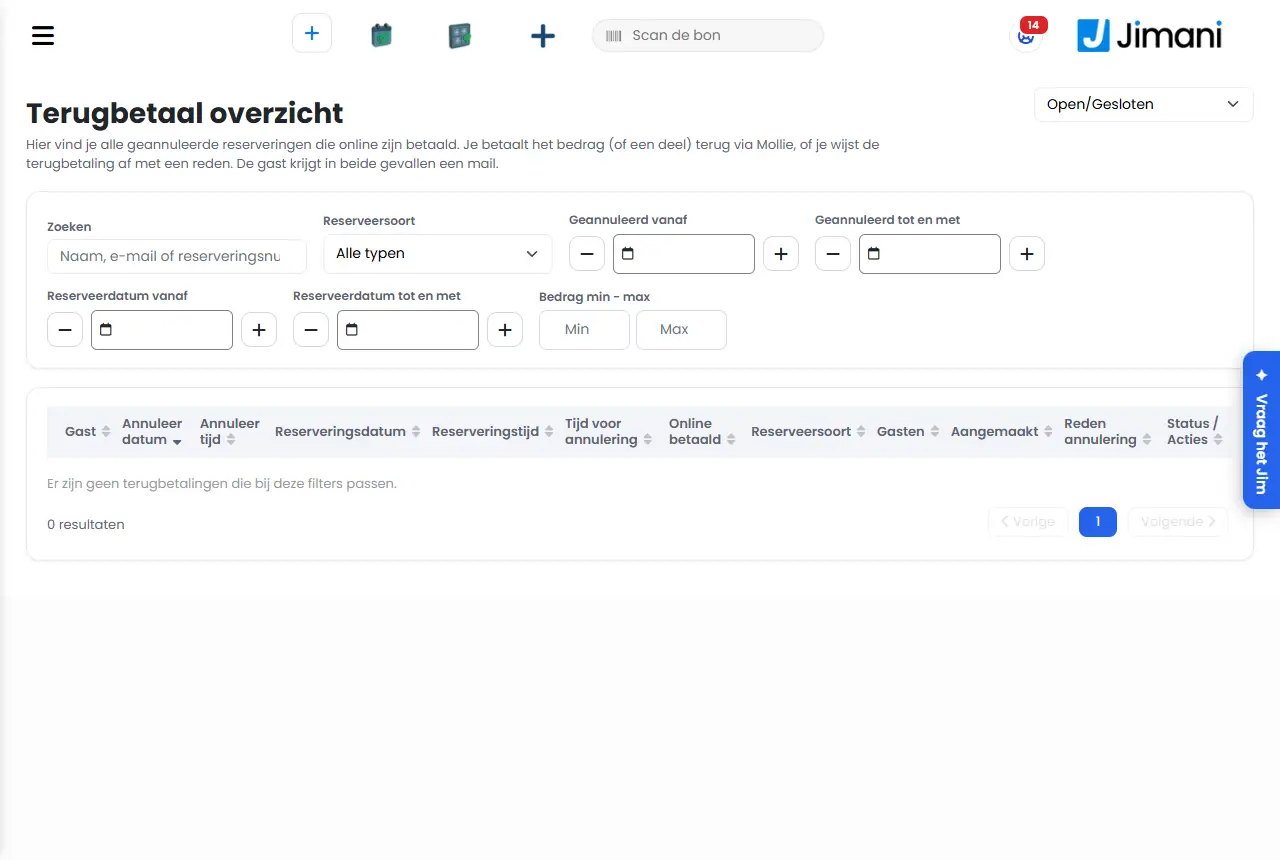
Under Cancellations you see all cancelled reservations and mark them as read. The Refunds overview lists the cancelled reservations that were paid online; there you refund the amount in full or in part via Mollie, or reject the refund with a reason.
- Where to find it
Menu Cancellations (
/cancellations) and menu Refunds overview (/Refunds). The Refunds overview only appears if the Products and down payments add-on is on.- Explanation
A cancellation comes in when the guest cancels themselves or when you cancel a reservation. You always get a notification, so you can take action if needed. Click Read when you have looked at the cancellation; the notification then disappears. The Cancellations overview has the filters All, Unread (default) and Today, the Mark all as read button and Export to Excel. Open a cancellation to view the reservation: the Reservation window shows everything as it was, with the tabs Overview, Attachment(s), History and Email History, but you can no longer change anything. The Refunds overview only contains a cancelled reservation that was really paid online (via the widget or a payment link, including a part payment or a deposit), never a payment by card terminal, pay later or a payment that was not completed. Choose Refund to return the amount to the original payment(s); the amount is already filled in and a lower amount is a partial refund. Choose Reject to not refund, with a reason. The guest gets an email in both cases. Refunding is possible up to 120 days after the payment (Mollie); the list looks back half a year.
- Buttons and settings
Name What it does When to use it Note Status The status of the cancelled reservation. In the Reservation window it is fixed and cannot be changed. To check. - Guest status Shows Cancelled: the guest did not come because the reservation was cancelled. To check. - Reservation types The type of the cancelled reservation. To check. - Availability The Availability of the reservation. To check. - Time The date and time of the cancelled reservation. To check. - From The arrival time. To check. - To The departure time. To check. - Created By whom or with what the reservation was created, for example the widget or a staff member. To see who created the reservation. In the Refunds overview the column is called Created. Reservation name The name under which the reservation was listed. To check. - Reservation language The language of the guest. Emails about the cancellation are sent in this language. To check. Cannot be changed. Payment status Whether the reservation has been paid. The window also shows Payment completed: Yes or No. To see whether there is anything to refund. You refund in the Refunds overview. Description The description of an attachment to the reservation. When you want to look at attachments again. - Subject The title of an attachment to the reservation. When you want to look at attachments again. - Add file Adds a document to the cancelled reservation. For example to keep a credit note or email. Same file types as for a regular reservation. Internal memo The note for your team on the reservation. Cannot be changed for a cancelled reservation. For viewing. - Add to quote Shows whether the memo belonged to the quotation. Cannot be changed. For a cancelled quotation. Only visible with the Quotations add-on. Module Filter in the Refunds overview: choose All modules or one module. The choice only appears if you have more than one module. With several modules that take online payments. - Reservation type Filter in the Refunds overview: choose All types or one reservation type. For example to see only dinner. - Cancelled from Filter: show only cancellations from this date. To choose a period. - Cancelled up to and including Filter: show cancellations up to and including this date. Together with Cancelled from. - Reservation date from Filter: show reservations with a date from this day. When you search by the date of the reservation. - Reservation date up to and including Filter: show reservations with a date up to and including this day. Together with Reservation date from. - Amount min - max Filter on the amount paid online: fill in Min, Max or both. To handle large amounts first. - Refund Opens a window where you return the amount to the guest. The full outstanding amount is already filled in; enter a lower amount for a partial refund. The money goes back to the original online payment(s) and is in the guest's account within a few days. When the guest is entitled to a refund under your terms. Requires a connected Mollie account. Reject Rejects the refund. You must fill in a reason; the guest reads it in the email. When the guest cancelled too late under your terms. A rejected refund can no longer be refunded afterwards. Details Shows the reservation number, the module, the email address, the online payments, what has already been refunded and, for a rejection, the reason. Before you make a refund. - - Messages
Message What it means What to do Reject refund The title of the window where you fill in a reason. Fill in the reason and choose Reject. Reason (the guest will see this) The field for the reason. The text goes to the guest. Write something you want the guest to read. Please enter a reason; the guest will see this. You chose Reject without a reason. Fill in a reason. Only {0} is outstanding. You entered an amount higher than what can still be refunded. Enter an amount up to the stated amount. Enter an amount greater than zero. The amount was zero or empty. Enter an amount above zero. This amount no longer fits the payments of this reservation. The amount does not fit what can still be refunded per payment. Enter a lower amount. Your Mollie account is not connected. Connect Mollie under Settings > Company Information > Mollie. Refunding is only possible with a connected Mollie account. Connect Mollie and try again. This reservation is no longer in the refunds overview. The reservation has since been handled or deleted, or falls outside the period. Refresh the overview. This refund has already been rejected. You are trying to refund something that has already been rejected. Nothing; a rejection is final. This reservation has already been handled. You are trying to reject something that has already been refunded or rejected. Refresh the overview. Rejected. The guest will receive an email with the reason. The rejection has been recorded and the email is sent. - That did not work. Please try again in a moment. The refund or rejection did not go through. Try again in a few minutes. There is The Refund window starts with There is X outstanding. Enter a lower amount for a partial refund. Check the amount. Online payments: In Details: the online payments at Mollie that belong to the reservation. - Already refunded: In Details: what has already been returned. - Reason for rejection: In Details: the reason you gave when rejecting. - Reservation Time: {0} Arrival Time: {1} In the Reservation window of a cancelled reservation: the reservation time and the arrival time. - - Related
How do I refund a cancelled reservation, or reject the refund?
- Where do I see all cancelled reservations?
- How do I refund a cancelled reservation via Mollie?
- Can I refuse a refund and give a reason?
- How do I mark cancellations as read?
Keywords: cancellation, refund reservation, reject refund, partial refund, mollie refund, guest cancels, cancelled reservation
Last checked: 2026-10-16
Translated from the Dutch knowledge base; the Dutch version is leading.