How does Customer contact work in Jimani?
- Answer
Under Customer contact you manage the emails your guests receive automatically, such as confirmation, reminder and survey, and you decide via Send times when they go out. Per language of your business there is a list of templates.
- Where to find it
Settings > Communication > Email, tab Customer contact (
/CustomersCommunication)- Explanation
At the top of the screen is the explanation: "Create and manage Email templates and indicate when the emails should be sent." There is a tab for each language of your business. In the table you see the columns Email subject, Email type and, if your business has reservation types, Reservation types. For the first three reservation types you see names; if there are more, you click the +number or the info button for the full list. A click on a row opens the template. How to write a template is in How do I change the text of an email to guests?. When emails go out is in When are automatic emails sent to guests?.
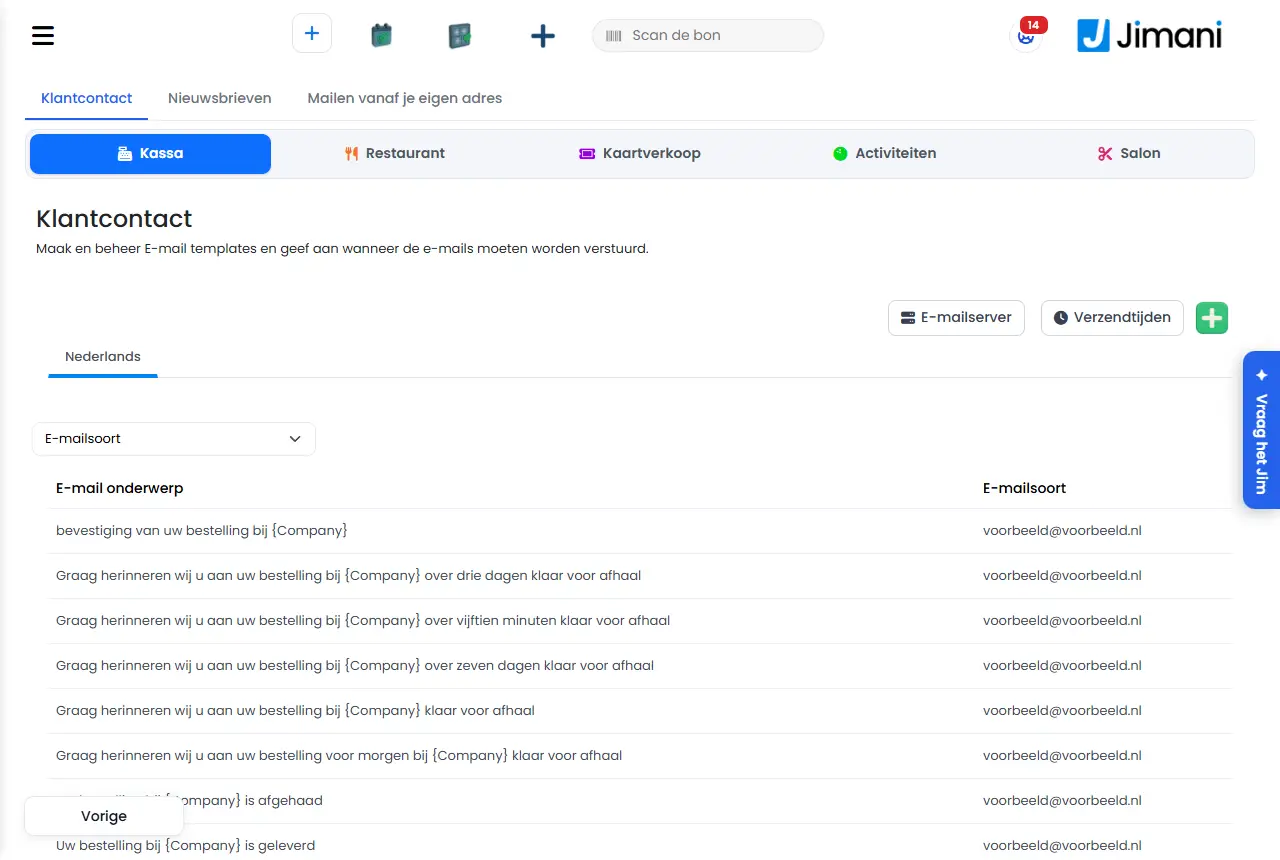
- Buttons and settings
Name What it does When you use it Note Email server Opens the connection of your own mail server If you want to send emails from your own address Only visible if the add-on Send from your own address is turned off or not yet connected Send times Opens a window with the messages that go out at a set time To schedule reminders and the survey Choose a tile; with Previous you come back Create a new email template (plus) Creates a new email For an extra template, for example per reservation type You go through the same steps as when editing Email type (filter) Shows only emails of one type To quickly find the right email - Reservation type (filter) Shows only emails for one reservation type For businesses with reservation types Not visible without reservation types Pre-arrival notice 1 The reminder in hours before arrival A short reminder just before arrival Here you can indicate when your email "Pre-arrival notice 1" is sent to the guest. Hours before arrival The number of hours before arrival For Pre-arrival notice 1 "How many hours in advance do you want to send the email?" Pre-arrival notice 2, 3 and 4 Reminders in days before arrival For a reminder one or more days in advance Here you can indicate when your email "Pre-arrival notice 2, 3 or 4" is sent to the guest. Days before arrival The number of days before arrival For Pre-arrival notice 2, 3 and 4 "How many days in advance do you want to send the email?" Time The time of day at which the email goes out For Pre-arrival notice 2, 3 and 4 "At what time do you want to send the email?" Survey (in Send times) The survey email after departure To schedule the survey "Send survey email" is the explanation on this tile Hours after The number of hours after departure For the survey "In how many hours will this email be sent?" Save (in Send times) Stores the time and closes the window After filling it in The page stays with the chosen module Write with AI Has the AI write an email In the template, if you want help The usage is deducted from your Jimani AI credit What should the email do? Your instruction to the AI, up to 2000 characters For Write with AI For example: confirm the reservation, mention date and time and ask about allergies. Tone (optional) The writing style: No preference, Friendly, Professional, Enthusiastic or Formal For Write with AI Without a choice the AI chooses itself Generate Has the AI write After your instruction Takes half a minute to a full minute Preview, Use, Try again, Undo View the result; adopt it in the editor; have another version made; restore the previous content After generating Use puts the email in the editor and in Email Title Email template The heading of the first block with Language, Email type and Reservation types For every template "The fixed form of an email: the subject, the text and the details that are filled in automatically." Tags A collapsible block with details you can put in the email To fill in names, dates and times Five tabs: Reservation details, All fields, Customer details, Company details, Description Email Title, Email body The subject and the text of the email Always In the list the title is called Email subject Bcc An extra address that receives a copy If you want a copy yourself An email address Upload a pdf file here An attachment to the email For example for terms or directions Documents and images up to 10 MB Next, Previous, Save, Delete Through the steps; stores; deletes the template In the template window - - Messages
Message What it means What you do This file cannot be an attachment: only documents and images up to 10 MB. The attachment is not a document or image, or larger than 10 MB Choose another file The AI is writing your email. This usually takes half a minute to a full minute. The AI is working Wait a moment Writing did not work. Please try again. The AI could not write the email Click Generate again Removed because not in the Tags list: The AI used a tag that does not exist; Jimani removed it Check the email The email is in the editor. Review it and save. You clicked Use Read the email and click Save The previous content has been restored. You clicked Undo - - Related
How do I change the text of an email to guests?, When are automatic emails sent to guests?, How can I send email from my own email address?
- Where do I manage the emails that guests receive automatically?
- How do I find the email with a certain subject?
- Where do I set the send times of the emails?
- Where are the email templates per language?
Keywords: customer contact, email templates, email template, send times, pre-arrival notice, email with ai, email tags
Last checked: 2026-10-16
Translated from the Dutch knowledge base; the Dutch version is leading.