How does Salon management work in Jimani?
- Answer
In Salon management you set up your salon: opening hours, employees, treatments, products, workstations, treatment groups and extra fields. Each part has its own tab with a list, and with the button at the top right you add a new item.
- Where to find it
Menu > Salon (in a salon business) or Menu > Salon management (in the POS with the Salon integration on) (
/Salon)- Explanation
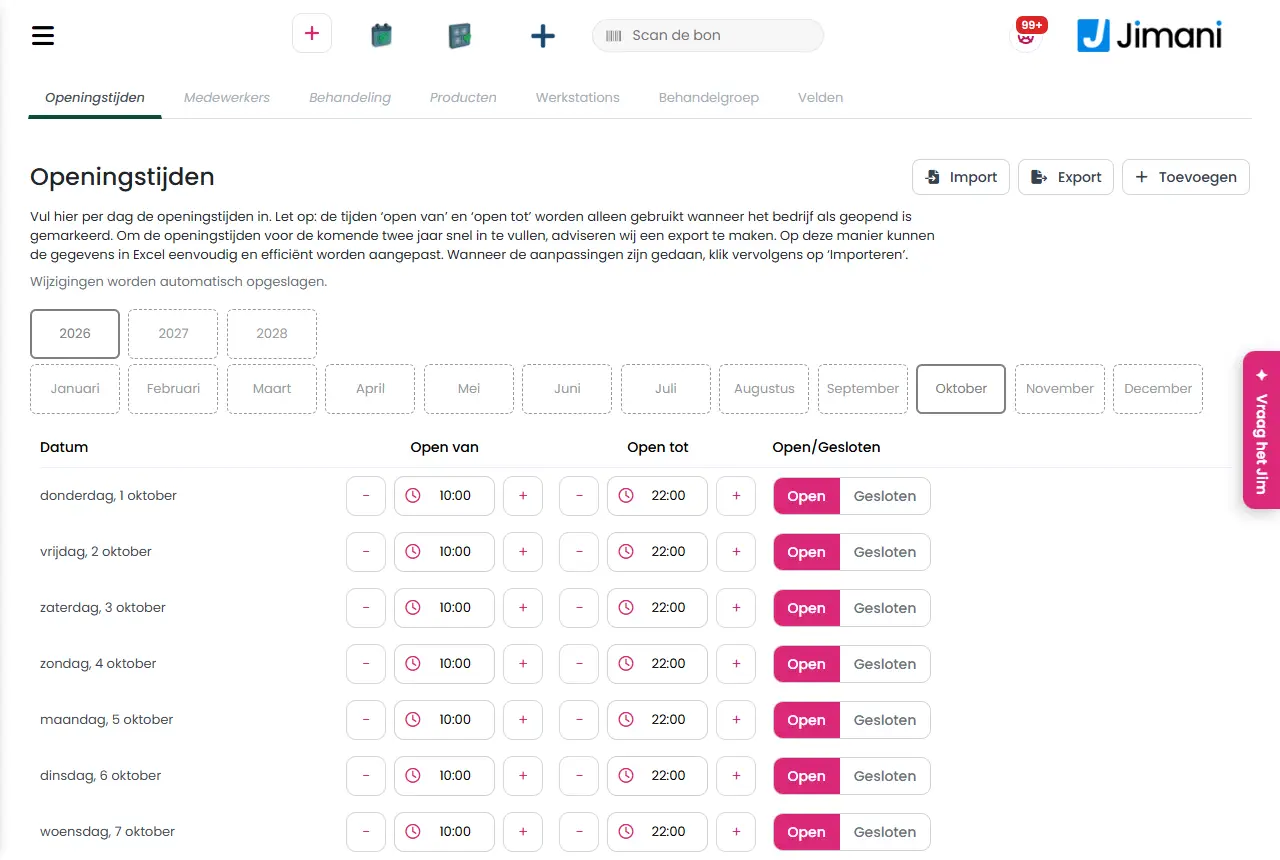
At the top are seven tabs: Opening hours, Employees, Treatment, Products, Workstations, Treatment group and Fields. Click a line in a list to open and change that item. At the top right is a button with several plus signs: it opens the Salon window with six tiles (Employee, Treatment, Products, Workstations, Treatment group and Fields), so that you can create something new right away, even if you are on another tab. Each screen is described in its own article, see Related.
- Buttons and settings
Name What it does When you use it Note Show only deleted items Yes/No switch at the top right. On Yes, every list shows only items that are in the trash. When you have deleted something by accident and want to restore it. You restore an item with Activate in the action menu of the line. Opening hours Tab with your salon's opening hours per day. At the start and every new year. Without opening hours, a guest cannot book online. Employees Tab with your employees: Image, Name, E-mail, Phone, Linked to, Active, Show in widget and Actions. To add or change employees. See the article about employees. Treatment Tab with your treatments: Image, Name, Employee, Treatment group, Price, Active, Show in widget and Actions. To set up treatments with duration and price. See the article about treatments. Products Tab with the extra products and transaction costs, with a search field (Search) and a drop-down Product types to filter. For upselling with a treatment. See the article about products. Workstations Tab with your workplaces (chairs). You can change the name, Can be reserved via widget and Active directly in the list and save with Save. When you add workplaces or take a chair out of rotation temporarily. See the article about workstations and treatment groups. Treatment group Tab with the groups a treatment is meant for, such as women, men or children. You change Name and Active directly in the list. When you want to divide treatments by target group. See the article about workstations and treatment groups. Fields Tab with extra questions that a guest answers when booking. For example for an allergy or a preference. See the article about fields. Actions Button per line with the action menu: Deactivate or Activate, Create a Copy and Send to Trash. To temporarily turn off, duplicate or delete an item. Send to Trash does not delete anything permanently; the item is then still under Show only deleted items. After Create a Copy there is a confirmation and the message Copy created successfully. Here you can create all reservation options and link products and extra fields. Think of breakfast, lunch or dinner, but also children's parties, various party and celebration packages or other group reservations. This is the help text above the list of employees. It is there for information only. The text was taken over from the restaurant screen; for a salon it is about employees. The customer first chooses the desired treatment when booking, such as "Men's haircut", "Manicure" or "Relaxation massage". Then link the treatment to a time slot, duration, price and the relevant employees. Help text above the list of treatments. It says that a guest first chooses the treatment and that you link duration, price and employees to it. Read this if you are unsure how treatments work. - Indicate whether the field must be filled in during the reservation. Help text above the list of products. It is there for information only. The text actually belongs to Fields; for Products it has no function. Add workstations and link them to an Employee. Help text above the list of workstations and also above the list of fields. It is there for information only. Above Fields the text was taken over and does not fit that list. Add treatment group. If there is more than one choice, it will be visible during booking. Help text above the list of treatment groups. If you have only one treatment group, the guest sees no choice. Read this if the guest does not see the choice. - - Opening hours per day
On the Opening hours tab, at the top you choose the year (this year and the two years after) and the month. Per day there are an opening time, a closing time and a switch Open or Closed. A day you have not filled in yet is set to 10:00 to 21:00 and to Closed. The times save themselves, per day; there is no save button. The text on the screen reads: Enter the opening hours per day here. Please note: the times 'open from' and 'open until' are only used when the business is marked as open. To quickly fill in the opening hours for the next two years, we recommend making an export. This way the data can easily and efficiently be adjusted in Excel. When the changes have been made, click 'Import'. With Select Excel file and Choose a file you choose the Excel file and with the import icon you load it in; the Excel icon next to it makes the export.
- Messages
Message What it means What you do Failed to generate the Excel file. The export of the opening hours to Excel failed. Try again. If it fails again, try once more later. Saved A changed day has been stored. It appears briefly next to the day. Nothing. Not saved A day has not been stored, for example because of an invalid time. A button Try again appears. Correct the time and try again. - Related
How do I set my salon's opening hours?, How do I add an employee and set when they work?, How do I create a treatment?
- Where do I set up my salon?
- Which parts does Salon management have?
- How do I quickly add something new in Salon management?
- Where do I find employees, products and workstations?
Keywords: salon management, set up salon, salon opening hours, salon tabs, restore deleted items, copy treatment
Last checked: 2026-10-16
Translated from the Dutch knowledge base; the Dutch version is leading.