How does the Guests and reservations screen work?
- Answer
Under Search you see all your guests and reservations across all modules on one screen. You search by name, address, email or phone, choose a period and open a customer card for each guest with everything they did with you.
- Where to find it
Menu Search (
/searchforreservations), or Settings > Guests and bookings > Search guests and reservations.- Explanation
The screen opens with the last 30 days. Choose a module (All modules, one of your own modules or Till and webshop) and the Guests or Reservations tab. On the Guests tab an email address counts as one customer; passers-by and guests with the business's email address are listed separately under the heading Passers-by (and guests with the business's email address). Click a column header to sort, page with Previous page and Next page (25 rows per page) and use Columns to choose which columns you see; your browser remembers that choice. With Export you put all rows in Excel; that requires the Export permission. At the bottom is the Guest data retention period.
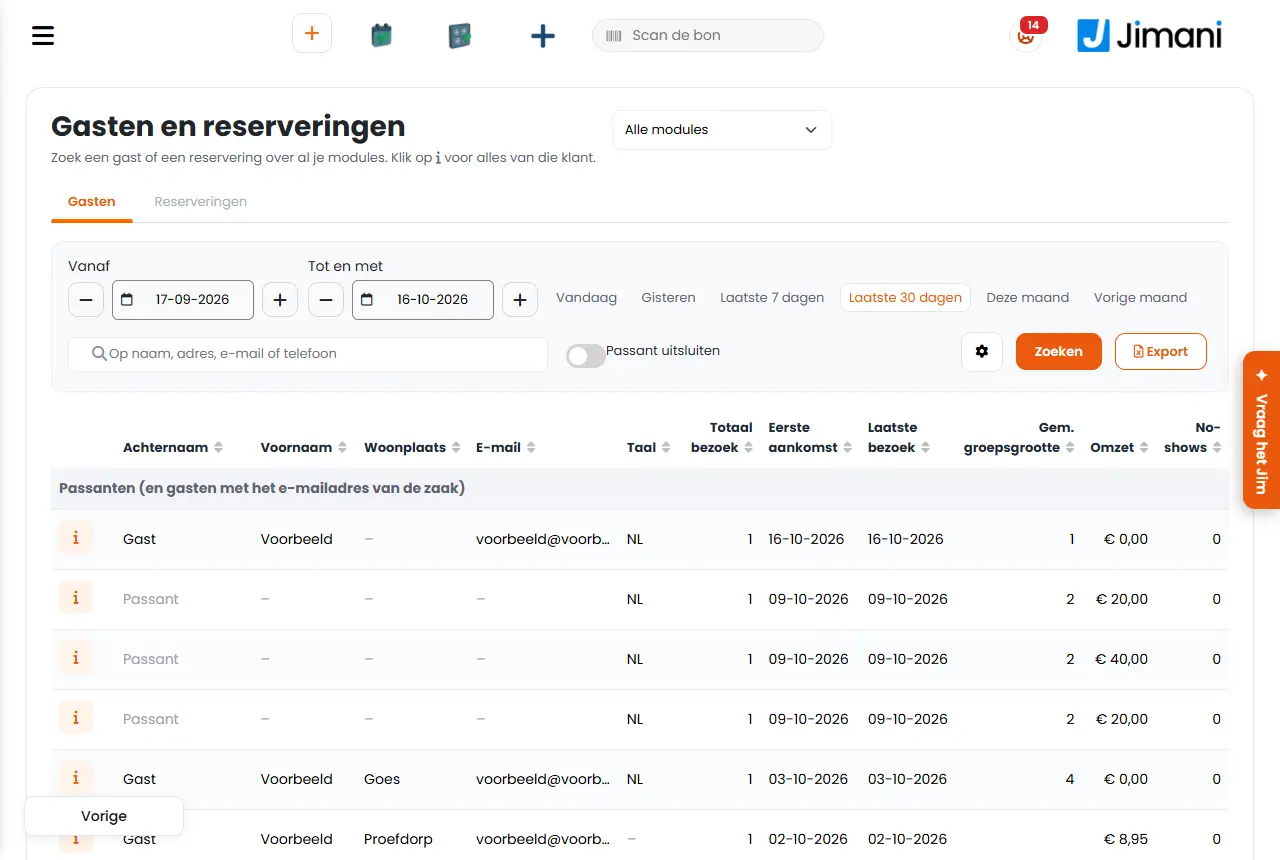
- Buttons and settings
Name What it does When to use it Note From The start date of the period. The quick choices are Today, Yesterday, Last 7 days, Last 30 days, This month and Last month. To view a period other than the last 30 days. Without dates the screen shows the last 30 days up to and including today. Up to and including The end date of the period, which itself is included. Together with From. If From is after Up to and including, Jimani swaps them. Exclude passers-by Leaves out guests who were created as a walk-in, or who have the business's email address. That leaves only guests you can contact. When making a list to email. Passers-by do not count as regular customers. Total visits On the Guests tab: the number of visits by the guest in the chosen period, without cancellations and no-shows. An order that belongs to a reservation does not count as a separate visit. To find regular guests. - First arrival The date of the first visit within the chosen period. To recognise new guests. - Last visit The date of the last visit within the chosen period. To find guests who have not been in for a long time. Choose a long period to see old visits as well. Avg. group size The average number of people per visit in the chosen period. To see whether a guest often comes with a large group. - Revenue What the guest spent with you in the chosen period, without cancellations and no-shows. To see your best guests. - No-shows How often the guest failed to keep a reservation in the chosen period. To talk to guests with many no-shows or ask for a deposit. See the article about no-shows. Arrival date On the Reservations tab: the day of the reservation or order. You also see Time, Module, Reservation type, Status, Quantity, Name, Email, Phone, Address, Postal code, City, Amount and Payment method. To go through all reservations of a period. Address and Postal code are off by default; turn them on under Columns. Customer card The button with the people icon next to a guest opens the customer card: the Customer block with contact details and the tiles Visits, Reservations, Orders, Revenue, No-shows and Last visit; the Items block with the most purchased items; and the Timeline block with all visits and orders across all modules. When you want to see a guest's history. See the article about the customer card. Export data On the customer card: downloads all data of this guest as a file, for an access request. Only if you see all guest data and have the Export permission. When a guest asks what you keep about them. See the article about exporting guest data. Delete data On the customer card: anonymises the guest's personal data. Only the owner may do this. When a guest asks to be forgotten. See the article about deleting guest data. Guest data retention period After this period without a visit, a guest's name, email, phone and address are deleted automatically. You choose 6, 12, 18, 24, 36, 48, 60, 84 or 120 months; 24 months is the default. Only the owner can change it. When you want to keep data shorter or longer than the default. Amounts, receipts and invoices are kept for 7 years. - Messages
Message What it means What to do Search failed. Please try again. The list could not be retrieved. Try again; if it keeps failing, check your connection. Nothing yet. The customer card shows no visit or order yet. - No customer card can be made for this guest. No customer was found for this row. Search for the guest again. Walk-in: doesn't count as a regular customer. The customer card belongs to a walk-in. - Couldn't save. Please try again. The retention period could not be saved. Try again; only the owner can change it. - Related
What is on a guest's customer card?, How do I export a guest's data (access request)?
- Where do I see all my guests in one overview?
- How do I look up a customer by email address or phone?
- How do I exclude passers-by from the list?
- Can I export the guest list?
Keywords: search guest, search reservation, customer list, search by email, customer card, exclude walk-ins, export guests
Last checked: 2026-10-16
Translated from the Dutch knowledge base; the Dutch version is leading.