How does the Newsletter window work in Jimani?
- Answer
In the Newsletter window you create a newsletter in three blocks: 1. Recipients, 2. Content and 3. Send. On the right you see the email as the guest sees it. You can save it as a draft, send a test email, send it right away or schedule it.
- Where to find it
Settings > Communication > Email, tab Newsletters, button + Newsletter or open an existing newsletter with Edit (
/Nieuwsbrieven/Bewerk)- Explanation
A new newsletter is called "New newsletter"; an existing one has its own name. A sent newsletter opens read-only, with a message that it has already been sent and that you can make a copy in the list. Steps and explanation about the recipients: see How do I choose who receives my newsletter?.
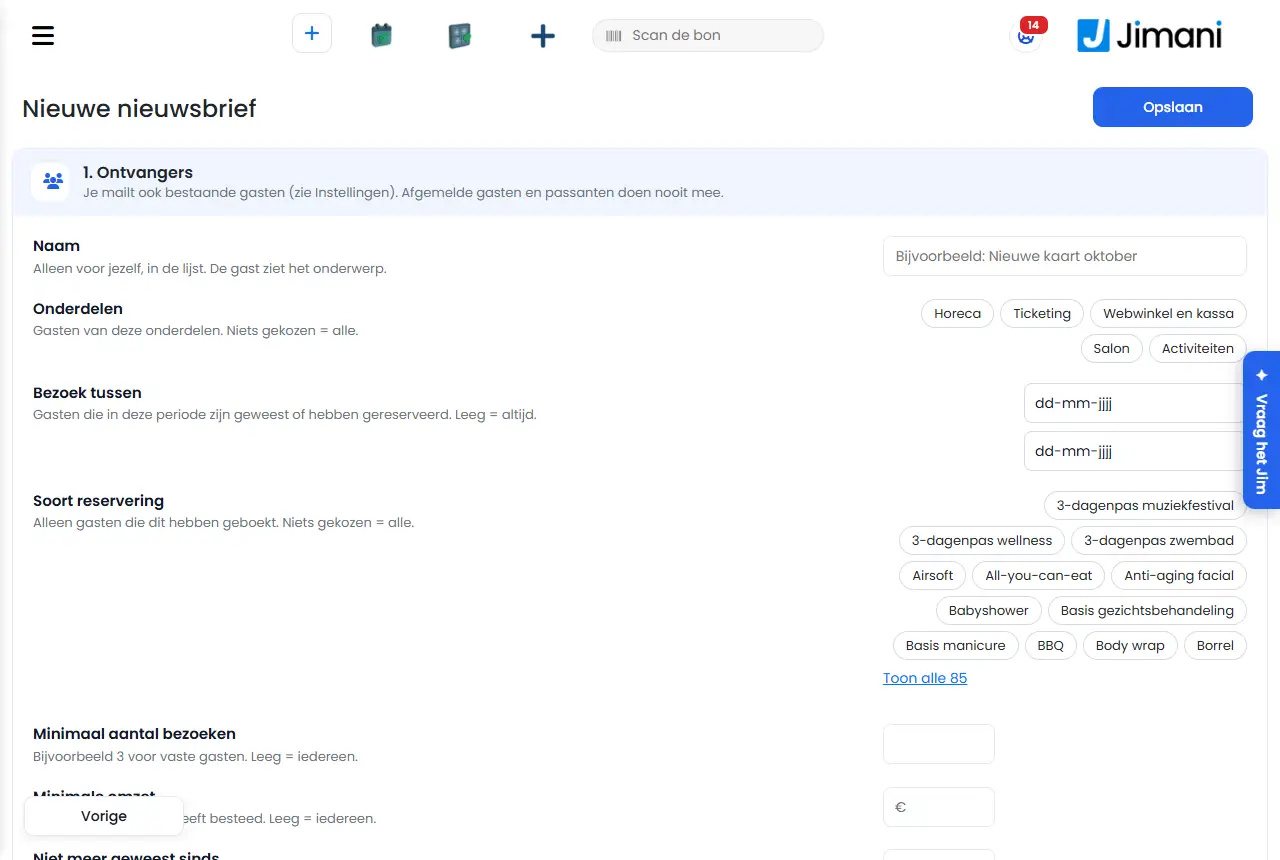
- Buttons and settings
Name What it does When you use it Note Save Stores the newsletter as a draft (top right) In between, without sending If the newsletter is scheduled, it goes back to draft: schedule it again Name The name in your list To find the newsletter again Only for yourself; the guest sees the subject. Empty = the subject or the date Modules Guests of these modules (Hospitality, Ticketing, Online store and POS, Salon, Hotel, Activities) To choose a group Only visible with more than one module; nothing selected = all Visited between Guests who visited or booked in this period (From, Up to and including) For a campaign around a period Empty = always Reservation type Only guests who booked this type For a mailing per type More than 12 types? Use Show all (number) and Show less Minimum number of visits Only guests with at least this many visits For regular guests (for example 3) Empty = everyone Minimum revenue Only guests who spent at least this amount in total For your best guests Empty = everyone Hasn't been back since Only guests who have not been back for longer than this many days To win guests back Empty = everyone Guest's language Limited to guests with a language For a newsletter in one language Only with more than one language; nothing selected = all Skip guests with a no-show Yes/No: guests who ever failed to show up are skipped Default Yes Set to No to email them anyway recipients The counter with the number of recipients, per language To check before you send Follows your filters Subject The subject per language (maximum 150 characters) Always What the guest sees in their inbox Headline Adds a headline (maximum 150 characters) For a title - Text Adds a text block (maximum 5000 characters) For the content An empty line creates a new paragraph Image Adds an image with an address (https://) or Upload, plus a description For a photo or banner jpg, png, gif or webp up to 4 MB Button Adds a button with text and an address (maximum 60 characters for the text) For a link Only http or https addresses Reserve now Adds a button that goes to your reservation widget To bring in reservations The address is filled in automatically; the button text is in the language of the version Move up, Move down, Delete (on a block) Moves or deletes a block To arrange the order - Test email to The address for the test email Before you send Your own address by default Test email Sends the newsletter as a test To see the email in your inbox In the language you are viewing under Content; does not count toward the 500 per month Schedule for Date and time (time of the business) at which it is sent For sending later Until that moment you can edit or cancel it Schedule Sets the newsletter up for the chosen moment After choosing Schedule for Without a moment Jimani reports: Choose the moment first under "Schedule for". Cancel scheduling Moves a scheduled newsletter back to draft If the schedule is no longer right Only visible for a scheduled newsletter Send now Sends right away For a newsletter that must go out now Cannot be undone - Messages
Message What it means What you do Send now? Confirmation question on Send now Check the recipients and choose Send The newsletter will go out Start of the question: "The newsletter will go out now to (number) recipients. You cannot undo this." Check the number The newsletter will go out on Start of the question when scheduling: "The newsletter will go out on (date) at (time) to (number) recipients." Check the date and number Choose a date and a time. The moment under Schedule for is missing or invalid Choose a valid moment Enter a subject and a block to see the preview. The preview on the right stays empty as long as the subject or the blocks are missing Enter a subject and at least one filled block No blocks yet. Add a headline, text, image or button below. You have no blocks yet Use the buttons under Content Choose an image. You clicked Upload without a file Choose a file The image is too large (at most 4 MB). The file is larger than 4 MB Make the image smaller Only jpg, png, gif or webp. The file type is not allowed Choose a jpg, png, gif or webp Show all {0} Button under Reservation type with the number of types Click to see all types Show less Collapses the list of types again - This newsletter no longer exists. The newsletter has been deleted Go back to the overview - Related
How do I send a newsletter to my guests, and what does it cost?, How do I choose who receives my newsletter?, How does the Newsletters screen work in Jimani?
- How do I create a newsletter in three steps?
- Can I save a newsletter as a draft?
- How do I send a test email of my newsletter?
- Can I copy a sent newsletter?
Keywords: create newsletter, newsletter blocks, test email newsletter, schedule newsletter, newsletter image, reserve now button
Last checked: 2026-10-16
Translated from the Dutch knowledge base; the Dutch version is leading.