How does the reservation overview work in Jimani?
- Answer
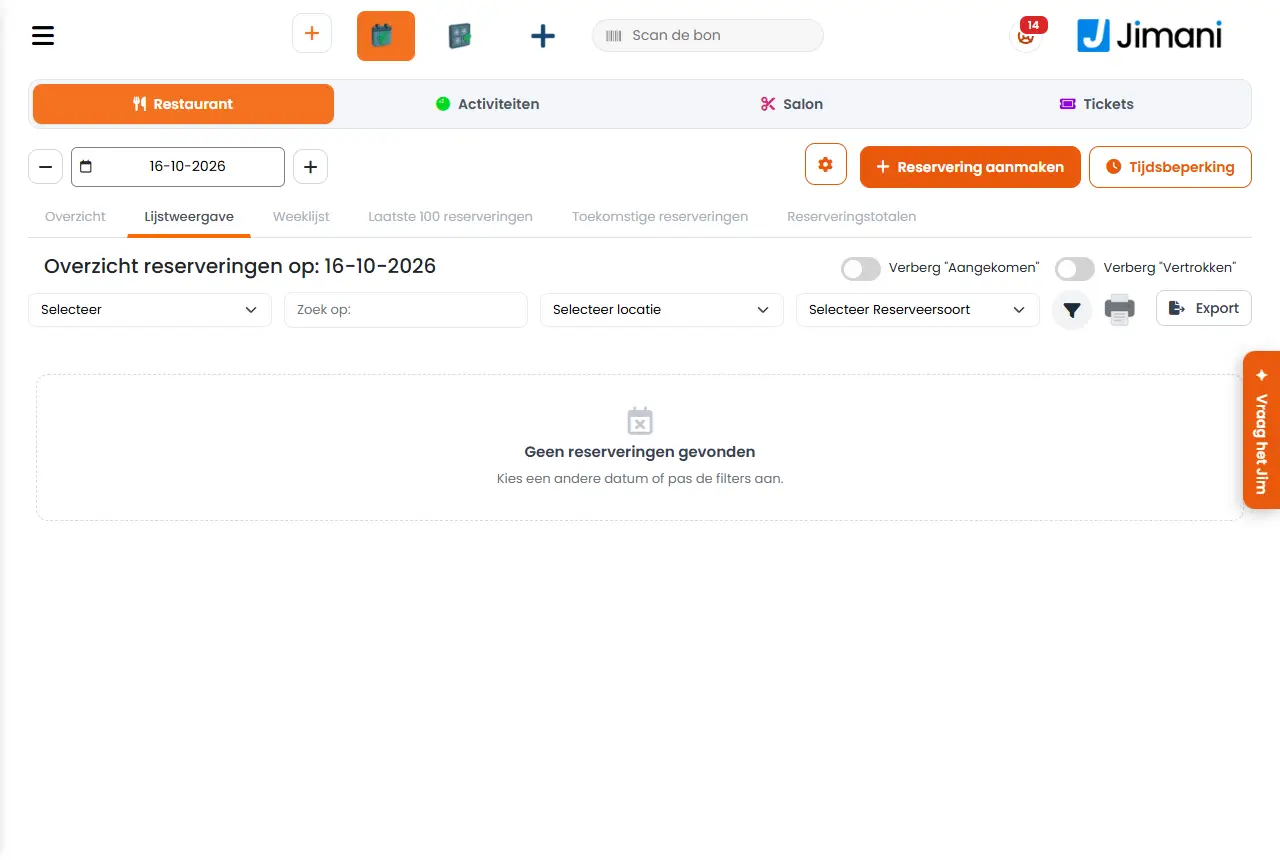
Under Reservations you see all reservations of the business in six views: Overview (the timeline), List view, Weekly list, Last 100 reservations, Upcoming reservations and Reservation totals. With the Reservation settings cog you decide how the timeline looks and how booking works.
- Where to find it
Menu Reservations (
/Reservations). The Reservation settings cog is at the top right.- Explanation
At the top you pick the day with the arrows or the date picker. The buttons at the top right are Create reservation, SMS times (only with the SMS add-on) and Time limit. The scanner icon opens the window where you enter a spare key. Below the date you choose the view. In the lists you can filter the reservations with Search by:, Select location and Select Reservation Type; the status filter is available to the owner or anyone with the Filters permission. Print and Export to Excel require the Printing and Exports permission. Click a name to open the Reservation information window, where you change the status, take payment, add an attachment or write a memo. A reservation that is still Open after the arrival time gets the buttons Set to No-show and Set to No-show in 30 minutes. The timeline shows the reservations as blocks per table; below the timeline is the Status colours legend: Confirmed, Request, Arrived, Left, No-show and Cancelled: not shown.
- Buttons and settings
Name What it does When to use it Note Hide "Guest arrived" In a list: leaves out the reservations whose guest has already arrived. When you only want to see who is still to come. - Hide "Guest left" In a list: leaves out the reservations whose guest has already left. To keep the list short. - Reservation for the month: Under Upcoming reservations: pick the month of this year for which you want to see reservations. Months that have already passed cannot be chosen; the current month is selected by default. To look ahead. - Paid In the Payment column of the lists: the reservation has been paid. To check deposits. In the timeline a marker shows whether a reservation has been paid. Unpaid In the Payment column of the lists: an amount is still outstanding. To see which guests still have to pay. A reservation without an amount shows no payment status here. View In Reservation settings: how much of the reservation is visible in a block of the timeline. You choose from Normal, Compact or Extra compact. Choose Compact or Extra compact for a busy business with many tables. After Save it applies to all screens and users of the business. Normal Choice under View (and under Table name text size): the default size, with as much information as possible in a block. With few tables. - Compact Choice under View: a block with fewer lines. With many reservations at the same time. - Extra compact Choice under View: the smallest block. When you want to see many tables at a glance. - Show number of seats Shows the number of seats after the table name, for example 12 (4). For Activities and Salon this is called Show count per location/lane. To see the capacity right away when placing guests. - Show count per location/lane The same choice for activity and salon timelines: shows the number of people after the name, for example Pool table 1 (4). For activities or salon. - Table name text size Makes the table names to the left of the timeline larger: choose Normal or Large. On the screen it says: “Large” When used from a distance or on a small screen. - Location text size The same choice for activity and salon timelines, for the names to the left of the timeline. For activities or salon. - Horizontal gridlines The lines between the rows: Normal (light grey) or Dark grey. On the screen it says: “Dark grey” “Normal (light grey)” When you want to tell the rows apart more easily. - Vertical gridlines The lines between the times: Normal (light grey) or Dark grey. To read the times more easily. - Show half-hour times Shows the half-hour times and lines in the timeline. Yes or No. Turn it off for a calmer view. - Location Timeline filter: show only the tables of this location or locations. Default All locations. This browser remembers your choice. When you work per area, for example only the terrace. Clear filters resets everything. Reservation type Timeline filter: the blocks of other types turn light grey, so a table never looks free by mistake. Default All reservation types. When you want to overview one type, such as dinner. This browser remembers your choice. Sort tables The order in which the tables appear to the left of the timeline: Tables by number, Tables by location or Tables by number of guests. Save stores this for the whole business. Choose what reads best for your team. Unlike Location and Reservation type, this choice applies to everyone. - Messages
Message What it means What to do Are you sure that guests have arrived? A confirmation when marking guests as arrived. Choose OK if the guest is really there. - Related
How do I add a reservation myself, for example when a guest calls?, How do I move, extend or swap reservations in the timeline?, What can you set under Reservation settings?
- Which views does the reservation overview have?
- How do I see today's reservations?
- Where do I see upcoming reservations?
- How do I adjust the timeline?
Keywords: reservations overview, reservation timeline, weekly list, list view, today's reservations, sort tables, set up timeline
Last checked: 2026-10-16
Translated from the Dutch knowledge base; the Dutch version is leading.