What can you set under the Fields of Activities management?
- Answer
A field is an extra question or text that the guest gets when booking, such as an allergy, a drop-down or a box for your terms. You create fields under Activities management > Fields, choose the type, the name, the options and whether the field is required, and link it to one or more activities.
- Where to find it
Activities management > Fields tab > plus button > Fields (
/Activities)- Explanation
The window is called Create a new field and has four parts: Extra field (for which activities), Field type (the type), Name and description and Settings. The overview shows the columns Name, Label, Type, Required, List view, Manual reservation and Show in widget, with the filters Search and Activity. The screen says: "View all fields here. Add new fields with the Add button, or edit existing fields. Use fields to easily request and share information while booking, such as terms and conditions." The step-by-step version is in How do I let guests answer extra questions when booking?.
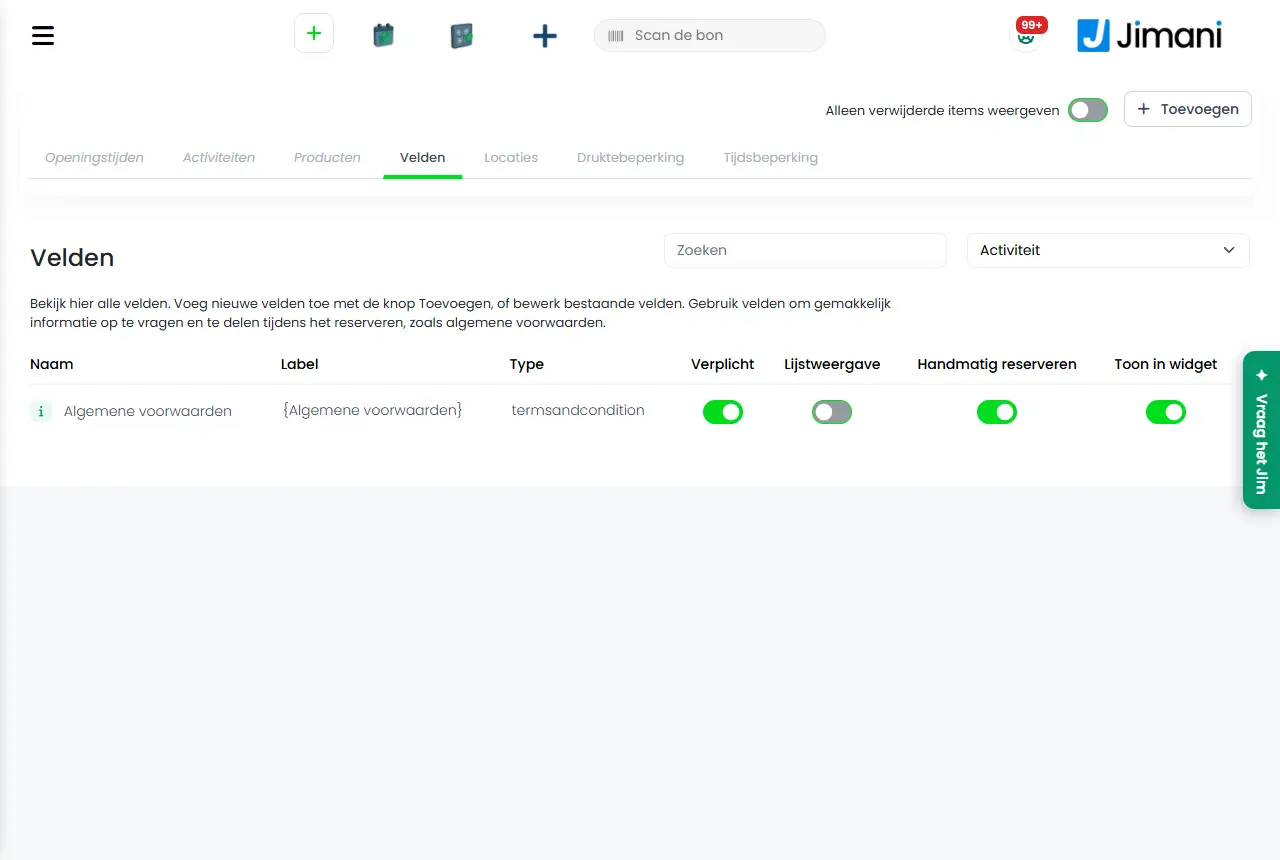
- Buttons and settings
Name What it does When to use it Please note Field type The second part of the window ("What kind of answer you ask for: a text, a choice, a date or a time."). Under Type you choose what kind of answer you ask for. On the screen: "Select the field type." The choices: Text box, Large text box, Time slot, Timefield list with quantity, Date, Arrival or end date (+/- days), Checkbox, Selection box multiple choices, Radio button, Number field, Phone, Drop-down, Label, Link, Terms and conditions and Delivery cost field. When creating. The other fields in the window adapt to the type. Extra field The first part of the window ("A question that the guest answers when booking, for example an allergy or a seat preference."). Under Type you tick the activities the field applies to. On the screen: "Select the activities that apply. Several selections are possible." Always; with Select all you choose them all. Without a choice: Please select at least one ticket type. Name The name of the field that the guest sees, maximum 50 characters. On the screen: "Enter a name." Always. Required; per language. Description The explanation with the field. On the screen: "Enter an explanation for the field. It is shown in the field itself as light grey text." For Terms and conditions it is the text next to the box, for Link the link to the website. To explain what you are asking. The heading changes with the type. Options The choices for a Drop-down, Radio button or Selection box multiple choices, one per line. On the screen: "View the options here." For Terms and conditions the link to the terms is here, for Link the title of the link. For types with choices. If you put XXX at the end of a line, that option is preselected. Label The tag of the field. On the screen: "Give the field its own tag, or use the automatically generated tag." If you want a recognisable tag. Leave empty for the automatic tag. Show field name Shows the name of the field when booking. On the screen: "Indicate whether the name of the field is shown while booking." Set to No if the explanation is enough. Yes or No. Required The guest must fill in the field. On the screen: "Indicate whether the field must be filled in during the reservation." For details you need. For Terms and conditions the guest must always tick the box. Show when booking manually Shows the field in the dashboard under Create reservation. On the screen: "Indicate whether the field is shown while booking manually." If your staff must fill it in too. Yes or No. List view Shows the answer in the memo of the reservation overview. On the screen: "When active, the answer will be shown in the memos in the reservation overview." For answers that you want to see quickly. Yes or No. Show in widget Shows the field to the guest in the widget. On the screen: "Indicate whether the field is visible while booking via the widget." For questions to the guest. Only visible with the Online reservations add-on. Do you want to make this field dynamic? Makes the field only appear after a choice in another field. On the screen: "When you make this field dynamic, you can show this field when a choice has been made in another field. This way this field is only visible if an answer was chosen in a previous question." For follow-up questions. Only visible with the Dynamic reservation fields add-on. Which field is the main field? Chooses the field whose choice determines whether this field appears. After Do you want to make this field dynamic?: Yes. Choose one of the values from the list. Show this field when the following is selected The value of the main field for which this field appears. After choosing the main field. On the screen: "At which value should this field be shown? Choose one of the values from the list." Message when the address is outside the range The text the guest sees if the address falls outside the delivery area (type Delivery cost field). Only for delivery costs. Maximum 50 characters; example: Sorry, we do not deliver in this area. Do not accept orders outside this range Refuses addresses outside the range (type Delivery cost field). Only for delivery costs. Belongs to webshop orders. Make all times available again as soon as all slots are filled (reset) For Timefield list with quantity: as soon as all places are full, the counting starts again. For time periods with a limited number of places. Yes or No. Hide field when all timeslots are filled For Timefield list with quantity: hides the field when nothing is free any more. Same. Yes or No. Active Turns the field on or off. Not needed. Is hidden in the Change field window. Save Stores the field. At the end. - - Related
How do I let guests answer extra questions when booking?, Can I set a minimum age or other restrictions for an activity?, How does Activities management work in Jimani?
- Which types of fields can I create for guests?
- How do I ask about an allergy when booking?
- How do I link a field to an activity?
- Can I make a field required?
Keywords: activity fields, extra field, field type, dynamic field, terms and conditions field, drop-down field, required field
Last checked: 2026-10-16
Translated from the Dutch knowledge base; the Dutch version is leading.