How does Activities management work in Jimani?
- Answer
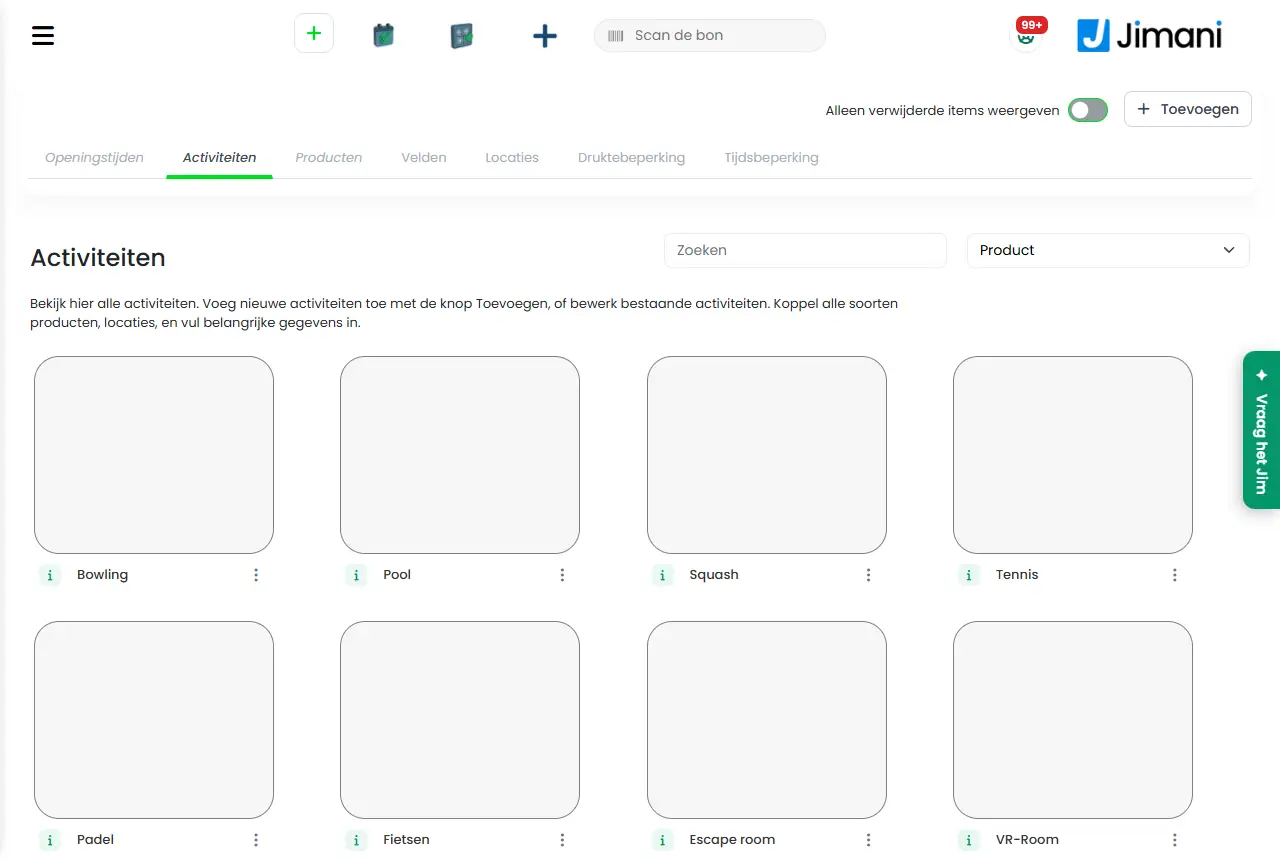
Activities management is where you set up everything for your activities: opening hours, activities, products, fields, locations and limitations. You open it via the left menu. At the top are tabs; with the plus button at the top right you add something new and with the Actions menu on a tile you turn something off, copy it or remove it.
- Where to find it
Left menu > Activities management (
/Activities)- Explanation
The tabs are Opening times, Categories (only if you have the setting Categories for your activities on), Activities, Products, Fields, Locations, Crowd reduction and Time limitation. With the plus button at the top right the Activities window opens with a tile for each part: Categories, Activities, Products, Fields, Locations, Crowd reduction and Time limitation. A tile in the overview opens the details so you can change them. The i icon on a tile shows which other parts it is connected to. You change the order of activities, categories and locations by dragging them. In the POS module the menu item Activities management is only there if the Activities add-on is on; the permission is called Activities overview in Users and permissions.
- Buttons and settings
Name What it does When to use it Please note Opening times The tab to set each day to open or closed. First, otherwise there are no times to book. See Opening times. Activities The tab with the activities that guests book. On the screen: "View all activities here. Add new activities with the Add button, or edit existing activities. Link all types of products, locations, and fill in important details." The Product filter shows the activities of one product. For creating and changing activities. See Add or change an activity. Products The tab with the products, with the filters Activity and Product types. For prices and extra products. See Products. Fields The tab with the questions to the guest, with the filters Search and Activity. For extra information when booking. See Fields. Locations The tab with the lanes and spaces and their capacity. For availability. See Locations. Crowd reduction The tab with maximums per arrival time. For spreading the crowds. See Crowd reduction. Time limitation The tab to block a time period or day. For a staff shortage or a cleaning moment. See Time limitation. Categories The tab to group activities. Only if the setting is on. See Categories. Show only deleted items The switch at the top right shows only what is in the trash; the plus button then disappears. To get something back with Activate. The page reloads. Turn the switch off again afterwards. Actions The menu on a tile with Deactivate (or Activate), Create a Copy and Send to Trash. To turn a tile off, copy it or delete it. See Turn off, copy, delete. Inactive The label on a tile that is off. Information. The tile is then grey and cannot be booked. - Related
How do I add an activity in Jimani?, How do I set the opening hours for my activities?, How does the Activities screen with the timeline and the lists work in Jimani?
- Where do I set up everything for my activities?
- Which tabs does the management of activities have?
- How do I quickly add something new in the management?
- How do I turn something off or copy it?
Keywords: activities management, set up activities, activities tabs, add activity, deleted items, activities menu
Last checked: 2026-10-16
Translated from the Dutch knowledge base; the Dutch version is leading.