How does the Add or change activity window work in Jimani?
- Answer
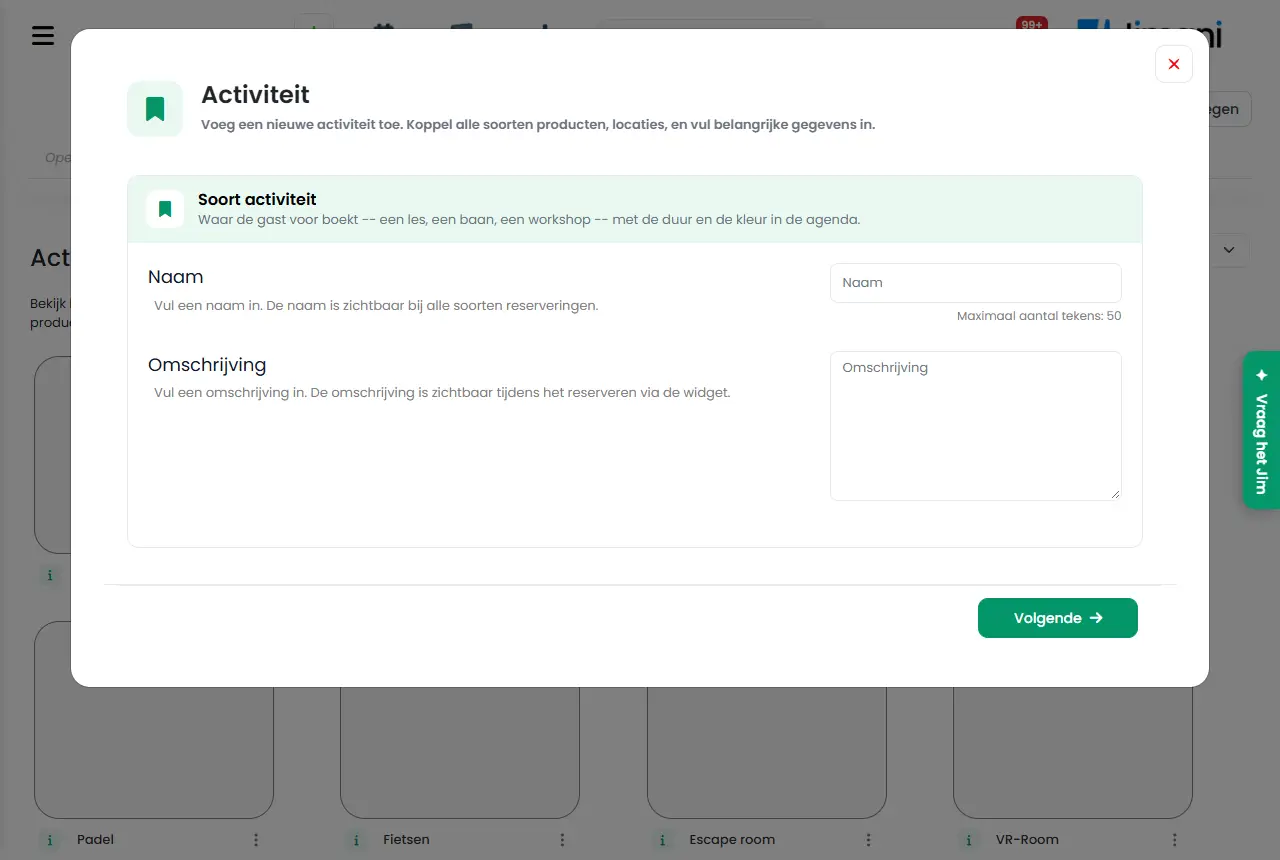
In this window you create an activity (for example Pool, Padel or Children's party) or change one. You choose the name, the photo, the pricing model with the product, the colour, the number of guests, the duration, the extra products, the locations and the fields. The window is called Add activity or Change activity and consists of steps with Previous, Next and Save.
- Where to find it
Activities management > Activities tab > plus button > Activities, or click a tile to change it (
/Activities)- Explanation
An activity is what the guest books. It belongs to one main product (Price per time or Price per person), has locations, and can have extra products, transaction costs and fields. The steps are: Activity type (name, description, photo), Type and category (product type and product), Colour, numbers and duration, optionally Extra products and Transaction costs, Tables (locations) and Fields. You only get a step for extra products or transaction costs if you set them to Yes. The step-by-step version is in How do I add an activity in Jimani?.
- Buttons and settings
Name What it does When to use it Please note Name The name of the activity, maximum 50 characters, per language. On the screen: "Enter a name. The name is visible for all types of reservations." Always; the guest and you see this name everywhere. Required. Description The text the guest sees with the activity in the widget. On the screen: "Enter a description. The description is visible while booking via the widget." To explain what the guest gets. Can be filled in per language. Choose a product type Chooses the pricing model: Price per time or Price per person. On the screen: "Select the product type that applies to the activity." When creating; it determines which product you can link and which fields you see. If you switch type, also choose a product of that type. Price per person The price depends on the number of guests per price line (see the product). You choose one product and a fixed Duration. For children's parties, workshops, guided tours. See Which pricing model can I choose?. Product list The list of products of the chosen type. On the screen: "Select the products that belong to this activity. Several products can be selected." With the plus button you create a new product. To choose the main product of the activity. An activity stores one main product. Acts as extra product Sets the activity itself as an optional extra product for other activities. On the screen: "This product can be set as an extra product. When this option is enabled, it can be added together with a main product during the booking or ordering process as an optional addition." For equipment that you rent out per piece (shoes, bikes). See Rental and equipment. Works for manual booking in the dashboard. Is this a deposit? The product is paid in advance and fully credited on arrival. On the screen: "Indicate whether this product is a deposit or not. If it is, this product will be fully credited when the guest arrives." If you want part of the amount paid in advance. Only visible with the Products and down payments add-on and when a main product has been chosen. Pay afterwards Does not let the guest pay when booking. On the screen: "When Payment not required in widget is active, the guest does not have to make a payment while booking. The guest then only sees an overview of the total costs that still have to be paid on arrival. This can be useful for higher amounts." If you want guests to pay on site. In this window the block is hidden. The choice works via Pay afterwards in the settings of the widget. QR tickets at the till After paying at the till, the receipt printer prints a ticket with a QR code per lane. On the screen: "After paying at the till, a ticket with a QR code comes out of the receipt printer per lane." If guests must enter at the lane with a QR code. Yes or No. Colour The colour of the activity in the overview. On the screen: "The colour is for internal use only. Preferably use as many different colours as possible, so that the reservation overview is shown clearly and neatly per activity." Choose a different colour for each activity. Internal only. Minimum number of guests The smallest number of guests per reservation. On the screen: "Indicate the minimum number of guests per reservation." If a group must be at least a certain number of people. The widget only shows the activity for a fitting number. Maximum quantity of guests The largest number of guests per reservation. On the screen: "Indicate the maximum number of guests per reservation." To keep out groups that are too large. Must be at least the minimum. Minimum time until the reservation The shortest period between booking and coming. On the screen: "When may the guest book? Usually a guest can place a reservation straight away, for example within 10 minutes for a bowling lane or padel court. In some cases, however, it is necessary to know a few hours or even days in advance who is coming. Think of children's parties." Choose the period that suits your activity. The choices run from 00:00 (immediately) in quarters of an hour up to 23:45, then 1 to 6 days and 1 to 4 weeks. Duration The duration of the reservation. With Price per time you choose from the time blocks of the product; with Price per person from a list of times. In the Change activity window the choice for Price per time is called Reservation duration. Always. In the widget guests book the reservation duration, unless the widget allows Let guest choose duration. Reservation duration The same choice as Duration, as it is called in the Change activity window. To change the default duration. If a duration does not fit, choose a time block that the product has. Manual times may differ If Yes, a reservation that you place yourself in the dashboard may be shorter than the reservation duration, down to the minimum booking time. On the screen: "If Yes, a reservation that you place yourself in the dashboard may be shorter than the reservation duration, down to the minimum booking time. Guests in the widget always book the reservation duration." If you also let guests play for a shorter time. Only visible with Price per time. Minimum booking time The shortest duration that you may book manually. On the screen: "The shortest duration that you may book manually." After Manual times may differ: Yes. Is set to 30 minutes by default. Add extra products Gives the activity extra products. On the screen: "Indicate whether this activity has extra products." For upselling such as drinks. With Yes you get a step to choose them. Add transaction cost Charges a fixed cost per reservation. On the screen: "Indicate whether this activity has transaction costs." For booking fees. Only visible with the Transaction costs add-on. Show in widget Determines whether the activity and the linked products are in the widget. On the screen: "Indicate whether the activity and linked products are visible in the widget." No longer needed. Is hidden (12-10-2026): the widget itself chooses which activities it shows. Location The locations (lanes, spaces) that belong to the activity. On the screen: "Select the locations that belong to this activity. Several locations can be selected." Always; without a location there is nothing to book. Choose at least one, otherwise: Please select at least one table. Create a new table Creates a new location in this window. If the location does not exist yet. See Locations. Fields The questions the guest gets when booking. For extra information such as allergies or terms. You can drag the order. can fill in the total number of locations Lets several reservations share one location until the capacity is used up. On the screen: "Allows several reservations to share the same location until the total seating capacity of that location has been fully used" Not available to customers. Is always removed from the screens. Previous To the previous step. To change something. - Next To the next step. After filling in the step. First checks the required fields. Save Stores the activity. On the last step. You see Your details have been saved! - Messages
Message What does it mean What do you do Please select at least one table. You have not chosen a location. Under Location choose at least one location. Invalid data. The server could not read the data. Check the fields and try again. The data has not been saved! Saving failed. Try again; if it keeps failing, contact us. - Related
How do I add an activity in Jimani?, How does Activities management work in Jimani?, How do the Products of Activities management work in Jimani?
- Which details can I set for an activity?
- How do I change an existing activity?
- How do I set the duration and the number of guests of an activity?
- How do I choose the colour of an activity on the timeline?
Keywords: set up activity, activity window, minimum number of guests, reservation duration, activity colour, manual times, QR tickets, product type
Last checked: 2026-10-16
Translated from the Dutch knowledge base; the Dutch version is leading.