Which details are kept for a user and how do you confirm a mobile number?
- Answer
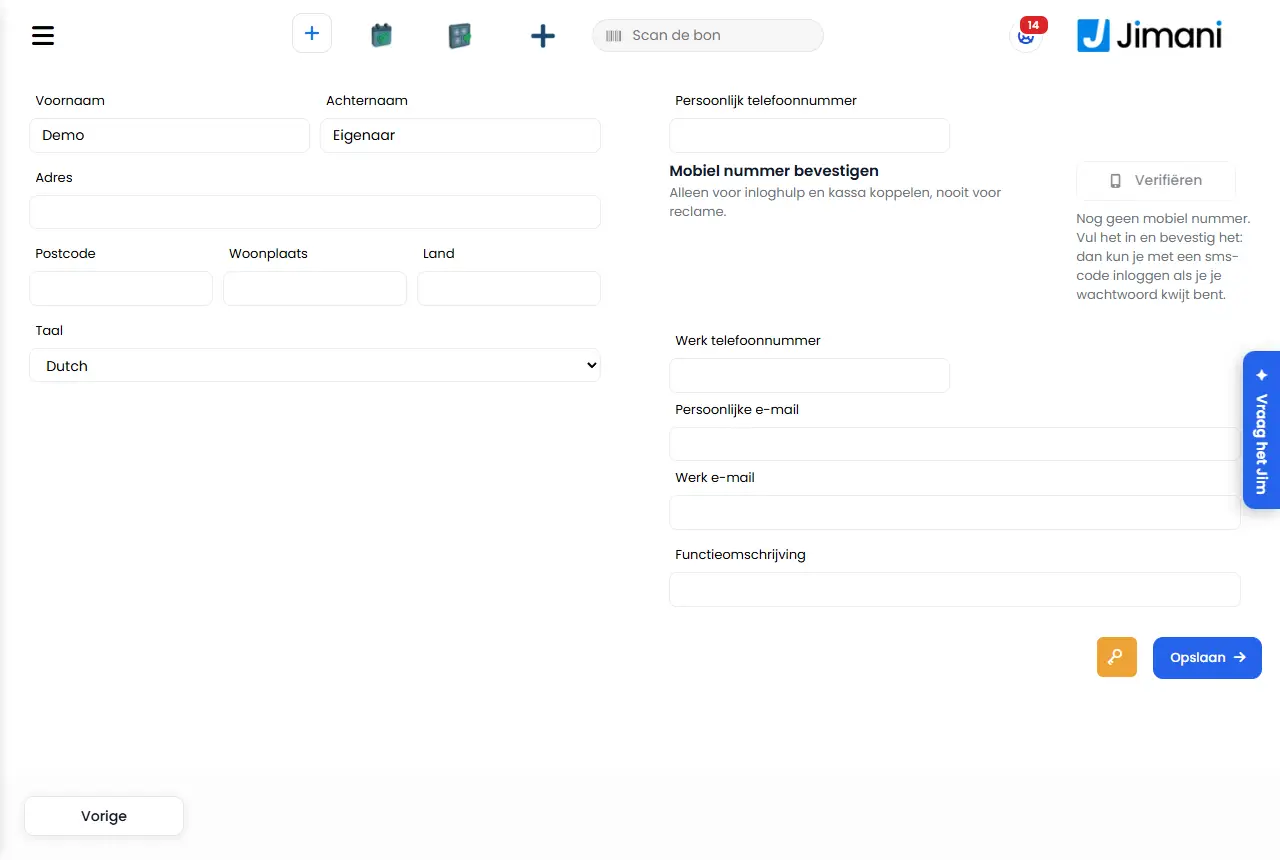
For each user there are a name, address, phone numbers, email addresses, job description and language. You open your own details with the Profile button at the top right. Under the phone number you confirm your mobile number with Verify using a text message code; the owner also chooses there whether they want an SMS code when logging in on a new device.
- Where to find it
Your own details: Profile button at the top right in the header, or
/Account/UpdateUsers. Details of an employee: Settings > Your business > Users and permissions (/CompanyUsers), or via the Users list (/Settings/Users) and then the user (/Settings/Update).- Explanation
The fields are the same in all three places. Change what is needed and press Save. If you choose a different language under Language, the dashboard is immediately in that language after saving and you stay logged in. On
/Settings/Updateand/Account/UpdateUsersall fields are required except Last name, Place of residence and Country; an empty required field is marked red. You may only change a colleague's details if you may manage that user (see Users and permissions); your own details always.- Step 1. Under Personal phone number enter a mobile number, for example +31 6 12345678, and save.
- Step 2. Under Verify mobile number press Verify. You receive a text message with a 6-digit code.
- Step 3. Type in the code and press Confirm. You see Verified with the date (Verified on).
- Buttons and settings
Name What it does When you use it Note First name The first name of the user. Always fill in. - Last name The last name. Always. - Address The home address. For the staff administration. - Postal code The postal code of the home address. Together with Address. - Place of residence The place of residence. Together with Address. - Country The country of the home address. Together with Address. - Language The language of the dashboard for this user. If someone prefers to work in a different language. After logging in the user always gets this language. Personal phone number The mobile number of the user. For login help by text message, the text message code when logging in and pairing a POS. Only a mobile number can be confirmed. If you change the number, the confirmation lapses. Work phone number A second phone number. If someone has a business number. - Personal e-mail The private email address. For the staff administration. This is not the address you log in with. Work email The business email address. For the staff administration. This is not the address you log in with. Job description The role, for example service or kitchen. For your own overview. - Save Saves the details. After changing them. Empty required fields are marked red. Verify mobile number The block under the phone number to confirm the number. Once, and again after a new number. Only for login help and pairing a POS, never for advertising. Only visible if text messaging has been set up in Jimani. Verify Sends a 6-digit code to the mobile number. After saving the number. If an administrator does this for an employee, the code goes to the employee's number. At most 3 codes per hour. Confirm Checks the code you typed and confirms the number. After receiving the text message. The code is valid for 10 minutes; after 5 mistakes you request a new one. Verified The number has been confirmed. - - SMS code when logging in on a new device Yes: Jimani asks for a code by text message when you log in on a computer or phone that Jimani does not know yet. No: only your password. Leave on Yes for extra security. Only for the owner, only on their own account and only after confirming the number. After confirming it is set to Yes. Key button (Forgot your password?) Sends an email with a link to reset your password to your own email address. If you want to change your password. Only on /Account/UpdateUsers.- Messages
Message What it means What you do No mobile number yet. Enter it and confirm it: then you can log in with a text message code if you lose your password. There is no phone number. Enter a mobile number and save. This is not a mobile number. Confirming is only possible with a mobile number. The number is a landline or unknown. Enter a mobile number. Save the new number first; after that you can confirm it. You changed the number but have not saved it yet. Press Save first. Not verified yet. The number is there, but has not been confirmed. Press Verify. First enter a valid mobile number (for example +31 6 12345678) and save it. The saved number is not a valid mobile number. Correct the number and save. We have sent a text message with a code to The code has been sent; you only see the last two digits of the number. Type in the code and press Confirm. The text message could not be sent; we have sent the code to your email address. The text message failed; the code is in your email. This applies to the login code and the pairing code, not to confirming. Use the code from your email. The text message could not be sent. Try again later. Sending failed. Try again later. Sending text messages has not been set up yet. Try again later. Jimani's text message service is not turned on. Try again later. Sending text messages is not possible today. Try again tomorrow. The daily limit for text messages has been reached. Try again tomorrow. 3 codes have already been sent in the past hour. Try again in an hour. At most 3 text message codes per hour per user and per number. Wait an hour. Enter the 6-digit code. There are not 6 digits in the code field. Type the full code. The mobile number has been confirmed. Success. - This code is incorrect. The code is wrong. Type it again. Wrong code entered too many times. Request a new code. A wrong code 5 times. Press Verify again. This code has expired or has already been used. Request a new one. The code is older than 10 minutes or has already been used. Press Verify again. The number has changed. Request a new code. The number changed after the code was sent. Request a new code for the new number. First confirm your mobile number in your user details. For this function (for example the pairing code by text message) your number must be confirmed. Confirm your number with Verify. This pairing code has expired or has already been used. Request a new one. The pairing code for the POS that you wanted to send by text message is no longer valid. Create a new pairing code. That didn't work. Please try again. Something went wrong while sending or checking. Try again. The data hasn't been saved! Saving your own details failed. Try again. Internal server error: Switching the language failed. Refresh the page and try again. - Related
Why does Jimani ask for a text message code when logging in?, How do logging in, logging out and the security of your account work?, Users and permissions
- How do I change my own details?
- How do I confirm my mobile number?
- How do I change my language in the dashboard?
- How do I turn on the text message code for a new device?
Keywords: change my details, profile jimani, confirm mobile number, verify phone number, change dashboard language, turn on sms code
Last checked: 2026-10-16
Translated from the Dutch knowledge base; the Dutch version is leading.