How do the Help window, Jim and the helpdesk tickets work?
- Answer
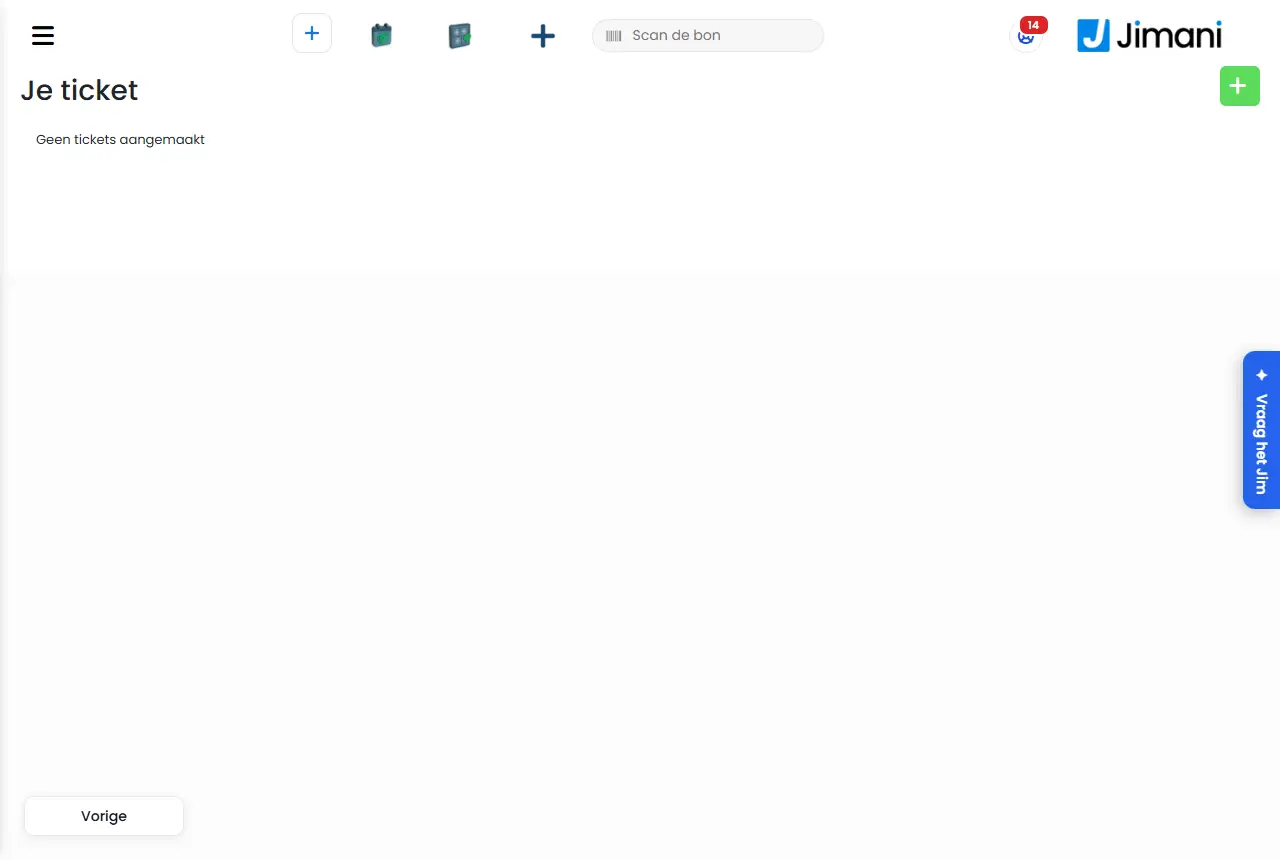
You open the Help window with the round button Help at the top right. There you find your notifications, your steps to go live, demos, your balance, advice, tutorials, Jim the assistant and the helpdesk. You create a ticket for the helpdesk on the page Your ticket.
- Where to find it
the button Help at the top right in the header; Jim with the button Ask Jim at the bottom right; tickets via Help > Contact helpdesk > Create a ticket (
/HelpTicket); tutorials via Help > Explanations and videos (/Uitleg/Tutorials)- Explanation
The number on the Help button is the number of open notifications plus the points of the Store check. Snoozed points do not count. The button turns red for a notification or an urgent point. Jim only helps within your own business and with your permissions: he looks things up immediately, a change he proposes first. What Jim has done is in his history.
- Buttons and settings
Name What it does When you use it Note Help Opens the Help window. When you are looking for something or want to check a notification. The number is notifications plus improvement points. Notifications What you still need to check or deal with, and the Store check. A moment every day. Click a notification away when you are done; with the bell you snooze a warning. Your steps to go live The to-do list with progress, and See all steps. At the start. Only for businesses from the new sign-up. Try it yourself Try a POS, handheld or kitchen screen with your own products, before you order anything. Before you order equipment. - Balance Your Jimani AI credit and your text message credit, with Latest deductions and Latest sent SMS. To see your balance. An orange dot Almost used up means a balance is almost used up. Not on the POS. Top up Opens Jimani AI credit to buy credit. When your AI credit is low. Amounts exclude VAT. Automatic top-up Yes: Jimani tops up your AI credit automatically. If you don't want to run out of AI. Requires a mandate (Direct debit). Buy bundle Opens SMS to buy a bundle. When your text message credit is low. Each text message is deducted from your credit. Auto top-up Yes: Jimani buys text message credit automatically. With many text messages. One mandate for automatic top-ups and extra purchases. Turn on SMS Takes you to the SMS add-on. If SMS is turned off. - Integration advice What Jimani recommends for your business, based on your own figures, with View all integrations. To see what else you can use. At most one tip per day. Resolve with AI Jimani resolves what can safely be done automatically; you first see what happens and what it costs. Then Start. With many improvement points in your online store or POS. Prices and other money matters remain yours: Jimani does not adjust products at 0.00, discounts or stock. Connect a POS Add External Device (printer, card terminal, cash drawer) or Pairing code (pair a POS, handheld or app). With a new device. - Explanations and videos Tutorials, Manual, Data processing agreement, Subprocessors and Restart tour. When you want to see how something works. - Ask Jim Opens Jim, the assistant. For a question in plain language. Costs AI credit; not on the POS screen. Contact helpdesk Get help (the helpdesk on the internet), Create a ticket, Ask your question (chat) and Question from guest. If you can't work it out yourself. - Webshop The Jimani webshop for POS devices, printers and card terminals. To order equipment. Only if you may open it. Tutorials Tiles with a video and the duration per topic. - Without videos you see: No videos are available yet. New chat Starts over with Jim; files you had added are removed. With a new question. - Apply, Cancel Apply a proposal from Jim or not. After a proposal. Jim only applies after your click. Undo Reverses Jim's last action. If it turned out not to be right. Only the last action in the conversation. File with Jim Send a photo (jpg, png, webp), a PDF or a product list (csv, xlsx) along, for example your menu. To have products read in. At most 3 files per question and 10 MB per file; they are kept for at most 24 hours. Choose how we can help you For a ticket: Found a bug, Have a complaint/problem?, Have a question?, Request a new position. Always. - Subject, Description The heading and the explanation of your ticket. Always. - Adding images Screenshots with your ticket. If you want to show something. - We offer a reward system of €15.00 per bug found. The discount is deducted from the next invoice. Please note: The reward is paid out only once, to the first reporter. The text under Description for a new ticket. - - Reaction, Status For an existing ticket: your reply and the status (Open, Pending, Urgent, Closed). To respond to the helpdesk. Jimani sets the status. Customers, User Fields with which Jimani creates a ticket for a customer. - Only for Jimani itself. Your ticket The list of your tickets: Ticket number, Date, Subject, Ticket type, Status, Requirement and Assigned to. To see your tickets again. Without tickets: No tickets created. - Messages
Message What it means What you do Your Jimani AI credit has run out. Top up to use AI again. AI functions no longer work. Choose Top up. Your balance is lower than the estimate. Jimani stops when it runs out; top up to resolve everything. With Resolve with AI: your credit is too low for everything. Top up or resolve part of it. Resolving did not work. Try again later. Resolve with AI did not work. Try again later. Only the last action can be undone. You wanted to reverse an older action by Jim. Reverse the last one or adjust it yourself. Undo failed. Jim could not reverse the action. Adjust it yourself. Jim can't do this anymore. The proposal can no longer be applied. Ask your question again. You don't have permission to change this. Your role may not change this screen; Jim can't for you either. Ask the owner. That did not work. Jim could not carry out the action. Try again or ask the helpdesk. You have already used Jim a lot today. Tomorrow it is possible again; for now the helpdesk can help you. The daily limit has been reached. Use the helpdesk. This file is empty. The file for Jim has no content. Choose a different file. This file is too large (at most 10 MB). The file is larger than 10 MB. Make it smaller. Jim can't read this file. Choose a photo (jpg, png, webp), a PDF or a product list (csv, xlsx). A different type of file. Choose one of these types. You have already added a lot of files in the past hour. Try again in a moment. There is a limit per hour. Wait a moment. - Related
Where do I find my notifications, my steps and help in Jimani?, How does the dashboard work?, What does using AI in Jimani cost?
- What can Jim, Jimani's assistant, do?
- How do I create a ticket for the helpdesk?
- Why is the Help button red?
- Can Jim change things for me in my business?
Keywords: help button, Jim assistant, ask Jim, helpdesk ticket, tutorials, balance almost used up, automatic top-up
Last checked: 2026-10-16
Translated from the Dutch knowledge base; the Dutch version is leading.