How does the Widgets overview work in Jimani?
- Answer
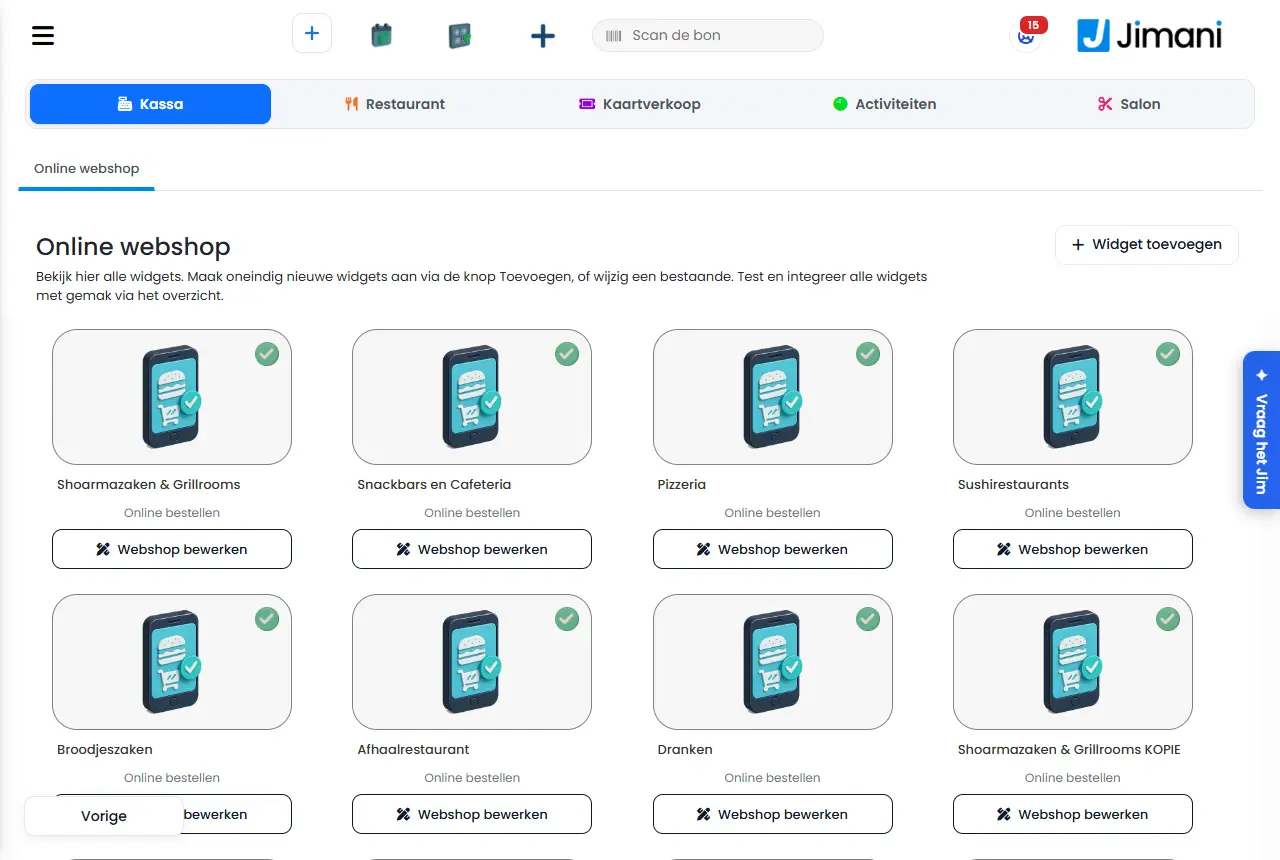
In the Widgets overview, every widget of your business is shown as a tile (for the webshop the screen is called Online webshop). A click on a tile opens the widget overview with everything you do with that widget: view code, make a copy, test, edit, change colors and add scripts. At the top right you add a new widget with Add widget.
- Where to find it
Settings > Guests and bookings > Widgets (
/Settings/WidgetsetupList)- Explanation
At the top of the overview it says: "View all widgets here. Create endless new widgets with the Add button, or edit an existing one. Test and integrate all widgets easily via the overview." If you have more than one module with widgets, you choose the module at the top. With multiple modules, each module gets its own heading (Restaurant, Tickets, Activities, Salon, Online webshop or Hotel); the main widget of the module comes first. If you have no widget yet, it says "You have no widget here yet. Create one and put it on your website." A click on a tile opens the widget overview with the explanation: "In this overview you can place the widget on the website by pasting the widget code into the site. You can also make a copy of the widget here; this is handy because the branding is taken along automatically. You can also test and edit the widget and adjust the branding as you like." Placing a widget on your site is explained step by step in How do I put the widget on my own website?.
- Buttons and settings
Name What it does When to use it Note Add widget Opens the three steps to make a new widget (Step 1 of 3: name and type, Step 2 of 3: what the guest chooses, Step 3 of 3: layout). For an extra widget, for example a separate one for a landing page. See How do Add widget and Edit widget work in Jimani?. You can make as many as you like. Edit webshop Opens the webshop editor (only for a webshop widget): front page, menu, categories, products and colors, with a live preview. To adjust the webshop. See How does the webshop editor work in Jimani?. View widget code: View code Shows the code you paste on your website. To put the widget on a page. The text with the code is "Copy and paste this code into the website to integrate the widget." With Copy code you put it on the clipboard (the button then briefly says Copied). Link Below the code is a separate link to the widget, with Copy: "Use this link behind a button or in the menu of your website." When you cannot paste code, for example in a menu or behind a button. The link contains the widget number, your key, the language and the widget type; it contains no table. Send to web developer Emails the code and the link to the address you enter, with the name of your business: "We email the code and the link, with the name of your business." Then you click Send. When someone else manages your website. The reply address in the email is that of your business. An invalid address gives "Enter a valid email address." Copy widget: Make a copy Makes an exact copy of the widget, including branding. "Make an exact copy of the widget. This way you can easily test settings and your branding is kept." Give the new widget a name (maximum 50 characters) and click Save. To try settings without changing your working widget. A copy is a new widget with its own code and link. Name the new widget The name field at Make a copy. For every copy. - Test your widget: Test Opens the widget in a new tab, exactly as the customer sees it. Before you place the code or after a change. - Edit widget: Edit Opens the settings and the layout of the widget. To adjust the widget. See How do Add widget and Edit widget work in Jimani? and How does the View tab of a widget work?. Change colors: Edit Opens the colors page of the widget with a live preview. When this widget needs different colors than your branding. See How do I set my logo, colors and font?. Google tag & Meta Pixel: Add scripts Stores two scripts with the widget: "At the start of the widget" and "At the success screen". Paste your script in the box. For tracking code on the widget. Jimani stores the scripts with the widget. After placing them, check with the test tool of Google or Meta that they really run. Delete Widget Deletes the widget after the questions "Remove widget?" and "Are you sure?" with Yes and No. When you no longer need the widget. Also remove the code from your website, otherwise an empty spot remains there. Close Closes the widget overview. - - Live preview (On/Off) On the colors page: shows or hides the live preview next to the settings. For more room. Your choice is remembered. Guest groups (tab) Tab next to Widgets, only visible with the Guest groups integration. To manage guest groups such as Adults and Children. See also the View tab. Advanced settings For Activities, Tickets and Salon, Menu and settings > Advanced settings opens the screen "Manage the advanced settings" with the buttons Cancel and Save. For settings such as the time interval and no-show. For the restaurant they are in the Reservation settings window (cogwheel in Reservations). - Related
How do I put the widget on my own website?, How do Add widget and Edit widget work in Jimani?, Can I create multiple widgets?
- Where do I find all my widgets?
- How do I make a copy of a widget?
- How do I test my widget?
- How do I add a script to my widget?
- How do I change the colors of a widget?
Keywords: widgets, widget overview, widget code, make copy widget, test widget, send to web developer, delete widget
Last checked: 2026-10-16
Translated from the Dutch knowledge base; the Dutch version is leading.