How does the Point of sale and products screen work?
- Answer
Point of sale and products is the screen where you manage your products, categories and everything around them. You open it via Point of sale and products in the left-hand menu. Which tabs appear at the top depends on the features you have turned on.
- Where to find it
Point of sale and products in the left-hand menu (
/Webshop)- Explanation
The tabs are at the top, with the list of the selected tab below them. You create something new with the blue plus button at the top right (Add): it opens the window What would you like to add with tiles for Categories, Products, Product set, Supplements, Product variants and Labels and tags, as far as those features are turned on. Clicking a line in a list opens it so you can change it. The three dots behind a product (Actions) give Deactivate or Activate, Create a Copy and Send to Trash.
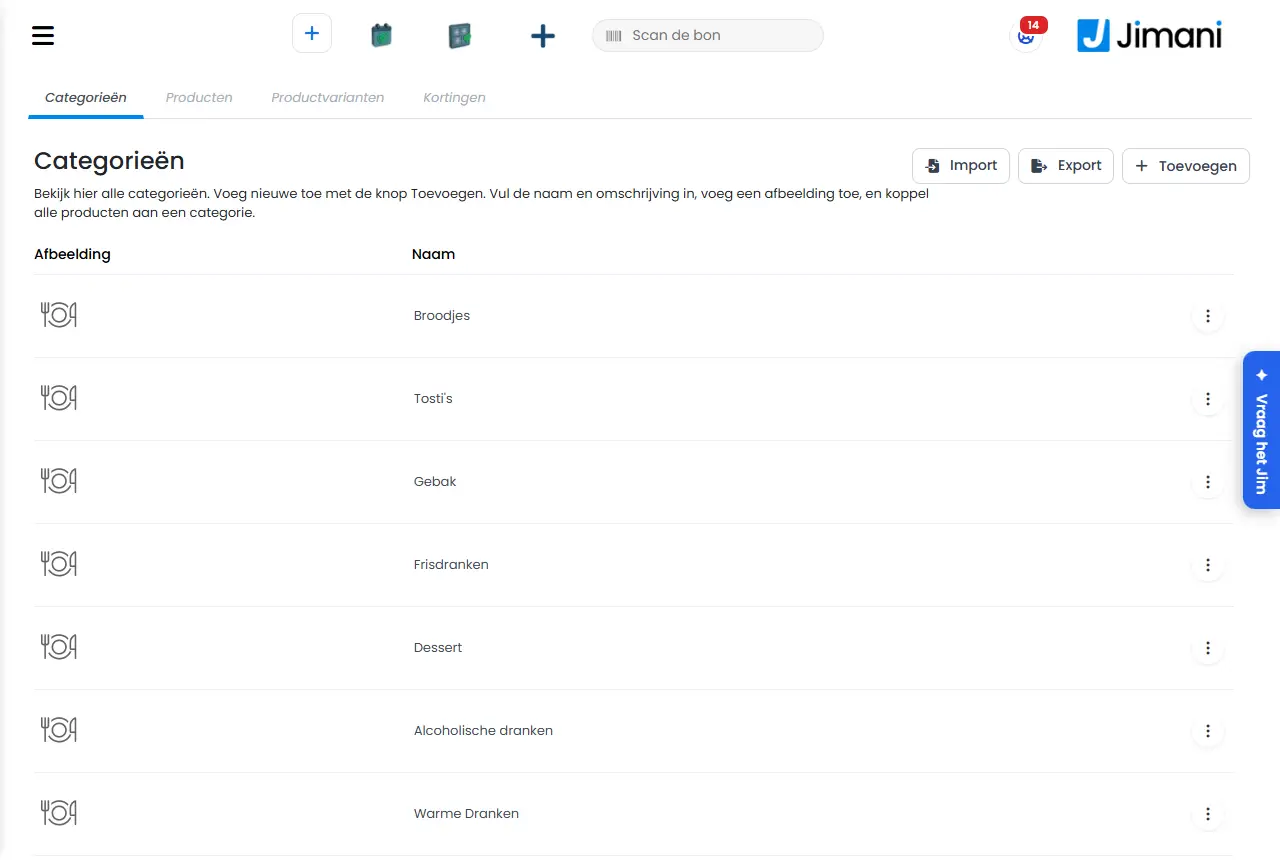
- Buttons and settings
Name What it does When to use it Note Opening hours Tab with the opening hours per day. See Tables and opening hours. When you accept online orders. Only shown with the Online webshop feature. Categories Tab with all your categories: "View all categories here. Add new ones with the Add button. Enter the name and description, add an image, and link all products to a category." To organise your menu. See Categories. Subcategories Tab for the middle layer below a category. For a large menu. Only with the Subcategories feature. See Subcategories. Products Tab with all your products. The screen says: "View all products here. Add new ones with the Add button. Quickly find your products with the filter, and see all details at a glance thanks to the overview." Every day, to find and edit products. See the buttons of the list below. Supplements Tab with the extra choices for a product: "Supplements are extra options you can offer with the product. Think of small, medium or large, or extra tomato, lettuce or mayonnaise. You can add 3 supplement layers in total and you can add a price to them." For sauces, toppings or sizes. Only with the Supplements feature. See Supplements. Product variants Tab with the variant groups: "Here you manage product variant groups, such as sizes. Give each group a clear name so it is easy to find when configuring products." For sizes or colours. Only with the Product variants feature. See Product variants. Notes Tab with fixed questions with fixed answers for the POS. For example for the condition of a device. Only with the Product notes feature. See Notes. Labels and tags Tab with the labels and tags: "View all labels and tags here. Add new labels and tags with the Add button, or change the visibility via the overview. You can add one label and three tags per product, to show important product information to the customer quickly." To give products a striking badge. Only shown with the Online webshop feature. See Labels and tags. Tables Tab with tables to park an order on: "Here you can create tables to park the order for later. This can be useful when you take an order by phone or when you want an order to be paid later." For orders you settle later. Only with the Parking tables feature. Stocks Tab with the stock per product. To track stock. Only with the Stock feature. See Stocks. Suppliers Tab with the suppliers of your products. To link products to a supplier. Only with the Suppliers feature. See Suppliers. Warehouse locations Tab with the places where your stock is kept. When you track stock per shelf. Only with the Warehouse locations feature. See Warehouse locations. Discounts Tab with the discounts you give. To set a discount on products. Only with the Discounts feature. See Discounts. Products (search field) Searches the list while you type. To find a product quickly. Filter Shows only the products of the chosen category. The first choice is All categories. For a long list. Select Excel file The block for reading in an Excel file with products. To create or change many products at once. Only shown if Import and export is on. See Importing and exporting products. Choose a file Opens the file picker for the Excel file. Before you click the import icon. This is also found at Categories, Supplements, Product variants, Labels and tags, Tables, Discounts and Opening hours. Export products Downloads all your products as an Excel file. As the basis for an import. Edit The pencil switches the list to edit mode: you change name, VAT group and price directly in the list, with tick boxes to select products. The icon then becomes a save icon. For quick changes to many products. Do not forget to save with the same icon. Mass product change The gear, visible as soon as you have ticked products. See Changing multiple products at once. For the same change on many products. Product set A blue label behind the name of a product that is a set. To tell sets apart from ordinary products. Image Column with the photo of the product. A product has a photo. Display name Column with the name as the guest sees it. VAT group Column with the VAT group and the rate in brackets. Category Column with the category. If there is more than one, the first is shown followed by three dots. EAN Code Column with the barcode. Price Column with the price. Back Pages the list to the previous page. Next Pages the list to the next page. No data found. What you see when a list is empty or nothing matches your search. - Related
How do I create or change a product?, What can you set for a product?
- Where do I manage my products?
- Why are tabs missing in Point of sale and products?
- Which tabs belong to Point of sale and products?
Keywords: point of sale and products, manage products, product tabs, add product, product list, manage menu
Last checked: 2026-10-16
Translated from the Dutch knowledge base; the Dutch version is leading.